ASUS Flash Tool 3.2.10 Free Download for Windows New Version [2026]
Is your ASUS Zenfone stuck in a bootloop or failing to start after a firmware error? ASUS Flash Tool v3.2.10 helps flash stock firmware, repair software issues, and recover ASUS devices using Windows and Fastboot mode. Check your phone model and firmware compatibility before flashing to avoid data loss or further problems.
What is the ASUS Flash Tool?
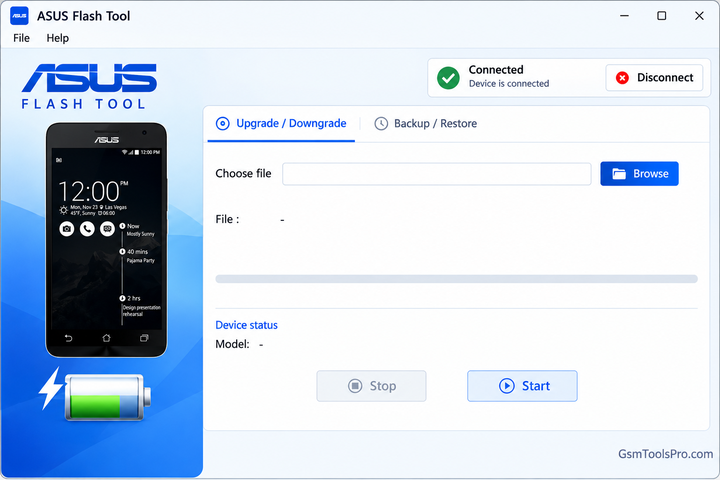
ASUS Flash Tool is a Windows software for flashing stock firmware on ASUS phones, including ASUS Zenfone models. The tool helps repair firmware errors, fix bootloop issues, and recover bricked devices. It also supports Fastboot mode. Coneqeuently Always check model compatibility before flashing, as the wrong firmware can damage the device or erase data.
Key Features of the ASUS Flash Tool
Stock Firmware Flashing
Flash stock firmware on ASUS Zenfone devices to fix software errors, repair bootloops, and upgrade or downgrade Android versions.
Boot Image Flashing
Flash boot images through Fastboot mode to repair boot issues or apply system changes on ASUS devices.
Easy-to-Use Interface
The simple interface makes ASUS Flash Tool easier to navigate, helping beginners and technicians perform firmware flashing tasks with fewer steps.
Backup and Restore
The tool supports app backup and restore, helping users save applications and recover them when needed.
Custom ROM Support
It installs custom ROMs on ASUS devices when the tool and device firmware allow this flashing method.
USB Driver Support
Compatible ASUS USB drivers help Windows detect connected phones and maintain communication during firmware flashing and device servicing.
Device Compatibility and Updates
Check tool version and ASUS Zenfone model compatibility before flashing, as support for newer devices depends on the tool and firmware.
Download Information
| Details | Information |
| Tool Name | ASUS Flash Tool |
| Version | v3.2.10 |
| File Size | 107.7 MB |
System Requirements
| Requirements | Details |
| Operating System | Windows 7, 8, 10, or 11 |
| RAM | 2 GB minimum |
| Storage | 200 MB free space |
| USB Drivers | Compatible ASUS USB drivers |
| USB Cable | Required |
| Internet Connection | Required to download firmware and files |
How to Download and Use ASUS Flash Tool 3.2.10?
- Install USB Drivers: Set up the compatible ASUS USB and ADB drivers on your Windows PC so it can recognize your phone.
- Download the Tool: Get the ASUS Flash Tool package from a trusted source and save it to your computer.
- Extract the Files: If the download is a ZIP archive, extract its contents into a separate folder.
- Run the Setup: Open AsusFlashTool.exe or the included installer file and follow the on-screen instructions.
- Install Additional Drivers: Approve any required driver installation prompts that appear during setup.
- Get the Correct Firmware: Download the stock ROM that matches your exact ASUS phone model and firmware variant.
- Power Off Your Phone: Shut down the ASUS device before entering its supported flashing mode.
- Enter Fastboot Mode: Use the button combination specified for your ASUS model to enter Fastboot mode.
- Connect Your Phone: Attach the device to your computer with a reliable USB cable.
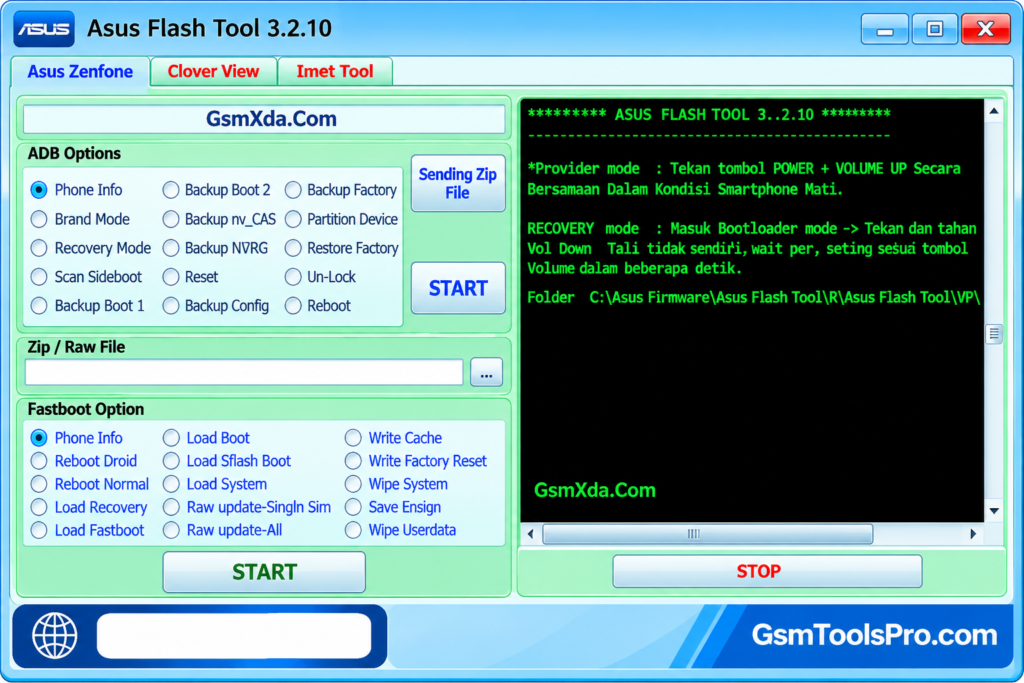
- Open ASUS Flash Tool: Launch the program and check whether it recognizes your connected phone.
- Select the Firmware: Click the Browse option and locate the compatible firmware file you downloaded.
- Check the Connection: Confirm that the device and firmware details are correct before proceeding.
- Begin Flashing: Start the process using the available flashing control and follow the tool’s instructions.
- Wait Until It Finishes: Keep the USB cable connected and avoid operating the phone while firmware installation is in progress.
- Restart Your Device: When flashing finishes, allow the phone to reboot or restart it if required.
- Complete Android Setup: Follow the on-screen setup instructions and check whether the device starts and works properly.
Pros & Cons
| Pros | Cons |
| Simple interface for firmware flashing | Supports compatible ASUS devices only |
| Installs stock firmware on supported phones | Incorrect firmware can cause software issues |
| Helps repair bootloops and firmware errors | Compatibility varies by model and version |
| Supports Qualcomm models in specific versions | Requires compatible USB drivers |
| Supports MediaTek models in specific versions | Flashing may erase personal data |
| Can restore software on bricked devices | Some features vary between versions |
| Supports firmware upgrades and downgrades where available | Downgrading may require a data wipe |
| Useful for mobile repair technicians | Requires a Windows PC and USB connection |
Also Read: SamFlash Tool v4.1 Download for All Samsung Devices [2026]
Conclusion
ASUS Flash Tool helps users and mobile technicians flash stock firmware, fix bootloop issues, and recover ASUS Zenfone devices from software problems. Its simple interface and Fastboot support make firmware maintenance easier. Before flashing, check your device model, firmware version, and USB drivers to avoid errors or data loss.
FAQ’s
Why is ASUS Tool not detecting my phone?
Install the correct ASUS USB drivers, try another USB cable or port, and check whether your phone enters the required flashing mode.
Can ASUS Flash fix a bricked Zenfone?
It may recover a software-bricked device if the model is supported and the phone can enter a compatible flashing mode.
Why does ASUS Flash Tool show an FRP error?
An FRP error may relate to device protection, firmware compatibility, or authentication. Check the correct firmware package and use an authorized recovery method.
Which firmware file does ASUS Flash Tool support?
The required format depends on the tool version and device model. Check the firmware instructions before using a ZIP or RAW file.
Will ASUS Flash Tool erase my phone data?
Yes, flashing firmware can erase personal data. Back up your files first whenever possible.
Can I use ASUS Flash Tool on every Zenfone model?
No. Compatibility depends on the device model, firmware package, and tool version. Confirm support before starting the flashing process.