Nusantara Unlock Tool Free Download Setup for Repairing (2027)
Are you facing FRP locks, firmware errors, or bootloader issues on Android phones? Nusantara Unlock Tool brings Qualcomm and MediaTek servicing, EDL flashing, Fastboot, ADB, and FRP reset into one Windows application, helping technicians repair Xiaomi, OPPO, vivo, Huawei, and Meizu devices more easily.
What is Nusantara Unlock Tool?
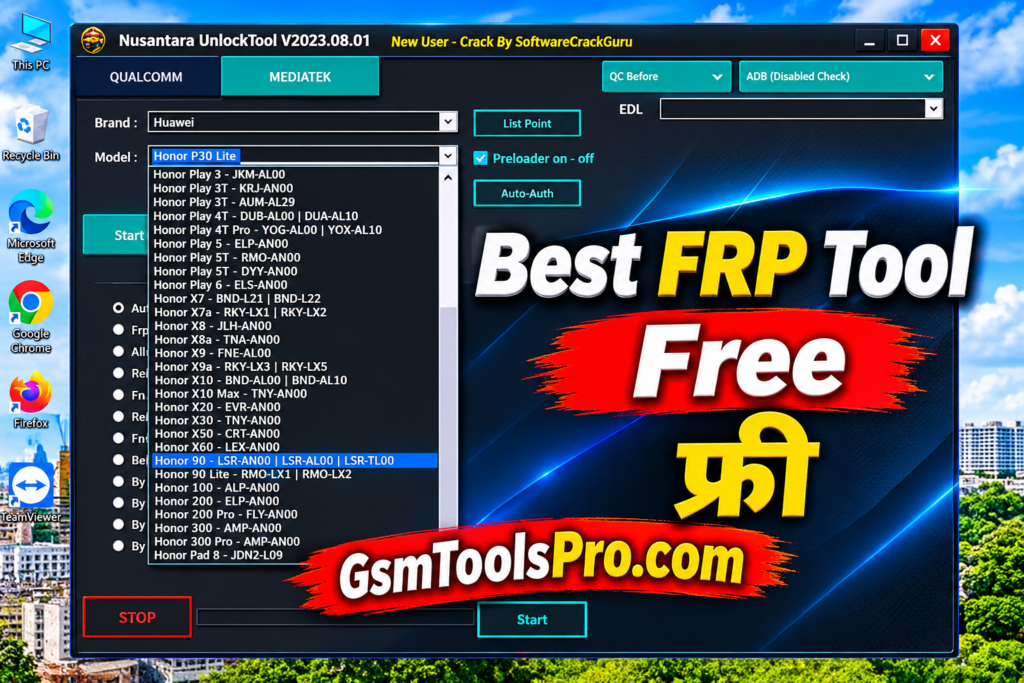
Nusantara Unlock Tool is a Windows-based Android servicing software for technicians. The tool supports MediaTek and Qualcomm devices and works with brands such as Xiaomi, OPPO, vivo, Huawei, Meizu, etc. It provides firmware servicing, Fastboot and ADB operations, diagnostics, IMEI-related tasks, FRP reset, device unlocking, and bootloader-related etc functions. It brings multiple mobile repair and servicing tasks into one interface.
Key Features Of Nusantara Unlock Tool 2027
FRP Reset
The tool helps to manage FRP lock and allows you to bypass the factory reset protection when the owner forgets the Google verification password after a factory reset.
Bootloader Unlock
The Nusantara Unlock Tool supports bootloader unlocking on Xiaomi devices, with Fastboot options available for models and servicing operations.
EDL Flashing
The tool supports EDL flashing for Qualcomm Android devices, allowing technicians to select required partitions during firmware servicing operations.
Fastboot Flashing
Fastboot flashing helps service supported Android devices through Fastboot mode, with options for FRP erase, bootloader maintenance, and automatic reboot.
MediaTek Auth Bypass
The MediaTek section includes Auth Bypass for supported MTK devices, helping technicians handle certain chipset-specific servicing and firmware operations.
Factory Reset
Nusantara Unlock Tool provides factory reset options for Qualcomm and MediaTek devices through different available Android servicing modes.
NV Backup & Restore
The tool can back up NV data before repair work and restore saved data later when connected to the device.
IMEI & Network Fix
It provides IMEI and network-related repair options for MediaTek devices, helping technicians manage communication and connectivity problems.
Qualcomm Device Support
The Unlock Tool supports Qualcomm-powered Android devices with EDL mode and other connection options for firmware and servicing operations.
MediaTek Device Support
The tool supports MediaTek Android devices and provides chipset-specific maintenance options for repair, firmware work, and other servicing tasks.
ADB & Sideload Support
ADB connectivity enables Android device communication, while sideload support helps technicians perform software installation operations.
Firmware Flashing
The firmware flashing feature helps technicians install Android firmware and manage and debug corrupted software for mobile devices.
Download Information
| Download Information | Details |
|---|---|
| Tool Name | Nusantara Unlock Tool |
| Version | v2023.01.01 |
| File Name | Nusantara Unlocktool v2023.01.01.rar |
| File Size | 425.3 MB |
| File Format | RAR |
| Platform | Windows |
System Requirements
| Component | Requirements |
|---|---|
| Operating System | Windows 7, 8, 10, 11 |
| Processor | Intel Dual-Core or higher |
| Architecture | 32-bit / 64-bit |
| RAM | 4 GB minimum |
| Recommended RAM | 8 GB |
| Free Storage | 2 GB or more |
| USB Port | USB 2.0 / 3.0 |
| USB Drivers | Qualcomm and MediaTek USB Drivers |
| Internet Connection | Required for downloads and online tasks |
| Additional Software | WinRAR or 7-Zip |
How to Download & Install Nusantara Unlock Tool?
- Download: Visit a trusted website and download the available Nusantara Unlock Tool version.
- Extract: Use WinRAR or 7-Zip to extract the downloaded ZIP or RAR file.
- Install Drivers: Install the required Qualcomm or MediaTek USB drivers on your Windows PC.
- Run the Tool: Open the extracted folder and launch the Nusantara Unlock Tool application.
- Connect Device: Connect your supported Android phone to the computer using a USB cable.
- Select Mode: Choose the correct Qualcomm, MediaTek, Fastboot, or ADB section for your device.
- Check Device: Read the device information and select the required servicing function.
- Start Process: Follow the on-screen instructions and wait for the operation to finish.
- Restart Device: Safely disconnect your phone and restart it after the process is complete.
Pros and Cons
| Pros | Cons |
|---|---|
| Supports Qualcomm and MediaTek chipsets for different Android servicing tasks. | Does not support every Android device or model. |
| Provides Fastboot and ADB operations for supported devices. | Requires proper USB drivers for device detection. |
| Includes EDL flashing options for compatible Qualcomm phones. | Some operations require specific device modes. |
| Offers MediaTek Auth Bypass for supported devices. | Advanced functions require technical knowledge. |
| Supports NV data backup and restore on compatible devices. | Incorrect servicing operations may cause data loss. |
| Includes FRP reset and factory reset options. | Compatibility depends on device model and software version. |
| Combines multiple mobile repair functions in one interface. | Some newer firmware versions may not be supported. |
Also Read: KS Tool V4.6 Complete Android Repair Solution Free Download
Conclusion
Nusantara Unlock Tool is a useful Windows-based Android servicing application for technicians. It supports Qualcomm and MediaTek devices from Xiaomi, OPPO, vivo, Huawei, and Meizu, etc. The tool features include FRP reset, bootloader unlock, EDL and Fastboot flashing, ADB operations, and firmware servicing. Consequently, by bringing multiple mobile repair and maintenance functions into one interface, it helps users handle Android device repair tasks more easily.
FAQ’s
What is Nusantara Unlock Tool used for?
Nusantara Unlock Tool is used for Android servicing, including FRP reset, firmware flashing, Fastboot operations, ADB, and supported device repairs.
Does Nusantara Unlock Tool support Qualcomm and MediaTek devices?
Yes, it supports selected Qualcomm and MediaTek devices. Available functions depend on the phone model, chipset, firmware, and tool version.
Can Nusantara Unlock Tool remove FRP locks?
Yes, it offers FRP servicing for supported Android devices. The available reset method depends on the device model and connection mode.
Why is my phone not detected by Nusantara Unlock Tool?
This issue may occur because of missing USB drivers, a faulty cable, or an incorrect connection mode. Check Device Manager and reinstall the required drivers.
Does Nusantara Unlock Tool support Fastboot and EDL flashing?
Yes, it provides Fastboot operations and Qualcomm EDL flashing for compatible devices. You must select the correct mode and supported firmware.
Is Nusantara Unlock Tool compatible with Windows 10 and Windows 11?
Nusantara Unlock Tool is a Windows-based application. Windows 10 and 11 PCs can be used, but compatibility may vary between releases.