Android Utility Tool V200.01 Free Download For All Androids [2026]
Forgotten FRP, boot loops, or firmware problems can leave an Android phone stuck. Android Utility Tool V200.01 brings FRP, firmware flashing, rooting, and repair functions together for Samsung, Xiaomi, Redmi, Oppo, Vivo, Tecno, Infinix, and MediaTek devices, with newer features adding offline use and updated device support.
What is the Android Utility Tool?
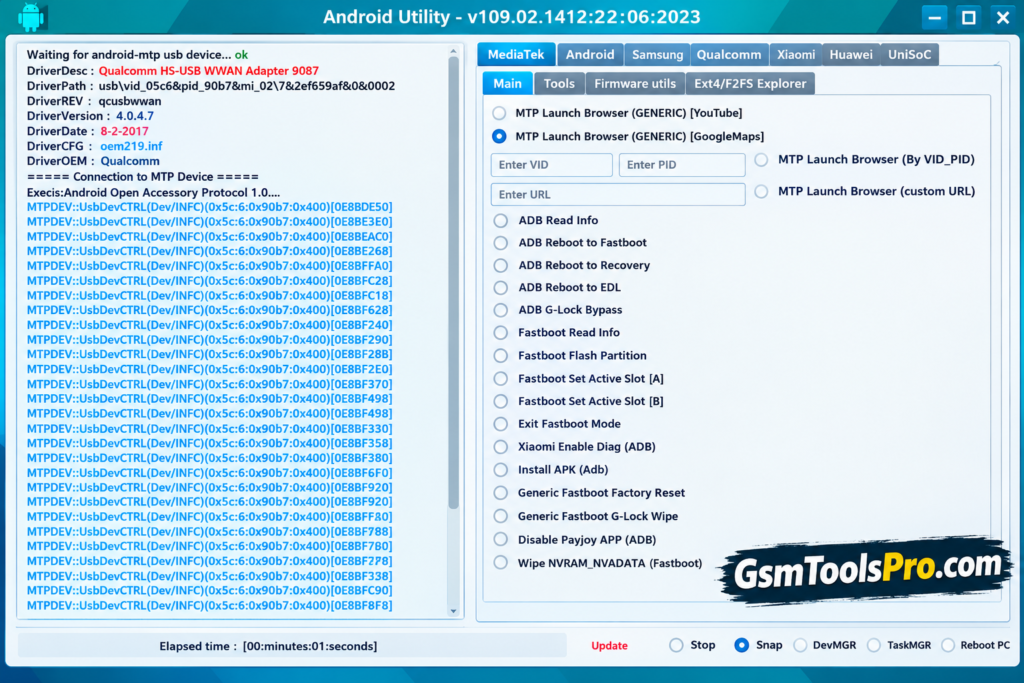
Android Utility Tool is a Windows software for repairing Android phones. It solve issues like FRP, firmware flashing, rooting, and system repair. The MTK functions of this tool also work with MediaTek devices and can handle DAA/SLA authentication operations. The tool supports brands such as Samsung, Xiaomi, Redmi, Oppo, Vivo, Tecno, and Infinix, making it useful for common Android software problems.
Key Features of Android Utility Tool
FRP Bypass
Android Utility Tool helps to FRP bypass when a reset phone asks for the old Google account, helping users regain access to their device.
Rooting Options
The tool provides rooting options for Android devices, giving users more control over device settings, apps, and basic customization.
Flash Firmware & Custom ROMs
You can flash firmware and custom ROMs to repair software problems, update the phone, or restore a working Android system.
System Issue Fixes
Android Utility Tool can help fix common system issues, including boot loops, system crashes, and software glitches on supported Android phones.
Multi-Device Compatibility
The tool supports many Samsung, Xiaomi, Redmi, Huawei, Oppo, and Vivo models, making it useful for different Android brands and devices.
What’s New in the Android Utility Tool?
- Fully Offline Build: V200.01.0001 can work without internet checks or mandatory updates after installation.
- Motorola UniSoC Boot Repair: The latest changelog reports a fix for Motorola UniSoC boot repair, improving its stability.
- Better Android Support: The V200 series includes updated support for newer Android devices, including Samsung models reported with Android 16 support.
- Samsung FRP Updates: Community reports for V200 mention Samsung FRP support on newer Android 16 devices.
- Improved Xiaomi Support: Xiaomi 14C and 15C RAM-check support was reported as updated without needing a DA file.
- Bug Fixes: The V200.01.0001 changelog lists several minor fixes aimed at improving overall tool performance.
- Safer Offline Release: The offline build removed or fixed several older risky functions and misuse-related issues.
Download Information
| Detail | Information |
| File Version | V200.01 |
| File Size | 194.6 MB |
| File Type | ZIP / Compressed Package |
| Password | None reported |
System Requirements
| Requirement | Minimum / Recommended |
| Operating System | Windows 10 / Windows 11 |
| Architecture | 64-bit recommended |
| RAM | 4 GB minimum, 8 GB recommended |
| Storage | At least 500 MB free space |
| USB Drivers | ADB, Fastboot, MediaTek, Qualcomm or device-specific drivers |
| USB Connection | Working USB cable and USB port |
How to Download and Use Android Utility Tool V200.01?
- Get the Tool: Download Android Utility Tool V200.01 from a trusted source and extract the package on your Windows PC.
- Set Up the Program: Open the extracted folder and run the tool to start the setup or application.
- Prepare the Phone: Charge your Android device and connect it to the computer with a good-quality USB cable.
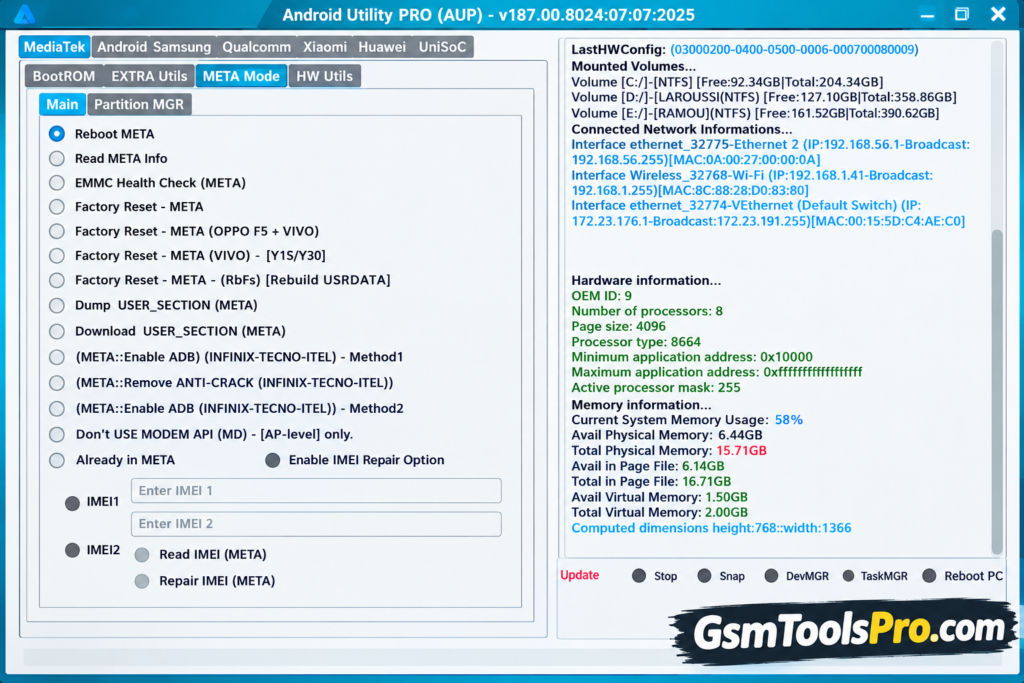
- Choose a Function: Select the needed option from the tool’s interface according to your phone model and software issue.
- Follow the Tool: Read each on-screen prompt and complete the required steps without closing the program.
- Keep the Connection Stable: Do not remove the USB cable while the selected operation is running, as this may interrupt the process.
- Finish the Process: Wait until the tool shows that the task has completed successfully.
- Check the Device: Restart the phone when required and make sure the selected operation worked correctly.
Pros & Cons
| Pros | Cons |
| Supports MediaTek, Qualcomm, UniSoC and Samsung devices. | Mainly designed for Windows PCs. |
| Includes FRP, firmware flashing and boot repair functions. | Some functions need technical knowledge. |
| V200.01 can work fully offline. | Wrong operations may cause boot or software problems. |
| Many basic functions are available without a dongle. | Some advanced features may need a smart card. |
| Useful for different Android brands and chipsets. | Unofficial download sources can create security risks. |
| Regular updates add fixes and device support. | Compatibility can vary between models and security versions. |
Also Read: SP Flash Tool v6.2404 Download for Windows and Linux [Latest Versions]
Conclusion
Android Utility Tool is a practical Windows program for Android repair. The tool supports Samsung, Xiaomi, Redmi, Oppo, Vivo, Tecno, etc. devices. It also offers features like FRP, firmware flashing, rooting, MediaTek, and system repair. Its simple interface makes common tasks easier, while the offline build can work without an internet connection. Consequently, before starting the repair process must back up the files.
FAQ’s
Why is Android Utility Tool not detecting my Samsung phone?
Check the USB cable, Samsung drivers, USB connection mode, and device model. Community users have reported detection problems even when the tool is installed correctly.
Does Android Utility Tool V200 support Samsung Android 16 FRP?
V200 added Samsung Android 16 FRP support, but results depend on the model and security patch installed on the phone.
Does Android Utility Tool need Wi-Fi for Samsung FRP?
Some Samsung Android 16 FRP operations reported by users require the phone to be connected to Wi-Fi during the process.
Can Android Utility Tool work with Xiaomi phones?
Yes. V200 includes Xiaomi support, with the Xiaomi 14C and 15C RAM-check function reported to work without a DA file.
Why does Android Utility Tool fail after a security update?
FRP methods can depend on specific Android versions and security patches. A later Samsung patch may block a method that previously worked.
Can Android Utility Tool damage a phone during repair?
Yes, incorrect flashing or formatting can cause boot problems. Forum warnings specifically advise caution with some locked-BootROM MediaTek devices.
![MRT Tool v6.1 Full Activated Setup Download [2026] (2)](https://gsmtoolspro.com/wp-content/uploads/2026/09/MRT-Tool-v6.1-Full-Activated-Setup-Download-2026-2-768x576.png "MRT Tool v6.1 Full Activated Setup Download [2026] 3")
![Extra Tool V1.4.5 Free Setup 100% working [2026]](https://gsmtoolspro.com/wp-content/uploads/2026/09/Extra-Tool-V1.4.5-Download-Free-Setup-100-working-2026-3-768x576.png "Extra Tool V1.4.5 Download Free Setup 100% working [2026] 7")