
BFT Tool v1.8 Best Flash By BossV Download Latest Version (100% Working)
Is your Android phone facing firmware, FRP, screen lock, and software issues?. The reliable solution is BFT Tool v1.8, which offers firmware flashing, FRP reset, IMEI repair, factory reset, and RPMB backup for Android brands, including Samsung, Xiaomi, Redmi, POCO, Oppo, Vivo, Realme, Huawei, Motorola, Infinix, Tecno, and Nokia. Furthermore, it supports chipsets including MTK, Qualcomm, and SPD, making the best unlock tool resolve daliy repairing fast.
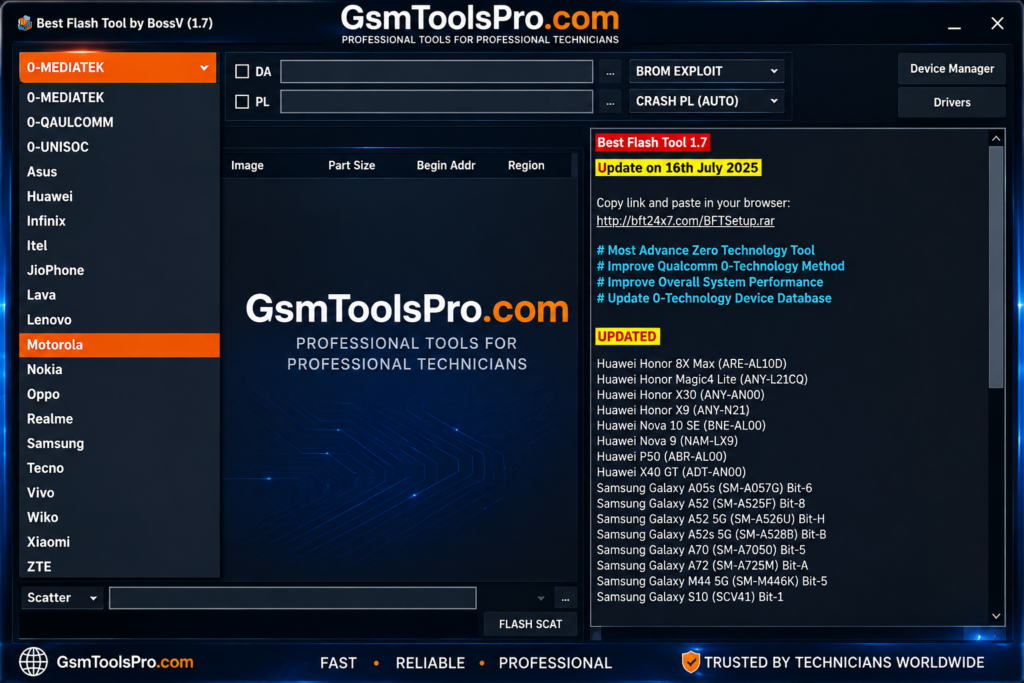
What is the BFT Tool?
BFT Tool, also known as BFT Best Flash Tool, is a Windows and Android service software developed by BossV Miracle Team. It supports MediaTek (MTK), Qualcomm, and SPD/Unisoc devices for mobile repair. The tool can provide firmware flashing, FRP reset, IMEI repair, MDM-related, etc., services. BFT Tool supports brands including Samsung, Xiaomi, Redmi, POCO, Oppo, Vivo, Realme, Infinix, Tecno, and Nokia.
Why Choose BFT Tool?
The software is useful for Android servicing on devices and is recommended by technicians because of its regular updates and stable performance. It works with MediaTek (MTK), SPD/Unisoc, etc chipsets and provides tools for firmware flashing and bootloader unlock. It supports several Android brands,user friendly, fast interface make it a demanding tool.
Key Features of the BFT Tool by BossV
Flash firmware
- BROM exploit with Scatter firmware for MTK flashing.
- Qualcomm & SPD multi-mode flashing.
- Qualcomm flashing with Firehose loaders, XML, and Patch XML files.
- Qualcomm FRP reset during flashing.
- Read/Write Qualcomm firmware.
- Unisoc (SPD) flashing with PAC and CFG files.
- SPD PAC file writing.
- Samsung firmware flashing support.
Screen lock & FRP removal
- Remove FRP Lock / Google Factory Reset Protection (FRP).
- Remove Screen Locks, including PIN, password, pattern, and fingerprint.
- Supports ADB, Meta, and Diag unlock methods.
- Compatible with MTK, Qualcomm, and SPD/Unisoc devices.
- Supports smartphones from major Android brands.
MTK Meta Mode
- MTK Meta Mode support for MediaTek devices.
- Read device information.
- Format eMMC and UFS storage.
- Read/Write NVM.
- Perform a factory reset on MTK smartphones and tablets.
Infinix, iTel, Tecno ADB-only mode
- Enable/Disable ADB on Infinix, iTel, and Tecno devices.
- Reset FRP (Google Account Lock).
- Lock/Unlock devices.
- Enable device features through ADB commands.
IMEI repair
- Repair/restore IMEI on supported Android devices.
- Supports MTK and Qualcomm chipsets.
- Compatible with selected Vivo, Oppo, Xiaomi, Redmi, and other supported models.
- Read & Verify IMEI information during servicing.
- Compatibility depends on the device model, chipset, and firmware.
Factory reset & safe format
- One-Click Factory Reset: Restore supported Android devices to factory settings.
- Safe Device Formatting: Safely format user data to resolve common software issues.
- Clear User Data: Remove existing user data during the reset/format process.
- Multi-Chipset Support: Compatible with MTK, Qualcomm, and SPD/Unisoc devices.
- Device & Firmware Dependency: Support may vary depending on the device model and firmware.
Mi Account and MDM reset
- Mi Account Reset: Reset Mi Account on Xiaomi devices.
- MDM Reset: Provides MDM reset functions for Android devices.
- Huawei ID Reset: Remove or reset Huawei ID on supported Huawei models.
- Dedicated Reset Functions: Support models with security methods and chipsets.
- Compatibility: Operations depend on the device model, chipset, firmware, and security level.
Backup and Restore
- Create an RPMB (Replay Protected Memory Block) backup before servicing.
- Restore previously backed-up RPMB data on devices and chipsets.
- Help preserve security-related data during advanced repair procedures.
Supported Brands & Models
BFT Tool v1.8 supports Android smartphones from brands including Infinix, iTel, Samsung, Motorola, Nokia, Tecno, and ZTE. Compatibility also covers MTK, Qualcomm, and SPD/Unisoc devices. Available functions vary by model, chipset, firmware, and device security level.
GUI (Graphical User Interface)
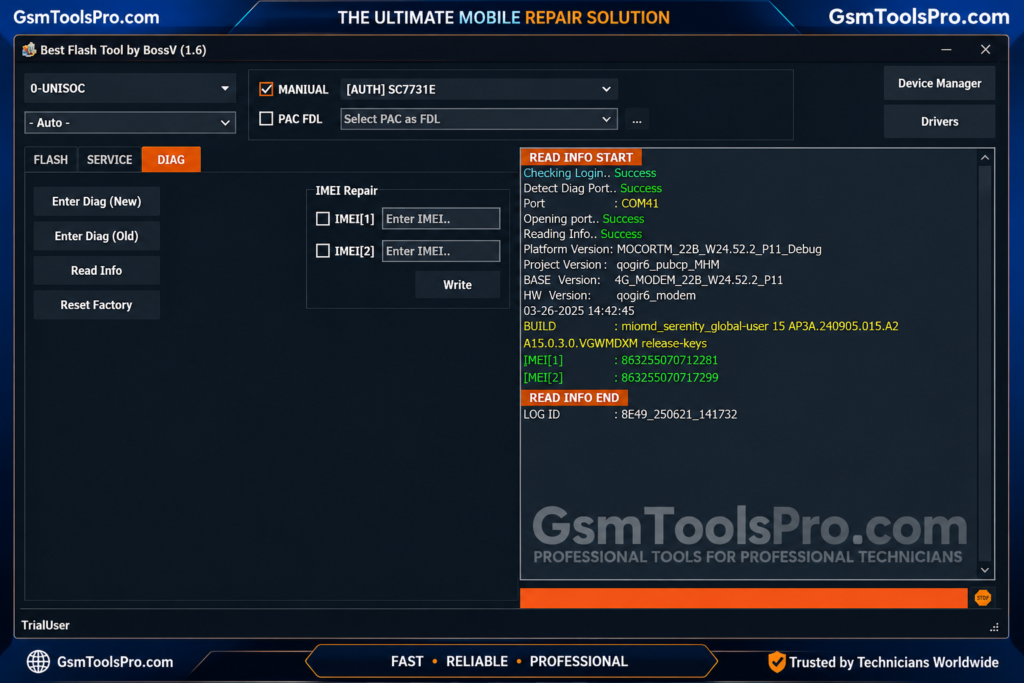
BFT Tool v1.8 has a simple Windows interface that keeps Android servicing options easy to access. Functions such as firmware flashing, FRP reset, factory reset, IMEI repair, and chipset servicing are arranged across MTK, Qualcomm, and SPD/Unisoc devices.
System Requirements for BFT Tool v1.8
| System Component | Requirement |
| Operating System | Windows 7, 8, 10, or 11 (32-bit & 64-bit) |
| Processor | Intel or AMD Dual-Core Processor (or higher) |
| RAM | Minimum 4 GB RAM (8 GB Recommended) |
| Storage Space | At least 500 MB of Free Disk Space |
| USB Drivers | Android USB Drivers and MTK/Qualcomm Drivers Installed |
| Additional Requirements | Disable Antivirus Temporarily Before Running the Tool to Prevent False Detections |
How to Download & Install the BFT Tool
- Download BFT Tool v1.8 from a trusted site and extract the package on your computer.
- Open the extracted folder and run SetupTool.exe with administrator rights.
- Follow the installation wizard and click Next to continue.
- Accept the terms and finish the installation process.
- Launch BFT Tool as administrator and wait for it to load.
- The login window will appear with the required credentials.
- If the fields are empty, enter the provided login details manually.
- Choose the required servicing function from the tool.
- Read the instructions shown in the Log section and connect the device accordingly.
- Install the required USB drivers before connecting the phone.
- Follow the on-screen process and wait for the selected operation to complete.
- Once finished, the tool will complete the operation and restart the device.
Read Full Guide: BFT Tool v1.8 Guide: Flashing, Repair, Errors & Troubleshooting
BestFlashTool.exe Error: DLL Missing Fix
If BestFlashTool.exe shows an error saying MSCCP100.dll is missing, you can try these steps:
- Download the required Msvcr100.dll and Msvcp100.dll files.
- Extract both files on your computer.
- Copy them into the BFT Tool installation folder.
- Install the required Microsoft Visual C++ package.
- Launch BestFlashTool.exe again and check whether the error is resolved.
Risks of Using the BFT Tool Latest Version
- Warranty: Servicing may affect the device warranty.
- Legal: Some operations may have legal restrictions.
- Bricking: Incorrect flashing or servicing can make a device unusable.
Also Read: Easy Multi Tool v1.2.0 Download Setup [100% working]
Conclusion
BFT Tool v1.8 offers the best servicing options for Android devices. Its firmware flashing, FRP, factory reset, IMEI, RPMB, and account-related functions solve many issues. Support varies by model, chipset, firmware, and security level, so technicians should check compatibility before starting any operation. Used correctly, the BFT Tool can make routine software servicing more efficient.
FAQ’s
Why is the BFT Tool v.18 not detecting my phone?
BFT Tool may not detect a phone if the required USB driver is missing, the device is in the wrong mode, or the cable or USB port has a connection issue. Check the drivers, connection, and mode required for the selected operation.
Does the BFT Tool require USB drivers?
Yes. BFT Tool requires the appropriate USB drivers for supported Android devices and chipsets. Depending on the device, you may need MediaTek, Qualcomm, or Unisoc/SPD drivers for proper detection and communication.
Which firmware files are supported by BFT Tool?
BFT Tool supports different firmware formats depending on the chipset. MTK devices can use scatter firmware; Qualcomm supports Firehose loaders with XML and Patch XML files, while Unisoc/SPD supports PAC and CFG files.
Can the BFT Tool work without a hardware dongle?
BFT Tool is a Windows servicing utility, so a separate hardware dongle is not required for its software functions. However, specific operations can still depend on the supported device, chipset, firmware, and tool requirements.
What causes the BFT Tool “failed to check for new version” or Internet Error?
This error can appear when BFT Tool cannot connect to its update or authentication service. Check your internet connection and make sure a VPN, proxy, firewall, or Windows security setting is not blocking the tool’s connection.
Is the BFT TOOl is free to use?
Yes, BFT Best Flash Tool is 100% free to use with no activation required.
Is BFT Tools safe to use?
Yes, it is safe if used properly. Always download from trusted sources and disable antivirus software to avoid false detection.
![EMC Activator v1.5.2 for iOS & iPad Download Latest Update Setup 2026 [100% Working]](https://gsmtoolspro.com/wp-content/uploads/2026/09/EMC-Activator-v1.5.2-for-iOS-iPad-Download-Latest-Update-Setup-2026-100-Working-768x512.png "EMC Activator v1.5.2 for iOS & iPad Download Latest Setup 2026 [100% Working] 5")
![Xiaomi Tool v2026.01.18 Use for Mi Account Setup Download [2026] (2)](https://gsmtoolspro.com/wp-content/uploads/2026/09/Xiaomi-Tool-v2026.01.18-Use-for-Mi-Account-Setup-Download-2026-2-768x576.png "Xiaomi Tool v2026.01.18 Use for Mi Account Setup Download [2026] 8")