BFT Tool v1.8 Guide: Flashing, Repair, Errors & Troubleshooting
Android servicing is not always solved with traditional ways. Sometimes, mobile technicians face different issues that can’t be solved by traditional ways like FRP, bootlocks, Firmwareissues , corrupted software, etc problems make the repair process difficult and slow. The Bft tool is the best repair software for solving these issues without any complications or complicated steps. It supports many Android brands & chipsets, which makes it a diverse tool that solves problems in one place.
Why has Android Servicing become more complicated day by day
Android servicing in 2026 is difficult because new release androids comes with high-quality firmware, chipsets, and other new features, making problems for beginners. Usually, beginners apply the old way to solve the problems, but they don’t identify the original problem and get stuck during the process. As a result, the repair fails, and they lose customers’ trust.
What workflow to follow before repairing in 2026
In 2026, the best way to use the BFT Tool for daily servicing.
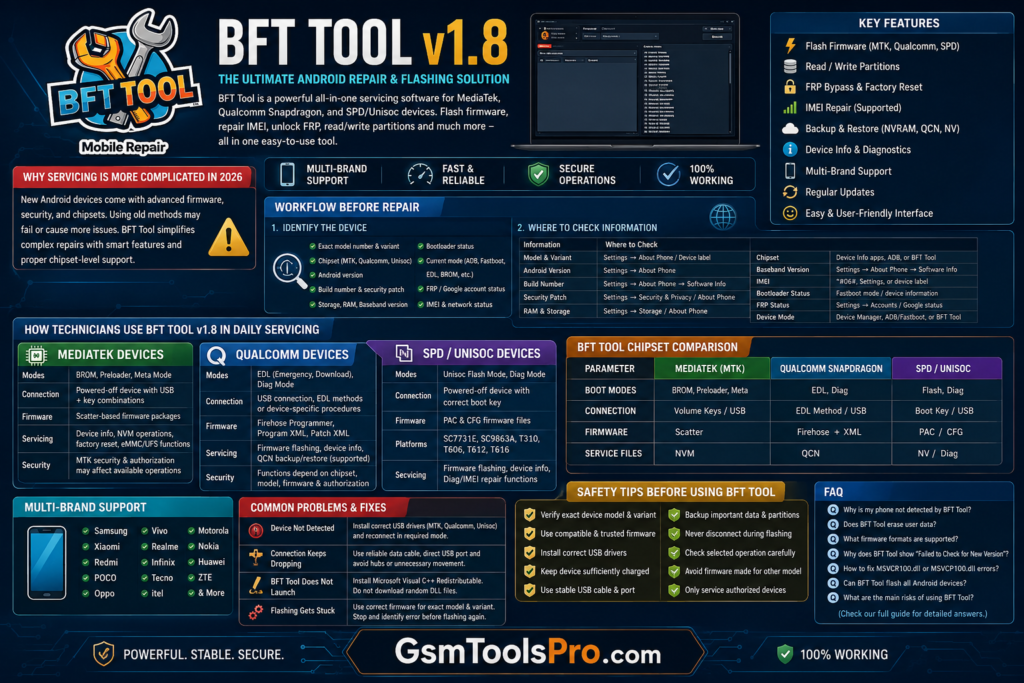
Identify the device:
Firstly, identify the device and its all the spcifictions like:
- Exact model number and variant
- Chipset (MediaTek, Qualcomm, or Unisoc)
- Android version
- Build number and security patch
- Storage and RAM
- Baseband and software version
- Bootloader status
- Current device mode (ADB, Fastboot, EDL, BROM, etc.)
- FRP/Google account status
- IMEI and network status
Where to check these informations
You can check this knowledge from these settings & also from here https://www.gsmarena.com/
| Information | Where to Check |
| Model & Variant | Settings → About Phone / Device label |
| Android Version | Settings → About Phone |
| Build Number | Settings → About Phone → Software Information |
| Security Patch | Settings → Security & Privacy / About Phone |
| RAM & Storage | Settings → Storage / About Phone |
| Chipset | Device Info apps, ADB, or BFT Tool detection |
| Baseband Version | Settings → About Phone → Software Information |
| IMEI | *#06#, Settings, or device label |
| Bootloader Status | Fastboot mode / device information |
| FRP Status | Settings → Accounts / Google account status |
| Device Mode | Device Manager, ADB/Fastboot, or BFT Tool |
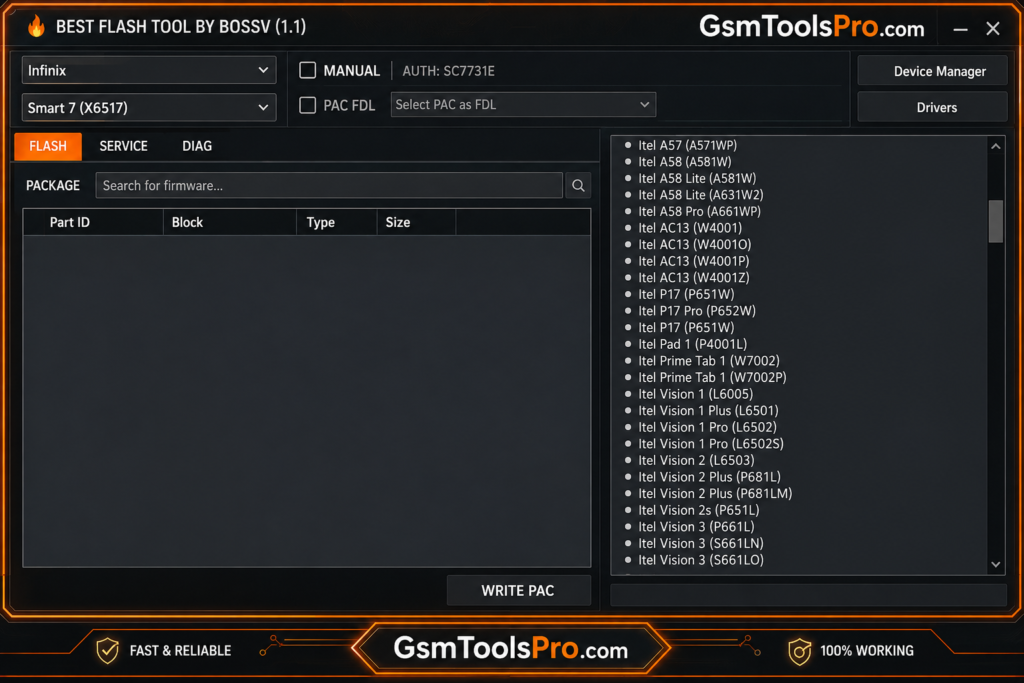
How Technicians Use BFT Tool v1.8 in Daily Servicing
MediaTek Devices
- Connection Modes: BROM, Preloader, and Meta Mode.
- Connection: Powered-off device with USB and supported key combinations.
- Firmware: Scatter-based firmware packages.
- Servicing: Device information, NVM operations, factory reset, and supported eMMC/UFS functions.
- Security: MediaTek security and authorization can affect available operations.
Qualcomm Devices
- Connection Modes: EDL (Emergency Download Mode) and Diag Mode.
- Connection: USB connection, supported EDL methods, or device-specific procedures.
- Firmware: Firehose Programmer, Program XML, and Patch XML files.
- Servicing: Firmware flashing, device information, and supported QCN backup/restore operations.
- Security: Available functions depend on the Snapdragon chipset, model, firmware, and authorization.
SPD / Unisoc Devices
- Connection Modes: Unisoc Flash Mode and Diag Mode.
- Connection: Powered-off device with the correct model-specific boot key.
- Firmware: PAC and CFG firmware files.
- Supported Platforms: SC7731E, SC9863A, T310, T606, T612, and T616.
- Servicing: Firmware flashing, device information, and supported Diag/IMEI repair functions.
BFT Tool Chipset Comparison in BFT Tool
| Parameter | MediaTek (MTK) | Qualcomm Snapdragon | SPD / Unisoc |
| Boot Modes | BROM, Preloader, Meta | EDL, Diag | Flash, Diag |
| Connection | Volume Keys / USB | EDL Method / USB | Boot Key / USB |
| Firmware | Scatter | Firehose + XML | PAC / CFG |
| Service Files | NVM | QCN | NV / Diag |
BFT Tool and Multi-Brand Servicing
The problems that technicians faced and the fact that every repair process needs different tools make the process long. The best solution is a BFT tool with multi-brand support in one place.
- Samsung
- Xiaomi
- Redmi
- POCO
- Oppo
- Vivo
- Realme
- Infinix
- Tecno
- itel
- Motorola
- Nokia
- Huawei
- ZTE
Common BFT Tool Problems & Fixes
Device Not Detected
Check Windows Device Manager for missing or faulty drivers.
Fix: Install the correct MTK, Qualcomm, or Unisoc USB Drivers and reconnect the device in the required mode.
Connection Keeps Dropping
Check: USB cable, port, and physical connection.
Fix: Use a reliable data cable, a direct USB port, and avoid USB hubs or unnecessary movement.
BFT Tool Does Not Launch
Check: Missing Microsoft Visual C++ runtime components or DLL errors.
Fix: Install the required Microsoft Visual C++ Redistributable instead of downloading random DLL files.
Flashing Gets Stuck
Check: Firmware compatibility, drivers, loader, and connection stability.
Fix: Stop and identify the error before attempting another flash. Use firmware matching the exact device model and variant.
Safety Tips Before Using the BFT Tool
Before starting any servicing operation, follow these basic precautions:
- Verify the exact device model and variant.
- Use compatible and trusted firmware.
- Install the correct USB drivers.
- Keep the device sufficiently charged.
- Use a stable USB cable and port.
- Back up important data and partitions when possible.
- Never disconnect the device during flashing.
- Check the selected operation before starting.
- Avoid firmware made for another model.
- Only service devices you are authorized to repair.
Conclusion
BFT Tool v1.8 gives technicians the best way to repair MediaTek, Qualcomm Snapdragon, and SPD/Unisoc devices from one window. It can do firmware flashing, covering various repair and diagnostic tasks. However, successful servicing depends on the correct device model, firmware, USB drivers, connection, and operation. Always verify compatibility before starting. For complete features, requirements, installation steps, and download details, check our main BFT Tool v1.8 guide.
Visit for more tools: https://gsmtoolspro.com/
Frequently Asked Questions
Why Is My Phone Not Detected by the BFT Tool?
Check the correct USB drivers, connection mode, USB cable, and port. Open Windows Device Manager to confirm whether the phone appears correctly. The required connection method can vary by MediaTek, Qualcomm, Unisoc, or Samsung devices.
Does BFT Tool Erase User Data?
Some operations, including firmware flashing, factory reset, screen lock servicing, and FRP-related operations, may erase user data. Always back up important files and supported partitions before starting.
What Firmware Formats Does the BFT Tool Support?
The format depends on the chipset. MediaTek commonly uses Scatter files; Qualcomm uses Firehose, XML, and Patch XML files, while Unisoc/SPD commonly uses PAC or CFG firmware.
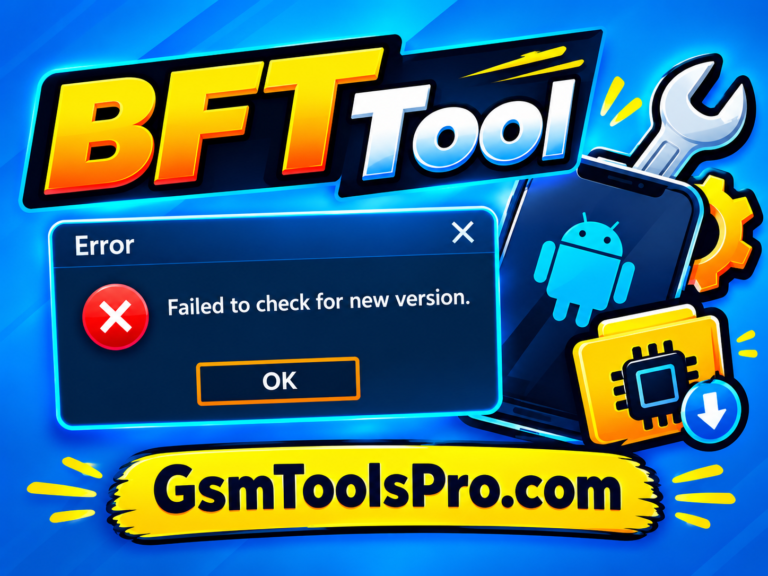
Why Does the BFT Tool Show “Failed to Check for New Version”?
This usually indicates a problem connecting to the tool’s update service. Check your internet connection, firewall, VPN/proxy settings, and try running BFT Tool as administrator.
How Do I Fix MSVCR100.dll or MSVCP100.dll Errors?
These errors usually indicate missing Microsoft Visual C++ runtime components. Installing the appropriate Microsoft Visual C++ Redistributable can resolve the missing DLL issue.
Can BFT Tool Flash All Android Devices?
No. Support depends on the device model, chipset, firmware, security level, and available servicing methods. Always verify compatibility before starting an operation.
What Are the Main Risks of Using the BFT Tool?
Using incorrect firmware, loaders, or flashing procedures can cause boot failures, data loss, or device bricking. Always verify the device and firmware, maintain a stable connection, and only service devices you are authorized to repair.
![Flash Sony Xperia Firmware Using Sony Flash Tool Working [2026] (3)](https://gsmtoolspro.com/wp-content/uploads/2026/09/Flash-Sony-Xperia-Firmware-Using-Sony-Flash-Tool-Working-2026-3-768x577.png "Flash Sony Xperia Firmware Using Sony Flash Tool Working [2026] 4")