How to Use eMMC DL Tool to Flash Stock Firmware [2026 Guide]
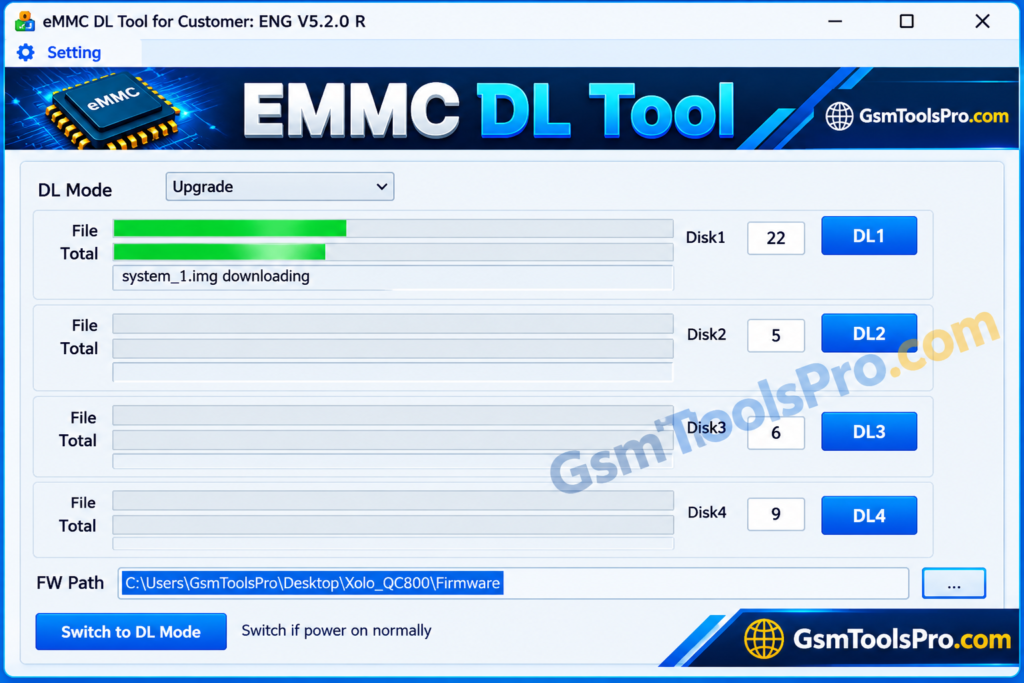
If your Qualcomm Android phone is stuck on the boot logo, facing software errors, or needs stock firmware, eMMC DL Tool can help with firmware flashing on devices. This Windows software allows technicians to load firmware, select a COM port, and communicate with compatible smartphones through Download Mode. In this guide, you will learn how to use eMMC DL Tool, prepare your phone, flash firmware, and troubleshoot common connection problems.
What You Need Before Using eMMC DL Tool
- Compatible Qualcomm device: Make sure your phone or tablet is supported by the tool.
- Correct stock firmware files: Download firmware for your exact device model and hardware variant.
- eMMC DL Tool installed on Windows: Download and extract the tool package from a trusted source.
- Qualcomm USB drivers: Install compatible drivers so Windows can communicate with your phone.
- USB data cable: Use a reliable cable that supports data transfer, not just charging.
How to Use eMMC DL Tool Step by Step
Step 1: Download and Extract eMMC DL Tool
First, download the tool package from a trusted source. You can find the version details and download information on the Download page.
After downloading the ZIP file, follow these steps:
- Locate the downloaded ZIP package.
- Right-click the file and select Extract All, or use WinRAR or 7-Zip.
- Open the extracted folder.
- Look for the tool’s executable file, such as
eMMC_DL_Tool.exe, if included. - Right-click the executable and select Run as administrator.
Step 2: Install the Required Qualcomm USB Drivers
Qualcomm USB drivers help Windows detect a compatible phone when it enters the required download or service mode. Without the correct driver, the device may not appear under the expected port.
To prepare the drivers:
- Download the appropriate Qualcomm USB driver for your device.
- Install it by following the supplied instructions.
- Restart Windows if the installer requests it.
- Open Device Manager and check whether the required device or port appears when the phone is connected.
Driver names can vary by device and connection mode. Make sure you use a compatible driver package rather than installing unrelated drivers.
Step 3: Prepare the Qualcomm Firmware Files
The firmware package must match your phone’s exact model and hardware variant. Using an incompatible package can cause flashing errors or prevent the phone from booting.
Before continuing:
- Download the correct stock firmware from a trusted source.
- Extract the firmware if it comes in a compressed archive.
- Check the included files and folders.
- Read any model-specific flashing instructions supplied with the firmware.
- Keep the firmware in an accessible folder on your computer.
Do not rename, remove, or replace firmware files unless the instructions for your device specifically require it. If the package is incomplete or intended for another model, stop before flashing.
Step 4: Open eMMC DL Tool and Select the Firmware Folder
Launch eMMC DL Tool on your Windows computer. The interface and available options may differ depending on the version.
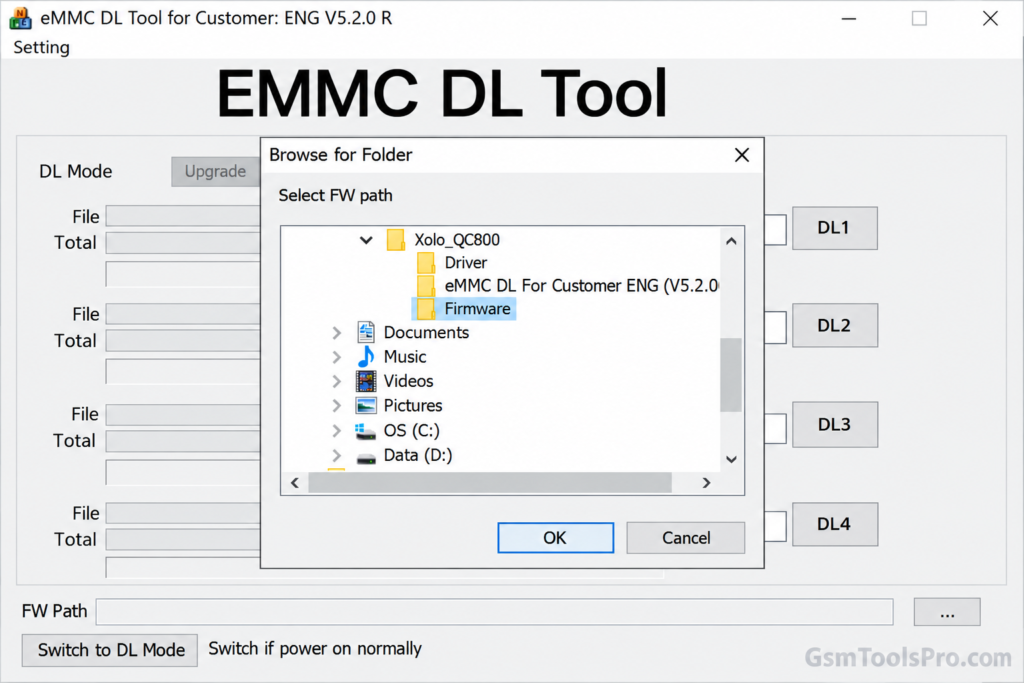
Look for the firmware or file-selection option and choose the folder or files required by your package. If the tool expects a particular firmware structure, preserve that structure when extracting the files.
Before moving forward, check that the selected files belong to your device. Do not assume that every Qualcomm firmware package is compatible with this tool.
If your version provides Download Mode and port settings, review these options before connecting the phone.
Step 5: Connect Your Phone in the Supported Download Mode
The phone must enter the connection mode required by eMMC DL Tool before firmware flashing can begin. The exact procedure depends on the device model.
- Power off the phone completely.
- Check the manufacturer’s or firmware provider’s instructions for entering the supported Download Mode.
- If the device requires a button combination, follow the instructions for that exact model.
- Connect the phone to the computer using a reliable USB data cable.
Some Qualcomm devices use a dedicated service or emergency download mode, while others require a different procedure. Do not assume that one button combination works for every phone.
Step 6: Identify the Qualcomm COM Port
Once the phone is connected, check whether Windows detects it.
- Right-click the Windows Start button and open Device Manager.
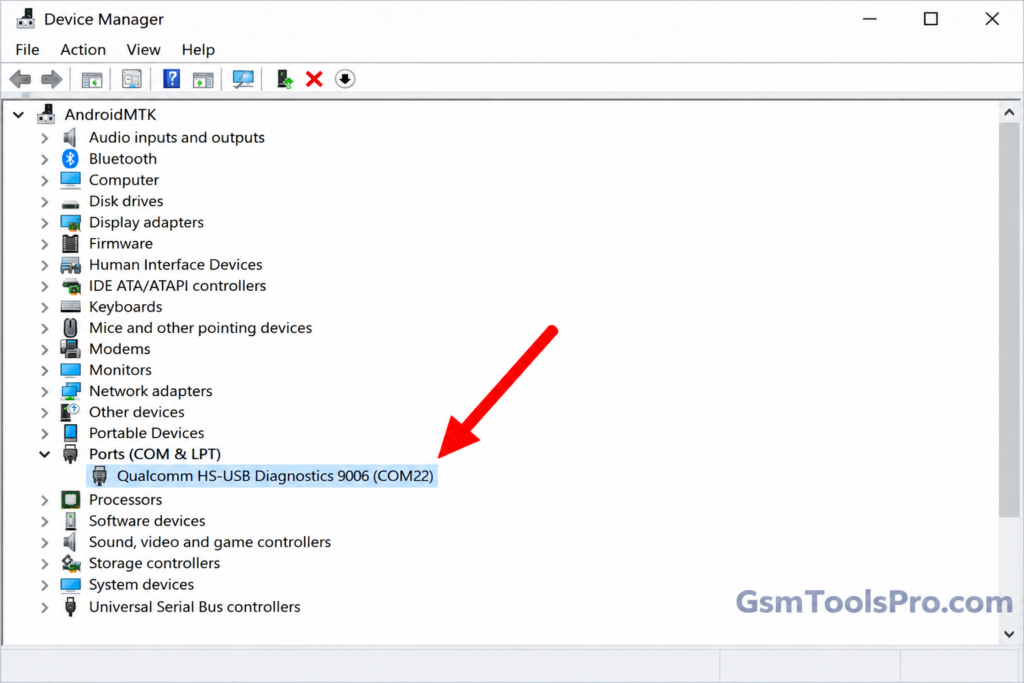
- Expand Ports (COM & LPT) if the device appears there.
- Look for the port associated with your connected phone.
- Note the COM port number shown in Device Manager.
- Return to eMMC DL Tool and select the matching port if manual port selection is available.
Some devices may appear under a different Device Manager category, depending on the driver and connection mode. If no suitable device appears, check the USB connection and drivers before continuing.
Step 7: Start Firmware Flashing Using the DL1 Button
After selecting the correct firmware and COM port, review the settings once more.
If your version of eMMC DL Tool provides a DL1 button, use it only when the firmware is loaded correctly and the device is connected in the required mode.
- Confirm the device and firmware compatibility.
- Check the selected COM port.
- Follow the tool’s instructions for starting the download process.
- Click DL1 if that is the documented start button in your version.
- Watch the tool’s status messages for errors or progress updates.
The exact controls may vary between versions. Do not click additional flashing or erase options unless you understand their purpose and the device-specific instructions require them.
Step 8: Wait for the Flashing Process to Finish
Once flashing starts, keep the USB cable connected and avoid interrupting the process. Do not restart Windows, close the tool, or disconnect the phone while firmware is being written.
Monitor the tool for a completion message or an error. Flashing time depends on the device, firmware size, USB connection, and computer performance.
If the process stops or reports an error, note the message before trying again. Repeated attempts with incorrect firmware or settings can make recovery more difficult.
Step 9: Disconnect the Phone and Check the Result
After the tool confirms that flashing has completed successfully, follow its instructions for disconnecting the device.
- Close the flashing session if required.
- Disconnect the USB cable only after the process has finished.
- Start the phone using its normal power button.
- Wait for the first boot, which may take longer than usual.
- Check whether Android starts and the phone operates normally.
If the phone remains stuck on the boot logo, do not immediately repeat the flashing process. Verify the firmware version, model compatibility, and tool log first.
Common eMMC DL Tool Errors and Their Fixes
Connection problems and firmware errors can interrupt the flashing process. The following checks can help identify common causes.
eMMC DL Tool Does Not Detect the Phone
If eMMC DL Tool does not detect your phone, check the USB cable, USB port, Qualcomm driver installation, and connection mode. Try another reliable data cable or USB port, and confirm that the phone is entering the mode required by the tool.
You should also check Device Manager for an unknown device or driver warning. If Windows cannot recognize the phone, resolve the driver or connection problem before attempting to flash firmware.
Qualcomm COM Port Is Not Showing
A missing COM port may indicate that the required driver is not installed correctly or that the phone has not entered the expected mode.
Open Device Manager and check for Qualcomm-related devices or unknown USB devices. Reinstall the correct driver if necessary, reconnect the phone, and confirm whether the COM port appears. Select the matching port in eMMC DL Tool when manual selection is supported.
Firmware Flashing Fails or Gets Stuck
A failed flashing process can result from incompatible firmware, missing files, an incorrect COM port, unstable USB communication, or unsupported hardware.
Check the error message and confirm that the firmware matches the exact device model. Verify that the firmware package is complete and the cable is secure. If the tool remains stuck, follow the device-specific recovery instructions instead of disconnecting the phone during an active write operation.
Phone Does Not Boot After Flashing
If the phone does not boot after flashing, allow enough time for the first startup to finish. If it remains stuck on the logo, check whether the firmware matches the device variant and whether the tool reported any errors.
Avoid repeating the same flashing procedure without identifying the cause. Depending on the device, you may need a compatible stock firmware package, the correct recovery method, or professional hardware diagnosis.
Safety Tips Before Flashing Qualcomm Firmware
Keep these precautions in mind before using eMMC DL Tool:
- Back up your data: Firmware flashing may erase personal files and settings.
- Verify the device model: Never select firmware based only on the brand name.
- Use trusted files: Download the tool, drivers, and firmware from reputable sources.
- Check the battery: Keep the phone sufficiently charged before starting.
- Use a stable connection: Avoid loose USB cables and unreliable USB hubs.
- Do not interrupt flashing: Disconnecting the phone during a write operation may cause serious software problems.
- Read error messages: Find the cause of a failure before retrying.
- Know the tool’s limits: eMMC DL Tool is intended for supported devices, not every Qualcomm-powered phone.
Download From Here: eMMC DL Tool V5.2.0 Free Download Latesteset Version[100% Working]
Conclusion
Learning how to use eMMC DL Tool can help technicians flash stock firmware and troubleshoot certain software problems on Qualcomm Android devices. Prepare the correct firmware, install compatible USB drivers, select the right COM port, and follow the tool’s instructions carefully. Always back up important data and verify device compatibility before starting, as incorrect firmware or interrupted flashing can leave a phone unable to boot.
Frequently Asked Questions
How do I use eMMC DL Tool to flash firmware?
Install the tool and compatible Qualcomm USB drivers, prepare the correct stock firmware, connect the phone in its supported download mode, select the COM port, and start flashing using the documented controls.
Which devices support eMMC DL Tool?
The tool is designed for supported Qualcomm-based Android smartphones and tablets. Compatibility depends on the device model, firmware package, and tool version, so check support before flashing.
Why is DL Tool not detecting my phone?
Common causes include missing USB drivers, a faulty data cable, an incorrect connection mode, or an unsupported device. Check Device Manager and confirm that Windows recognizes the phone.
Which drivers are required for eMMC?
Compatible Qualcomm USB drivers are generally required for supported devices. The correct driver depends on the phone and its connection mode, so use a trusted package appropriate for your device.
Can eMMC DL Tool fix a bricked Qualcomm phone?
It may recover certain devices affected by firmware corruption or software-related boot problems. However, it cannot guarantee recovery from every brick condition, unsupported device, or hardware failure.
Does flashing firmware erase phone data?
Yes, firmware flashing may erase personal data and settings, depending on the firmware and selected operations. Back up important files before starting whenever possible.
![Flash Sony Xperia Firmware Using Sony Flash Tool Working [2026] (3)](https://gsmtoolspro.com/wp-content/uploads/2026/09/Flash-Sony-Xperia-Firmware-Using-Sony-Flash-Tool-Working-2026-3-768x577.png "Flash Sony Xperia Firmware Using Sony Flash Tool Working [2026] 5")