Flash Sony Xperia Firmware Using Sony Flash Tool Working [2026]
Sony Xperia users can face boot loops, failed updates, crashes, or stuck logos after software problems. Sony FlashTool offers a practical way to restore your device with the correct stock .ftf firmware, Xperia USB drivers, and Flash Mode. This guide explains the complete flashing process, helping you safely repair software issues and bring your Xperia back to Sony firmware.
Why Flash a Sony Xperia Stock ROM?
Sometimes a Sony Xperia starts acting up after a bad update, failed modification, or software error. The phone may get stuck on the Sony logo, restart, crash, or stop working properly. Flashing the stock ROM returns the device to its official Sony software and helps fix these problems. It is also useful when removing a custom ROM or root, using an older firmware version, or switching to a regional firmware.
What You Need Before You Start
| Requirement | Details |
| Windows PC | FlashTool works on Windows. macOS and Linux require a virtual machine. |
| Sony Xperia Firmware (.ftf) | Use the exact firmware for your Xperia model and region/customization to avoid flashing errors. |
| Sony Xperia USB Drivers | Install the required Sony USB drivers so FlashTool can detect the device correctly. |
| USB Cable & Port | Use a good-quality USB cable. A rear USB 2.0 port is recommended for desktop PCs. |
| Battery | Charge the Xperia to at least 60–70% before starting the flash. |
| Data Backup | Create a full backup because flashing stock firmware can erase apps, settings, and personal data. |
How to Download and Install Sony Xperia FlashTool
- Download Sony Xperia FlashTool from a trusted source.
- Run the FlashTool installer and follow the setup wizard.
- During or after installation, run the bundled flashtool-drivers.exe (found inside the FlashTool installation folder) to install the Xperia USB drivers — this step is separate from the main app and is easy to miss.
- Launch FlashTool from the desktop shortcut or the installation folder once setup finishes.
Installing Sony Xperia USB Drivers Correctly
- Open the drivers folder inside the FlashTool installation directory.
- Run the driver installer from that folder.
- Install the Flashmode driver for your Xperia device.
- Install the Fastboot driver and select the appropriate device family.
- If Windows does not detect the phone, check Device Manager for driver conflicts.
- Remove any conflicting or outdated driver and reinstall it from the FlashTool drivers folder.
- If detection problems continue, try a rear USB 2.0 port instead of a front USB 3.0 port.
Flashmode vs Fastboot Mode: What’s the Difference?
| Feature | Flashmode | Fastboot Mode |
| LED Color | 🟢 Green | 🔵 Blue |
| Main Use | Flash complete .ftf stock firmware | Flash individual partitions and perform bootloader-related tasks |
| Common Tasks | Stock ROM flashing and firmware repair | Kernel, recovery, and other partition flashing |
| Bootloader | Works with locked or unlocked devices | Requires an unlockable/unlocked bootloader for many advanced operations |
| FlashTool Use | Used for full Xperia firmware flashing | Used for specific Fastboot operations |
Download From Here: Sony Flash Tool V.0.9.25.0 Pre-Activated Version For Windows
Steps to Flash Sony Xperia Stock ROM (.ftf Firmware)
1. Prepare the Firmware
Download the correct .ftf firmware for your exact Sony Xperia model. If the firmware is in a ZIP or RAR file, extract it first and keep the .ftf file ready.
2. Open FlashTool
Install and launch Sony FlashTool on your Windows PC. Make sure the required Xperia USB drivers are already installed.
3. Click the Flash Icon
After FlashTool opens, click the lightning-bolt Flash icon from the main interface to start the firmware flashing process.
![Flash Sony Xperia Firmware Using Sony Flash Tool Working [2026] (2)](https://gsmtoolspro.com/wp-content/uploads/2026/09/Flash-Sony-Xperia-Firmware-Using-Sony-Flash-Tool-Working-2026-2-1024x683.png "Flash Sony Xperia Firmware Using Sony Flash Tool Working [2026] 1")
4. Select Flashmode
A Boot Mode Chooser window will appear. Select Flashmode and click OK. This mode is used to install complete Xperia .ftf firmware.
![Flash Sony Xperia Firmware Using Sony Flash Tool Working [2026] (1)](https://gsmtoolspro.com/wp-content/uploads/2026/09/Flash-Sony-Xperia-Firmware-Using-Sony-Flash-Tool-Working-2026-1-1024x683.png "Flash Sony Xperia Firmware Using Sony Flash Tool Working [2026] 2")
5. Select the Firmware
Click Browse and open the folder containing your extracted firmware. Select the required .ftf file so FlashTool can load its firmware details.
6. Choose the Firmware Version
After the firmware loads, select the correct firmware version for your Xperia model. Double-check the model and region before continuing.
7. Choose Wipe Options
Select the required wipe options such as DATA, CACHE, and APPSLOG. For a clean installation or software repair, wiping is normally preferred. Keep a backup before flashing because user data may be erased.
8. Connect Xperia in Flash Mode
Turn off the Xperia completely. Hold the Volume Down button and connect the phone to the PC using the USB cable. FlashTool should detect the device, and the notification LED should turn green.
9. Start Flashing
Once the phone is detected, click Flash to begin. The process may take around 5–10 minutes. Do not disconnect the USB cable or close FlashTool during the process.
10. Restart and Check the Phone
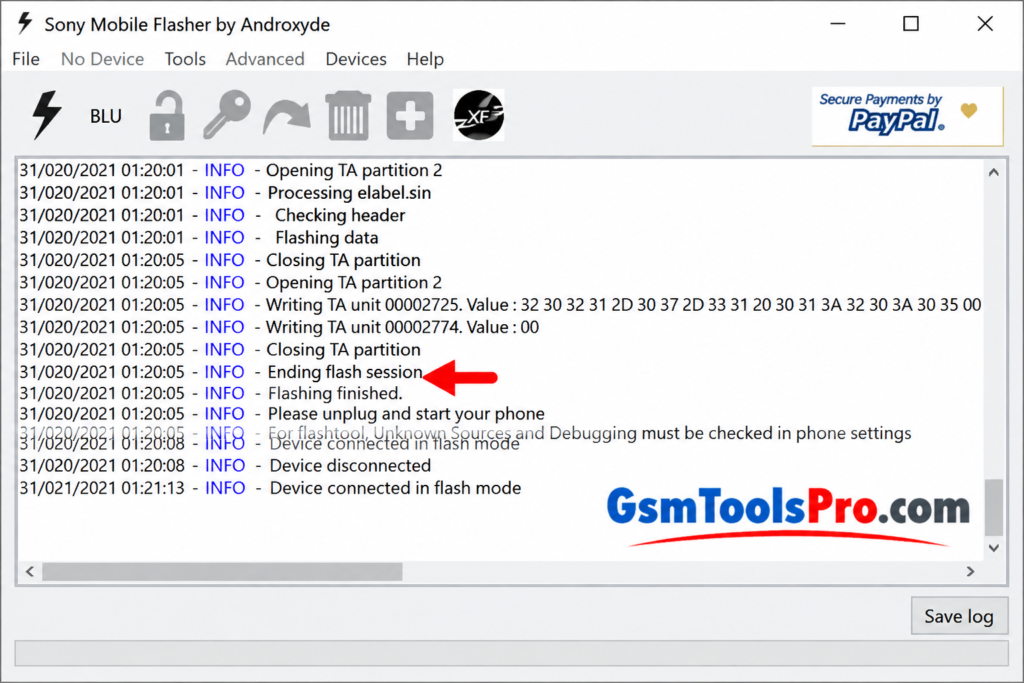
When FlashTool shows that flashing is complete, disconnect the USB cable and turn on the Xperia. The first boot can take longer than usual after flashing, so wait for the device to start normally.
Common FlashTool Errors and How to Fix Them
| FlashTool Error | Simple Fix |
| “Device connected in flash mode but driver is too old” | Reinstall the Flashmode and Fastboot drivers from the FlashTool drivers folder. Then try a different USB 2.0 port. |
| “No loader found” / “No matching loader found” | The firmware may not match your Xperia variant. Download the correct .ftf firmware for your exact model and region. |
| “Error dumping TA. Aborted” | This can happen with an unlocked bootloader or TA partition issue. Check the device and firmware before continuing. |
| Stuck on “Processing loader.sin” | A driver conflict may be causing the problem. Remove the existing driver from Device Manager, then reinstall the correct driver from the FlashTool folder. |
| Device not detected | Try another USB cable or a rear USB 2.0 port. In Flashmode, the Xperia notification LED should normally turn green. |
For more Guide you can visit: GsmToolsPro
Conclusion
Flashing a Sony Xperia stock ROM with FlashTool is a reliable fix for bootloops, bricked devices, and stubborn software issues, as long as you use the exact right firmware file, install both Flashmode and Fastboot drivers correctly, and follow the flash sequence in order. Keep a backup, double-check your device’s model number against the firmware before starting, and the process should complete cleanly in well under fifteen minutes.
Frequently Asked Questions
Does flashing stock ROM delete all my data?
Yes, if wipe options are enabled. Apps, settings, and personal data may be erased, so create a backup before flashing.
Will flashing stock firmware relock my bootloader?
No. Flashing a stock .ftf does not automatically relock an unlocked bootloader. A separate relock process is required.
Can I flash a different region’s firmware?
Yes, in many cases. However, regional firmware can include different carrier apps, features, DRM settings, or network support.
How long does Sony FlashTool take to flash firmware?
Most .ftf firmware flashes take around 5–10 minutes. The first boot may take a few extra minutes.
Is Sony FlashTool safe to use?
FlashTool is a widely used community tool. Download it only from a trusted source to avoid modified installers or unwanted software.