AMT Tool Server Down? 100% Working Solution to Fix Server Error
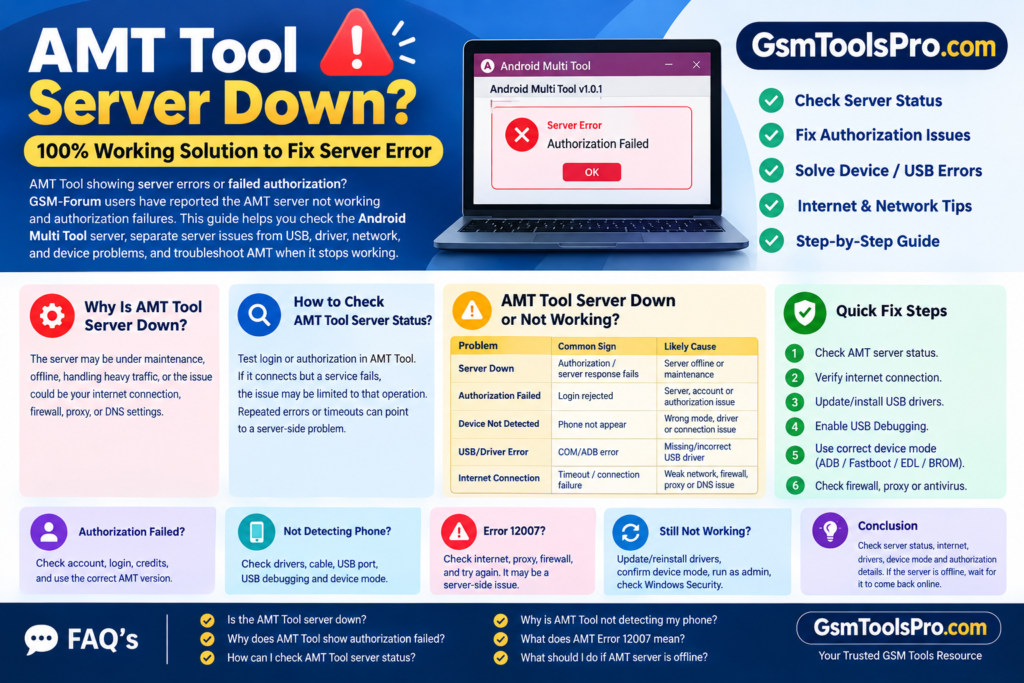
AMT Tool showing server errors or failed authorization? GSM-Forum users have reported the AMT Tool Server Down and authorization failures. This guide helps you check the Android Multi Tool server, separate server issues from USB, driver, network, and device problems, and troubleshoot AMT when it stops working.
Download From Here: Android Multi Tool V1.3.5.9 Latest Activated Setup Download 2026
Why Is AMT Tool Server Down?
AMT Tool can show a server-down message for several reasons. The Android Multi Tool authorization server may be under maintenance, temporarily offline, or handling heavy traffic. Sometimes the real issue is not the AMT server but your internet connection, firewall, proxy, or DNS settings. If login and authorization fail on multiple devices, the problem may be server-side. Checking the AMT server status before changing drivers or reinstalling the tool can save time.
How to Check AMT Tool Server Status?
You can check the AMT Tool server status by opening Android Multi Tool and testing its login or authorization response. If the tool connects normally but a service fails, the issue may be limited to that operation. However, repeated authorization errors, timeout messages, or failed server responses can point to a server-side problem. First, test your internet connection and AMT on another PC if possible. This helps separate an AMT server issue from a local Windows, driver, or network problem.
AMT Tool Server Down or AMT Tool Not Working?
| Problem | Common Sign | Likely Cause |
| Server Down | Authorization or server response fails | AMT server is offline or under maintenance |
| Authorization Failed | Login/operation is rejected | Server, account, or authorization issue |
| Device Not Detected | Phone does not appear in AMT | Wrong mode, USB debugging, or connection issue |
| USB/Driver Error | COM/ADB device error | Missing or incorrect Android USB driver |
| Internet Connection Error | Timeout or connection failure | Weak network, firewall, proxy, or DNS issue |
AMT Tool Authorization Failed After Server Comes Online
If the Android Multi Tool server is online but authorization still fails, first check your account and login details. Make sure your internet connection is stable, and you are using the correct AMT Tool version. Also verify that your account has valid credits or authorization for the required service. Close Android Multi Tool, reconnect to the internet, and sign in again. If the same error continues, the issue may be related to account authorization or the specific AMT service.
AMT Tool Not Detecting Phone
If AMT Tool is not detecting your phone, start with the USB connection and required drivers. Install the correct Android USB Driver and enable USB Debugging when using ADB. Some operations also require the phone to boot into Fastboot, EDL, BROM, or another supported mode. Try a different USB cable or port if the device remains invisible. You can also check ADB/Fastboot detection in Windows before running the required operation in Android Multi Tool.
AMT Tool Error 12007: What Does It Mean?
AMT Error 12007 can appear when Android Multi Tool cannot complete a required server or network connection. First, check your internet connection and make sure a proxy, firewall, or security program is not blocking AMT. Restart the tool and try the operation again. If the same error continues while other internet services work normally, the problem may be on the AMT server side, which cannot be fixed through local PC settings.
AMT Tool Still Not Working After Server Is Online
If the AMT server is online but still not working, then check the AMT Tool version. Reinstall or update the correct USB drivers, then confirm the phone is in the required ADB, Fastboot, EDL, or BROM mode. Run AMT with the required Windows permissions and check whether Windows Security or antivirus software is blocking the tool.
AMT Tool vs UnlockTool
| Feature | AMT Tool | UnlockTool |
|---|---|---|
| Android Servicing | Yes | Yes |
| FRP Operations | Supported | Supported |
| Factory Reset | Supported | Supported |
| Firmware Flashing | Supported | Supported |
| Qualcomm Devices | Supported | Supported |
| MediaTek (MTK) Devices | Supported | Supported |
| ADB / Fastboot | Supported | Supported |
| EDL / BROM | Supported on compatible devices | Supported on compatible devices |
| Multi-Brand Support | Yes | Yes |
| Windows Support | Yes | Yes |
For more, you can visit: Source
Conclusion
AMT Tool server issues can stop authorization and other operations even when the software is installed correctly. Before making changes, check the AMT server status, internet connection, drivers, device mode, and authorization details. If the server is offline, local troubleshooting cannot bring it back online. Once the service is restored, reconnect the device, restart Android Multi Tool, and try the operation again.
FAQ’s
Is the AMT Tool server down?
Check the current AMT server status before troubleshooting your PC. Repeated authorization failures can indicate a server-side issue.
Why does AMT Tool show authorization failed?
This can happen because of server downtime, account authorization, expired credits, internet problems, or an incorrect AMT Tool version.
How can I check AMT Tool server status?
Open AMT Tool and test login or authorization. A repeated server response or timeout error can indicate that the service is unavailable.
Why is AMT Tool not detecting my phone?
Check the USB driver, cable, USB port, USB Debugging, and required device mode such as ADB, Fastboot, EDL, or BROM.
What does AMT Error 12007 mean?
Error 12007 can be related to a failed network or server connection. Check your internet, firewall, proxy settings, and try AMT again.
What should I do if the AMT server is offline?
Confirm the outage first, then check your internet and device connection. If the server itself is offline, wait for the service to return before retrying.
![Flash Sony Xperia Firmware Using Sony Flash Tool Working [2026] (3)](https://gsmtoolspro.com/wp-content/uploads/2026/09/Flash-Sony-Xperia-Firmware-Using-Sony-Flash-Tool-Working-2026-3-768x577.png "Flash Sony Xperia Firmware Using Sony Flash Tool Working [2026] 3")