How to Use GEN PRO TOOL for Android Repair and Flashing 2027 Guide
Facing MediaTek firmware errors, FRP locks, or Android connection problems? Learn how to Use GEN PRO TOOL V2.02.23 to handle supported mobile servicing tasks with MTK BROM, Meta Preloader, IMEI repair, ADB, Fastboot, NVRAM backup, and firmware flashing in one interface.
Download From Here: GEN PRO TOOL V2.02.23 Free Download For PC Latest Version 2027
What You Need Before Using GEN PRO TOOL
Before you use GEN PRO TOOL, prepare a Windows PC or laptop with GEN PRO TOOL V2.02.23 installed. You also need a USB data cable, MediaTek USB VCOM drivers, and the required device drivers for proper phone detection. Keep an active internet connection ready for account registration and login. Make sure your Android phone has enough battery and uses a supported MediaTek chipset before starting any servicing operation.
How to Download GEN PRO TOOL
To download GEN PRO TOOL V2.02.23, open the GSMToolsPro website in Google Chrome and search for the GEN PRO TOOL download page. Open the article and review its software details, supported chipsets, features, and system requirements. Scroll down to the download section and click the available ZIP package link. Wait for the download to finish, then locate the file in your Windows Downloads folder.
Register and Login to GEN PRO TOOL
To Use GEN PRO TOOL, you first need to create an account and access its main interface. Open the installed software and look for the Sign Up option. Enter your account details to complete registration. Once your account is ready, return to the login screen and enter your username and password.
- Open the GEN PRO TOOL on your Windows PC.
- Click the Sign Up or Register option.
- Enter your username and email address.
- Create a password and confirm it.
- Click the Register button to create your account.
- Return to the login screen.
- Enter your credentials and log in to the software.
Understanding the GEN PRO TOOL Interface
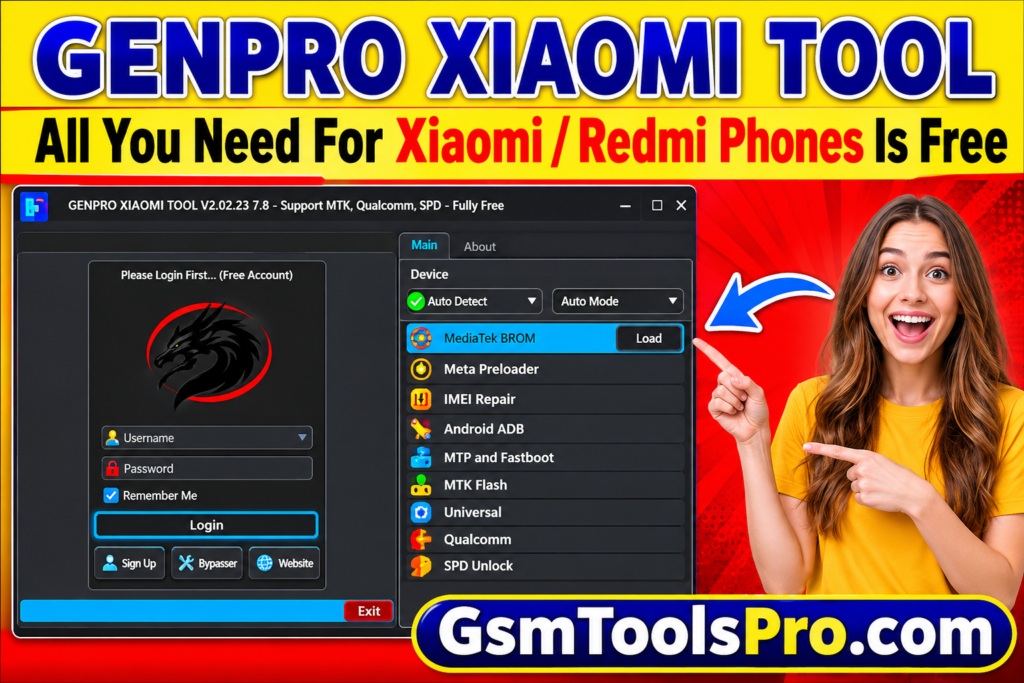
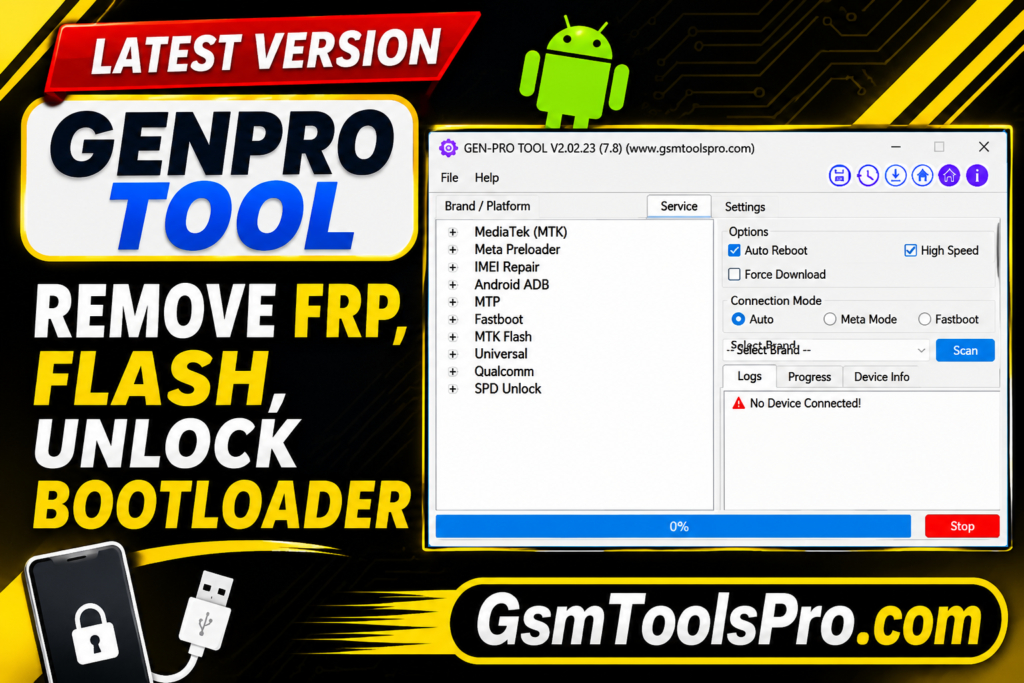
After login, GEN PRO TOOL displays different sections for Android mobile servicing. Each section provides specific options for MediaTek, firmware flashing, device information, and repair operations. Before you use GEN PRO TOOL, understand the purpose of each section so you can select the correct function for your connected phone.
- MediaTek BROM: Includes FRP removal, factory reset, Mi Cloud and Demo operations.
- Meta Preloader: Provides factory reset and data formatting options.
- IMEI Repair: Includes Meta Preloader, Meta BROM, and IMEI writing options for supported devices.
- Android ADB: Offers OTA, Anti-Relock, and Diag functions.
- MTP: Provides shortcuts and device-related options.
- Fastboot: Includes Read Info, FRP erase, userdata erase, and bootloader operations.
- MTK Flash: Supports scatter firmware loading and different flashing modes.
- Universal: Includes device information and NVRAM backup, restore, and erase.
- Qualcomm: Lists factory reset, FRP, and EFS operations.
- SPD Unlock: Provides FRP reset and factory reset options.
How to Connect an Android Phone to GEN PRO TOOL
Before starting a servicing operation, connect your Android phone properly to the computer. Install the required USB drivers first, then choose the connection mode according to the selected function. For ADB operations, USB debugging must be enabled on the phone. MediaTek BROM, Preloader, Fastboot, and ADB use different connection methods, so select the correct mode before proceeding.
Follow these steps:
- Install the required MediaTek USB VCOM or device-specific drivers.
- Open GEN PRO TOOL on your computer.
- Select the required section, such as MediaTek, ADB, or Fastboot.
- Enable USB debugging if you are using ADB functions.
- Switch the phone to the required connection mode.
- Connect the phone using a working USB data cable.
- Wait for the software to detect the device.
- Check the device information or connection status before selecting an operation.
How to Use GEN PRO TOOL Features
GEN PRO TOOL V2.02.23 provides different sections for MediaTek, Meta Preloader, IMEI repair, ADB, Fastboot, and firmware flashing. To Use GEN PRO TOOL, select the correct platform, connect a compatible Android phone, and check its model before starting any operation. Always create a backup before formatting, flashing, or resetting device data.
How to Use MediaTek BROM Functions
Connect an authorized MediaTek phone in BROM mode, select the matching operation, and follow the software prompts. Available options include:
- FRP Removal: Use only for a device you own or are authorized to service; prefer Google’s account recovery for forgotten credentials.
- Factory Reset: Select the supported reset option after backing up important files, then follow the on-screen instructions to complete the reset.
- Mi Cloud Removal: Check device ownership and account status first; use Xiaomi’s official account recovery or authorized service for account-locked phones.
- Demo Removal: Confirm the phone is not organization-managed or store-owned, then use the manufacturer’s authorized process to remove its demo configuration.
- Format User Data: Select the compatible format option only after backing up files, because this operation can permanently erase personal information.
- Authentication Options: Check whether the selected device requires an authorized Download Agent or authentication service before proceeding with supported MediaTek operations.
How to Use Meta Preloader Functions
Choose the Meta Preloader section and connect a compatible MediaTek device using its supported connection method. Available options include:
- Boot Meta Preloader: Select the Meta Preloader boot option, connect the supported phone, and wait for the software to confirm its connection.
- Enable Meta BROM: Choose the supported Meta BROM option and follow the connection prompts for compatible devices.
- Factory Reset: Back up the phone, select the supported factory-reset function, and confirm the operation to restore its default settings.
- Format Data: Choose Format Data only when necessary, verify the selected device, and understand that saved user files may be erased.
- Wipe Data and Cache: Select the supported wipe option, confirm the target phone, and wait until the software reports completion.
How to Use IMEI Repair Features
GEN PRO TOOL lists IMEI 1 and IMEI 2 options under its repair section. Use these only to restore the device’s original manufacturer-assigned identifiers through authorized service.
- Open IMEI Repair Section: Launch the repair section and check whether your connected MediaTek phone and its software version are supported.
- Select Meta Preloader or Meta BROM: Choose the connection mode specified by the manufacturer or authorized repair procedure for your phone.
- Access IMEI 1 and IMEI 2 Options: Check the original device identifiers from its records and use authorized service procedures only for lawful restoration.
- Verify Device Compatibility: Confirm the model, chipset, original identifiers, and regional rules before requesting an IMEI restoration.
How to Use Android ADB Functions
Enable USB debugging on your authorized Android phone, connect it to the PC, and approve the computer’s debugging prompt. The listed options include:
- Disable OTA: Review the device’s update settings and use this option only when an authorized technician has a valid maintenance reason.
- Anti-Relock: Check bootloader status and device compatibility before using any supported bootloader-management option.
- Enable Diag Mode: Select the appropriate supported diagnostic option and follow the device-specific instructions for authorized testing and repair.
How to Use MTP and Fastboot Functions
Select MTP or Fastboot according to your phone’s connection mode. Connect the device, allow GEN PRO TOOL to identify it, and check available options.
- Read Device Information: Connect the phone in Fastboot mode, select Read Info, and review the model and device details displayed.
- Erase FRP: This option affects account-protection controls; use Google’s official recovery or authorized manufacturer service instead of bypassing ownership verification.
- Erase User Data: Back up important files first, select the supported reset option, and confirm only after checking the connected device.
- Reboot to EDL: Use this option only on compatible devices when an authorized repair procedure requires Emergency Download Mode.
- Reboot to Normal Mode: Select Reboot Normal to restart a supported phone and return it from Fastboot or another service mode.
How to Use GEN PRO TOOL for MediaTek Firmware Flashing
The MTK Flash section supports scatter firmware files and different flashing modes. Before you Use GEN PRO TOOL for firmware repair, download the correct stock ROM for your exact phone model and chipset.
- Load Scatter Firmware: Open MTK Flash, click the scatter-loading option, and select the correct scatter file from your extracted stock firmware folder.
- Download Only Mode: Select Download Only when the firmware package matches your phone’s partition layout and you need a supported firmware write.
- Firmware Upgrade Mode: Choose Firmware Upgrade only when the complete compatible firmware package is available and your repair procedure requires an upgrade.
- Format and Download: Use this mode only for a verified repair procedure, because formatting can erase device data and important partitions.
- Repartition Option: Select repartition only when the firmware specifically requires it; incorrect partition settings can make a phone unable to boot.
- Verify Firmware Compatibility: Check the model number, chipset, region, and firmware version before starting the flashing process to avoid software damage.
How to Use Universal Functions
Open the Universal section and connect your supported Android phone. Check the device information before choosing any backup, restore, or maintenance operation.
- Read Device Information: Connect the supported phone, select Read Info, and check the displayed model and hardware information.
- Backup NVRAM: Select Backup NVRAM and save the generated backup file in a safe folder before performing firmware repairs.
- Restore NVRAM: Choose Restore NVRAM, load the matching backup from the same device, and follow the software prompts.
- Erase NVRAM: Use Erase NVRAM only for a verified repair requirement after creating a backup, because it may affect network-related information.
- Factory Reset: Select the supported reset option after backing up personal files and confirming the correct connected device.
- Available FRP Operations: Check the device’s ownership and use Google’s account recovery or authorized manufacturer service for account-verification problems.
How to Use Qualcomm Functions
The Qualcomm section lists several servicing options, including factory reset, FRP, EFS, and QCN operations. However, the available V2.02.23 build has reported Qualcomm module issues, so these functions may not work.
- Factory Reset: Use an authorized manufacturer reset procedure after backing up important data and verifying the phone model.
- FRP Reset: For account verification problems, recover the original Google account or contact the manufacturer’s authorized service center.
- EFS Reset: Avoid erasing EFS without a verified backup and professional repair procedure, because it can affect network functionality.
- Firmware Backup and Flashing: Use manufacturer-approved firmware and a verified backup before attempting any Qualcomm firmware maintenance.
- QCN Read and Write: Read and save the original QCN through an authorized repair procedure; restore only the matching device’s verified backup.
How to Use SPD Unlock Functions
Open the SPD Unlock section and check whether your connected Spreadtrum (Unisoc) phone is supported. The listed options include:
- FRP Reset: For account verification issues, use the original Google account recovery process or authorized manufacturer support.
- Factory Reset: Back up important files, verify the device model, and use an authorized factory-reset procedure to restore default settings.
- Available SPD Operations: Check the available options for your supported Spreadtrum chipset and follow the manufacturer’s recommended servicing procedure.
Supported Mobile Brands and Chipsets
Supported Chipsets
- MediaTek (MTK): Provides BROM, Meta Preloader, firmware flashing, FRP, and other servicing options for supported MTK devices.
- Qualcomm: Includes listed EFS, firmware, QCN, and reset functions, although Qualcomm operations may not work in this software build.
- Spreadtrum (SPD): Offers selected servicing and reset functions for compatible Spreadtrum-powered Android devices.
Supported Mobile Brands
GEN PRO TOOL includes brand-specific options for several Android manufacturers. The supported brands listed in available sources include:
| Mobile Brand | Mobile Brand |
|---|---|
| Samsung | OPPO |
| Vivo | Xiaomi |
| Realme | Infinix |
| Tecno | Huawei |
| OnePlus | ASUS |
| Lenovo | Nokia |
Common Problems While Using GEN PRO TOOL
Sometimes GEN PRO TOOL may fail to detect a phone, connect to MediaTek BROM mode, or complete a firmware operation. These problems can be related to USB drivers, connection modes, firmware compatibility, or software limitations. Here are some common issues and ways to troubleshoot them.
1. Software Login Problems
If GEN PRO TOOL does not open or login fails, check your internet connection and account credentials. Also, make sure you are using a compatible software version. Some available builds have reported login and loader-related issues.
2. Device Not Detected
When the software cannot detect your Android phone, check the USB data cable and connection port. Install the correct device drivers, select the required connection mode, and reconnect the phone. You can also check its connection status in Windows Device Manager.
3. MediaTek BROM Connection Error
A MediaTek BROM error can occur because of incorrect drivers, an unstable USB connection, unsupported Download Agent files, or device security restrictions. Check the chipset compatibility, reinstall MediaTek USB VCOM drivers, and verify the required connection mode before trying again.
4. USB Driver Issues
Missing or outdated USB drivers can prevent Windows from recognizing your phone. Open Device Manager and check for unknown devices or driver warnings. Install the correct MediaTek, Qualcomm, or Spreadtrum drivers according to your phone’s chipset, then reconnect the device.
5. Firmware Flashing Errors
Firmware flashing may fail when you load an incorrect scatter file, incompatible ROM, or unsupported Download Agent. Check the exact phone model and firmware version. Also, make sure all required firmware files are available before starting the flashing process.
6. Qualcomm Module Not Working
The Qualcomm section is listed in GEN PRO TOOL V2.02.23, but reports indicate that this module may not work in the available build. Check the software version and module status rather than repeatedly attempting the same operation.
Important Precautions Before Using GEN PRO TOOL
Before starting any Android servicing operation, take a few precautions to protect your phone and personal data. Incorrect firmware, unsupported operations, or interrupted connections can cause serious software problems.
- Check Device Model and Chipset: Confirm the exact phone model and processor before selecting MediaTek, Qualcomm, or SPD functions.
- Use Compatible Firmware Files: Download the correct stock ROM and scatter file for your device model and firmware version.
- Create NVRAM and QCN Backups: Save the original NVRAM or QCN data where supported before attempting network-related repairs.
- Maintain a Stable USB Connection: Use a good-quality USB data cable, a working computer port, and properly installed drivers.
- Understand Data Loss Risks: Factory reset, format, FRP-related, and firmware operations may affect saved data. Back up important files before proceeding.
- Check Software Compatibility: Confirm that the selected function works with your device and GEN PRO TOOL version.
Join: Telegram
Conclusion
GEN PRO TOOL V2.02.23 brings MediaTek, ADB, Fastboot, firmware flashing, and other Android servicing options into one interface. Learning how to Use GEN PRO TOOL helps you select the right functions for supported devices. Always check chipset compatibility, create backups, and use the correct firmware to avoid unnecessary repair problems.
FAQ’s
Does GEN PRO TOOL support old and new MediaTek CPUs?
Yes, GEN PRO TOOL lists support for older and newer MediaTek CPUs. Actual compatibility depends on the chipset and device model.
Can GEN PRO TOOL load a custom Download Agent file?
Yes, its MTK Flash section provides an option to add a custom Download Agent (DA) file for supported MediaTek devices.
Can GEN PRO TOOL unlock and relock a bootloader?
Yes, the software lists Unlock Bootloader and Relock Bootloader options under Fastboot and Universal sections for compatible devices.
Does GEN PRO TOOL support dual-SIM IMEI restoration?
Its IMEI Repair section lists separate IMEI 1 and IMEI 2 options. Restoration must use the device’s original identifiers through authorized procedures.
Can GEN PRO TOOL read device information in Fastboot mode?
Yes, select the Fastboot section and use Read Info to check available device information from a compatible connected phone.
Does GEN PRO TOOL support custom firmware flashing?
Its MTK Flash section supports scatter loading and custom Download Agent selection. Use firmware that matches your exact device model.