Samflash v4.1 Tool Update Failed Error Full Guide 100% Working
Facing the Samflash Tool Update Failed error when opening the software? A failed update check can stop SamFlash from starting on your Windows PC. This problem may be linked to an unstable internet connection, Windows Defender, antivirus restrictions, or damaged tool files. Follow these five simple methods to fix the update error and get Samflash Tool working again on Windows 7, 10, and 11.
Download From Here: SamFlash Tool v4.1 Download for All Samsung Devices [2027]
What Is the Samflash Tool Update Failed Error?
Samflash Tool Update Failed is an error that appears when the SamFlash Tool cannot complete its update check when opening on a Windows PC. SamFlash is a Windows utility used for Samsung firmware and device servicing. Reports link this issue to network problems, antivirus or Windows Defender blocking the tool, and failed update-server checks. Users may see the tool stuck on the update screen instead of opening normally.
Why Does the Samflash Tool Show Update Failed Error?
The Samflash Tool Update Failed error can occur when the software cannot connect to its update server. A weak internet connection, Windows Defender, or third-party antivirus can block its online access. Incorrect administrator permissions, temporary Windows problems, or damaged extracted tool files can also stop the update check. These issues may prevent Samflash Tool from opening properly on Windows 7, 10, and 11.
How to Fix the Samflash Tool Update Failure
Check Your Internet Connection
First, check whether your PC has a stable internet connection. Samflash Tool needs internet access to check for updates when it starts. If your Wi-Fi connection is weak or unstable, switch to another working network and open Samflash Tool again. This simple step may fix the update error.
Restart Your PC and Open the Samflash Tool Again
Sometimes, temporary Windows problems can stop Samflash Tool from checking for updates. Close the tool completely and restart your computer. After Windows starts again, connect your PC to the internet and launch Samflash Tool. This can clear temporary problems and help the software open normally.
Run Samflash Tool as Administrator
Windows may restrict some program actions when an application runs without administrator permission. To fix this, close Samflash Tool and open its extracted folder. Right-click the Samflash executable file and select Run as administrator. Click Yes on the User Account Control prompt and check whether the update error disappears.
Temporarily Disable Antivirus or Windows Security
Windows Defender or third-party antivirus software may block Samflash Tool from accessing the internet or running some files. Close the tool and check your security settings. If you trust the downloaded files, test with temporary protection changes or a specific file exclusion. Turn protection back on after testing.
Re-Extract the Samflash Tool
If the previous methods do not work, the extracted Samflash Tool files may be damaged or incomplete. Close the program and delete its old extracted folder. Now find the original ZIP file, extract it again using a file extraction tool, and open the executable from the new folder to check if it works.
Common Mistakes to Avoid When Fixing Samflash Update Errors
- Using an unstable internet connection: Do not ignore network problems when Samflash cannot check for updates.
- Running the wrong file: Always open the executable from the extracted Samflash folder, not directly from the ZIP file.
- gnoring administrator permissions: Do not skip Run as Administrator when testing the tool.
- Keeping antivirus blocking the tool: Check Windows Security protection history before making changes to antivirus settings.
- Downloading files from unknown websites: Avoid untrusted Samflash downloads because modified files may contain harmful software.
- Deleting important files: Remove only the old extracted folder when preparing to extract a fresh copy.
Join For Updates On Mobile: Telegram
Conclusion
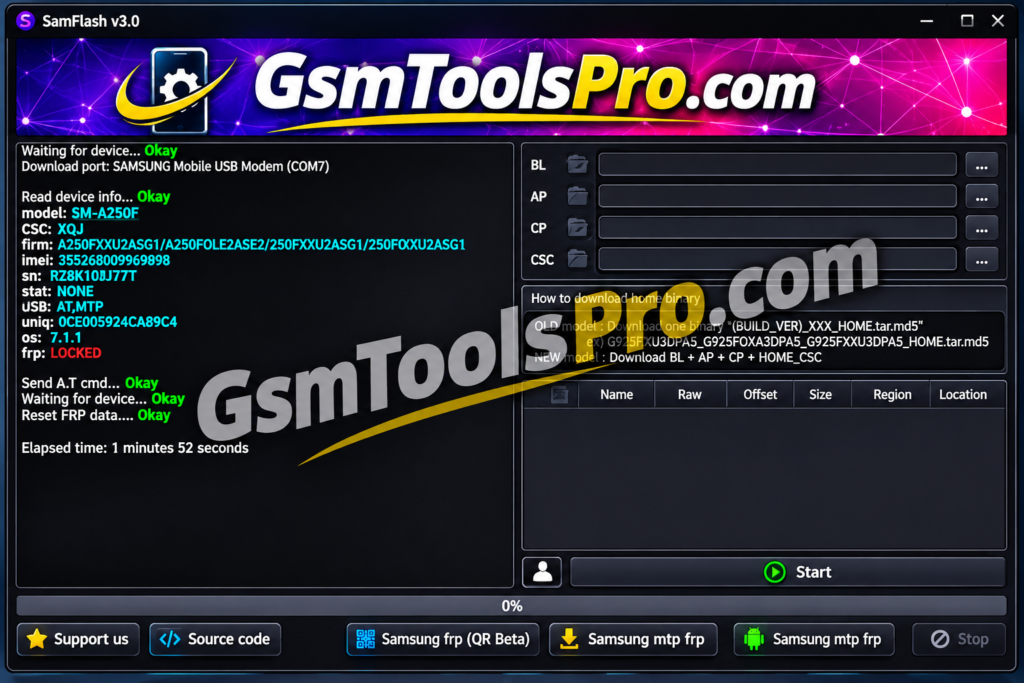
The Samflash Tool Update Failed error can often be fixed by checking your internet connection, restarting your PC, running the tool as administrator, checking Windows Security, or re-extracting the files. Try these five methods one by one to find what works on your Windows PC. Always use trusted tool files and keep your antivirus protection active after testing.
FAQ’s
Why does Samflash Tool show an update failed error?
Samflash Tool may show an update failed error when it cannot connect to its update server. A weak internet connection, Windows Defender, or antivirus blocking the tool can also cause this problem.
How can I fix the Samflash Tool update error?
You can try five methods: switch to another internet connection, restart your PC, run Samflash Tool as administrator, check antivirus settings, or extract the tool files again.
Does Samflash Tool need an internet connection?
Yes, Samflash Tool needs an active internet connection to check for updates when opening. If your Wi-Fi is unstable, connect your PC to another working network and try again.
Can Windows Defender block Samflash Tool updates?
Yes, Windows Defender may block an application or its files if it detects a possible threat. Check Windows Security Protection History to see whether Samflash Tool has been blocked.
Should I run Samflash Tool as administrator?
Yes, you can try running Samflash Tool as administrator if it fails to open or check for updates. Right-click its executable file, select Run as administrator, and click Yes when Windows asks for permission.
Does re-extracting Samflash Tool fix update errors?
Re-extracting Samflash Tool may help if its extracted files are damaged or incomplete. Delete the old extracted folder, extract the original ZIP file again, and launch the tool from the new folder.