
How to Fix Huawei FRP Lock After Factory Reset Full 100% Solution
A Huawei factory reset can leave you stuck at the Google Account verification screen because of FRP Lock. Android version, EMUI, security patch, and model affect available methods. This guide covers Huawei FRP checks, Fastboot, USB drivers, and supported FRP tools to help technicians troubleshoot compatible devices safely.
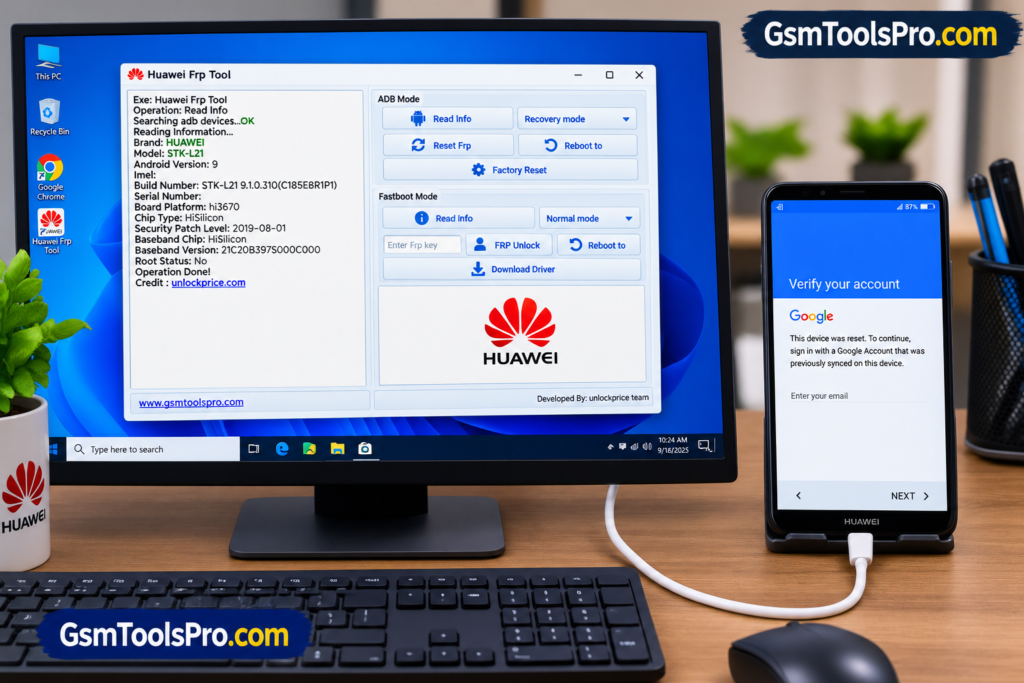
What Is Huawei FRP Lock?
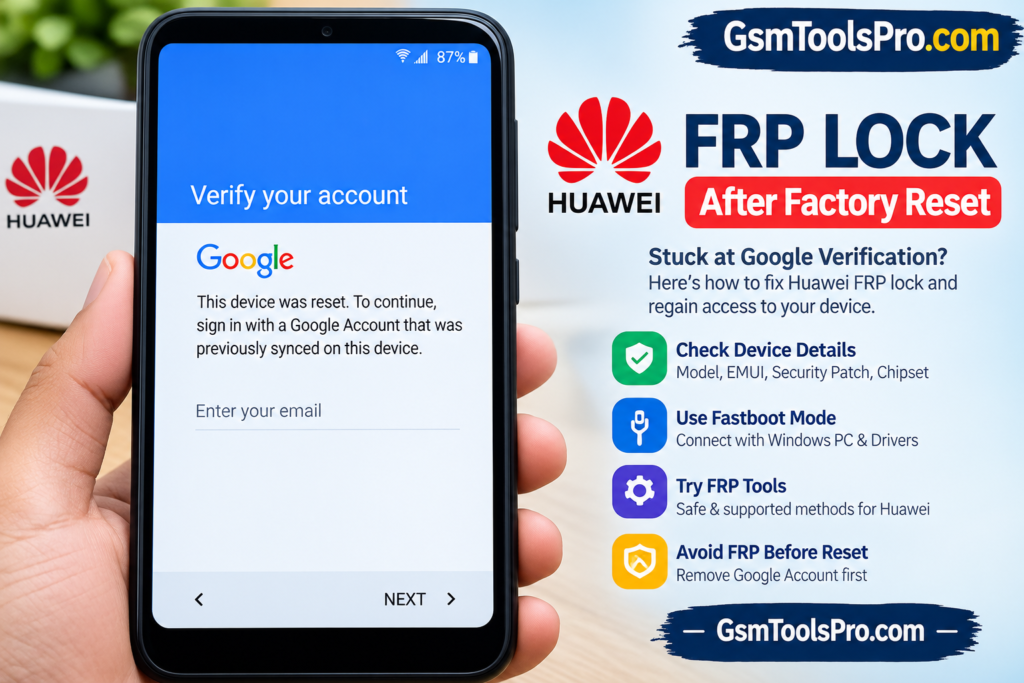
The Huawei FRP Lock is a security feature from Google. It appears after you factory reset your Huawei phone that was connected to a Google Account before the reset. During setup, the phone may ask for that same Google Account and password. This is meant to stop others from setting up and using the phone after an unauthorized reset.
Download from Here: Huawei FRP Tool V1.0 Free Download Fastboot and BROM Mode
Things to Check Before Fixing Huawei FRP Lock
| What to Check | Quick Action |
| Huawei Model Number | Check the model on the phone box, back label, or original purchase details. |
| Android / EMUI Version | Open Settings → About Phone and check the software version. |
| Security Patch | Go to Settings → About Phone → Android Security Update. |
| Phone Chipset | Search the exact Huawei model specifications to confirm the chipset. |
| Battery Level | Charge the phone to at least 50% before starting. |
| USB Cable | Use a good-quality data cable that supports file transfer. |
| Windows PC | Use a working Windows computer with a stable USB connection. |
| Huawei USB Drivers | Install the required Huawei drivers and check the phone in Device Manager. |
NOTE: You can also check this information from a trusted source
Locked Huawei FRP Fix Methods
Use the Previously Linked Google Account
If you face these problems with your own mobile after a factory reset, then you can use your old Google account for verification and easily unlock your device.
Use a Huawei FRP Tool on Windows
You can use Huawei FRP Tool to unlock the mobile when you forget your Google account password after a factory reset. This tool is designed for FRP bypass on FRP-locked Huawei devices. It is also helpful for technicians for every day hawu services.
How to Put a Huawei Phone Into Fastboot Mode
- Power off the Huawei phone completely.
- Connect the USB cable to your Windows PC, but keep the phone disconnected for the moment.
- Press and hold the Volume Down key on the phone.
- While holding the key, connect the USB cable to the phone.
- Keep holding the button until the Fastboot screen appears.
- On your PC, open Device Manager and check whether Windows detects the phone correctly.
- If Fastboot does not appear, try another USB cable or port and repeat the steps.
Why Huawei FRP Unlock Does Not Work on Every Phone
Huawei FRP methods do not work the same on every device. Android version, EMUI version, security patch, model, and firmware can change the available options. Newer Huawei devices may also include security changes that block older FRP methods or tools.
Huawei FRP Tool Not Detecting the Phone?
| Problem | Quick Fix |
| Huawei USB Driver Missing | Install the correct Huawei USB driver, then reconnect the phone. |
| HiSuite / Driver Problem | Install or update Huawei HiSuite and check the driver in Device Manager. |
| Wrong Fastboot Mode | Power off the phone and enter Fastboot mode again before connecting it. |
| Bad USB Cable | Try another working USB data cable. |
| USB Port Issue | Connect the phone to another USB port, preferably a direct PC port. |
| Phone Not Fully Powered Off | Turn off the phone completely, then enter the required mode again. |
| Windows Driver Conflict | Open Device Manager and reinstall or update the detected Huawei driver. |
| Unsupported Model | Check whether your Huawei model works with the selected FRP tool. |
| Unsupported Security Patch | Check the phone’s EMUI, Android version, and security patch before trying again. |
FRP Unlock vs Bootloader Unlock
| FRP Unlock | Bootloader Unlock |
| Removes the Google Account verification linked to FRP. | Unlocks the phone’s bootloader for certain system-level operations. |
| Deals with Factory Reset Protection. | Deals with the bootloader security state. |
| FRP status can still show separately in Fastboot. | Bootloader status can remain locked even after FRP is removed. |
| Removing FRP does not automatically unlock the bootloader. | Unlocking the bootloader does not always remove FRP. |
How to Avoid Huawei FRP Lock Before Factory Reset
Before you factory reset a Huawei phone, remove the Google Account from the device first. Make sure you know the account email and password, then perform the reset. This helps avoid the Google verification screen later and makes the setup easier, especially when preparing a phone for a new owner.
Pros and Cons
| Pros | Cons |
| Can help technicians handle FRP on supported Huawei models. | It does not work with every Huawei model or security patch. |
| Supports PC-based servicing through USB connection. | Some operations may require paid tools or credits. |
| Fastboot can help with supported Huawei devices. | Driver and phone-detection problems can stop the process. |
| Can save time compared with manual troubleshooting on supported devices. | Older methods may fail on newer security versions. |
| Some users report successful FRP removal with compatible tools and methods. | Some users report failed FRP operations even after following the steps. |
Conclusion
Huawei FRP Lock is shown when you reset your device; to unlock it, you have to verify your Google account. Furthermore, if you forgot your Google account password, you can use the Huawei FRP Tool to bypass it and easily use your device without any complication or frustration.
FAQs
Why does my Huawei phone ask for the old Google Account after a reset?
A factory reset can trigger FRP when a Google Account was linked to the phone before the reset. The device asks for that account during setup.
Why is my Huawei phone not detected by the FRP tool?
Check the USB cable, USB port, Huawei drivers, and Fastboot mode. Also make sure the tool supports your phone model and software version.
Does Huawei FRP work on every model?
No. FRP methods can vary by Huawei model, Android or EMUI version, firmware, and security patch. Older methods may also stop working after software updates.
Is Huawei FRP the same as a bootloader lock?
No. FRP protects the device after a reset, while the bootloader has its own security state. Removing FRP does not automatically unlock the bootloader.
Can I avoid FRP before resetting my Huawei phone?
Yes. Remove the Google Account from the phone before performing the factory reset. This can prevent the Google verification step during the next setup.
![Flash Sony Xperia Firmware Using Sony Flash Tool Working [2026] (3)](https://gsmtoolspro.com/wp-content/uploads/2026/09/Flash-Sony-Xperia-Firmware-Using-Sony-Flash-Tool-Working-2026-3-768x577.png "Flash Sony Xperia Firmware Using Sony Flash Tool Working [2026] 6")