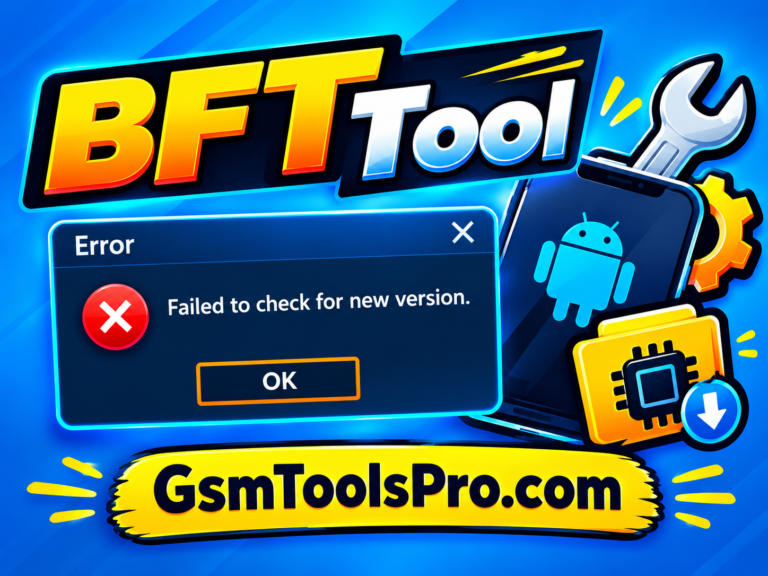
TSM Tool Pro Failed to Connect Server 100% Working 2027 Guide
Facing the TSM Tool Pro Failed to Connect Serverr error during Android repair? Unstable internet, server downtime, or activation issues can interrupt FRP removal and other services. Learn how to check your connection, update TSM Pro, verify account access, and restore server connectivity.
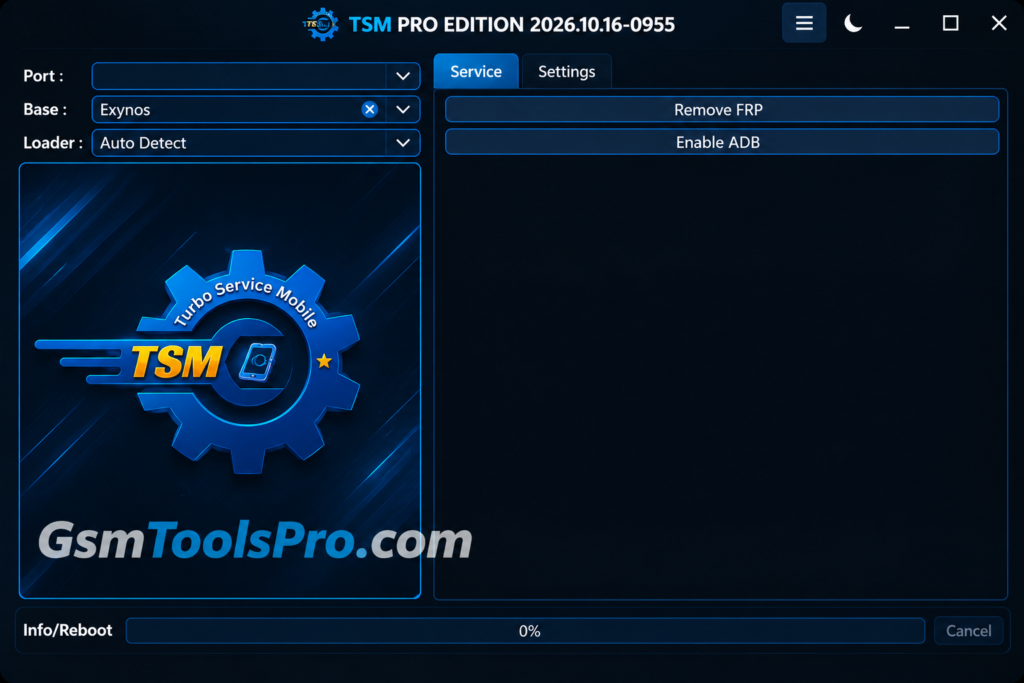
Download From Here: TSM Tool Pro v2.4.1 Free Download for Windows Latest 2026 [100% working]
What Does “Failed to Connect Server” Mean in TSM Pro?
The “Failed to Connect Server” error in TSM Pro means the tool cannot reach its online server to complete a required request. TSM Pro uses server-based services for account activation, mobile repair operations, and Xiaomi authorization credits. Furthermore, the error appears when the internet connection is unstable, the server is unavailable, or account access has a problem. Consequently, until the connection works, some server-dependent features may not respond or complete their tasks.
Why Does TSM Tool Pro Failed to Connect Server?
Unstable Internet Connection
TSM Pro needs a stable internet connection to communicate with its online services. If your Wi-Fi or Ethernet connection keeps dropping, the tool may fail to send requests or receive server responses. Slow internet, network interruptions, or DNS problems can also affect server access. Check your connection before starting FRP removal, firmware flashing, or other online repair services.
TSM Pro Server Unavailable
Sometimes the problem comes from the TSM Pro server rather than your computer. If the server is temporarily unavailable or not responding, the tool may show a connection error even when your internet is working. Server-side services support some repair operations, so technicians may need to wait until the service becomes available again.
Firewall or Antivirus Blocking the Connection
Windows Firewall or third-party antivirus software may block an application’s network access. If TSM Pro cannot communicate with its online services, security settings could be one possible reason. Check whether your security software has blocked the tool and allow its network access.
Outdated TSM Pro Version
An older TSM Pro version may not include the latest fixes, service changes, or functions. The developers regularly release updates for Qualcomm, MediaTek, Samsung EDL, and other repair operations. Check your installed version against the official download page and use the correct TSM Tool Pro or TSM Pro Edition installer.
Account Login or Activation Problems
TSM Pro account or activation problems may also affect access to online services. Incorrect login details, an expired activation plan, or an account-related issue can prevent some services from working. Check your registered account, activation status, and available credits before running a server-dependent operation. If the problem continues, contact TSM support with your account and error details.
Server-Side Updates or Maintenance
TSM Pro developers sometimes add new features through server-side updates without requiring users to download another setup file. During these changes, some services may respond differently or become temporarily unavailable. If TSM Pro fails to connect while an update is being released, check the official update channel and wait for service confirmation before trying the same operation again.
Visit for Confirmation: Official Site
When Should You Wait for the TSM Pro Server?
Wait for the TSM Pro server when your internet connection works, but the tool still cannot access its online services. Sometimes server maintenance, service updates, or temporary server problems can interrupt repair operations. TSM Pro also releases server-side updates that add new features without requiring another setup download. Check the official TSM update channel for service announcements before retrying. If the error continues, contact support with your tool version and exact error message.
Conclusion
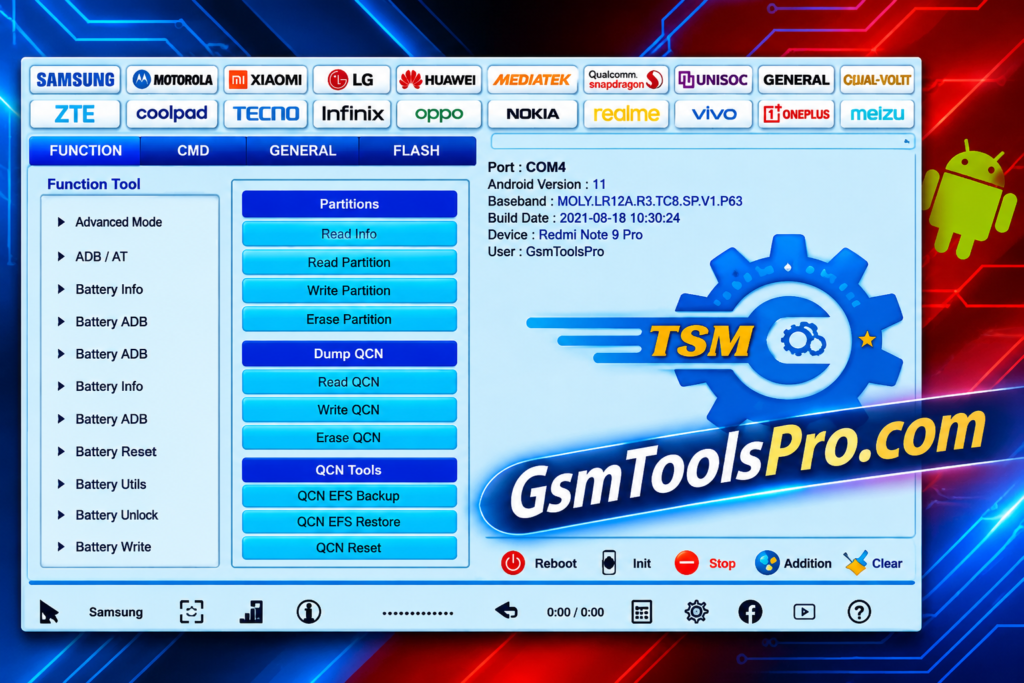
TSM Pro is a useful Android repair tool for technicians working with Qualcomm, MediaTek, Unisoc, and Kirin devices. The tool supports services such as FRP removal, firmware flashing, factory reset, and Samsung EDL operations. If you face the TSM Tool Pro Failed to Connect Server error, check your internet, software version, account activation, and server status before starting another repair operation.
FAQs
Why does TSM Pro say Failed to Connect Server?
TSM Pro may show this error because of an unstable internet connection, server problems, outdated software, or account access issues. Check these before retrying.
How can I fix TSM Tool Pro “Failed to Connect Server” errors?
Check your internet, restart TSM Pro, verify your account activation, and install the latest official version. Also check whether the server is available.
Can an outdated TSM Pro version cause connection problems?
Yes, an older version may have outdated features or fixes. Download the latest compatible release from the official TSM Tool website.
Does Windows Firewall block TSM Pro server connections?
Windows Firewall or antivirus software may restrict TSM Pro’s network access. Check blocked-app settings and allow trusted software when necessary.
What should I do if the TSM Pro server is down?
Wait for the service to become available and check official TSM updates for announcements. Contact support if the connection error continues.
Does TSM Pro activation affect server connectivity?
Yes, account activation is required for access to applicable services. Verify your username, activation period, and server credits where required.