TFT Tool Pro v6.3.1.1 Download Latest Version Setup [100% Activated] For Windows 2026
Are you facing FRP locks, boot loops, firmware errors, or unresponsive Android phones? TFT Tool Pro brings FRP servicing, firmware flashing, EDL, MTK, Qualcomm, factory reset, and device recovery into one Windows platform, supporting brands like Samsung, Xiaomi, Vivo, Oppo, and Realme for everyday mobile repair.
Also Recommended: TSM Tool Pro v2.4.1 Free Download for Windows Latest 2026 [100% working]
What Is TFT Tool Pro and What Does It Do?
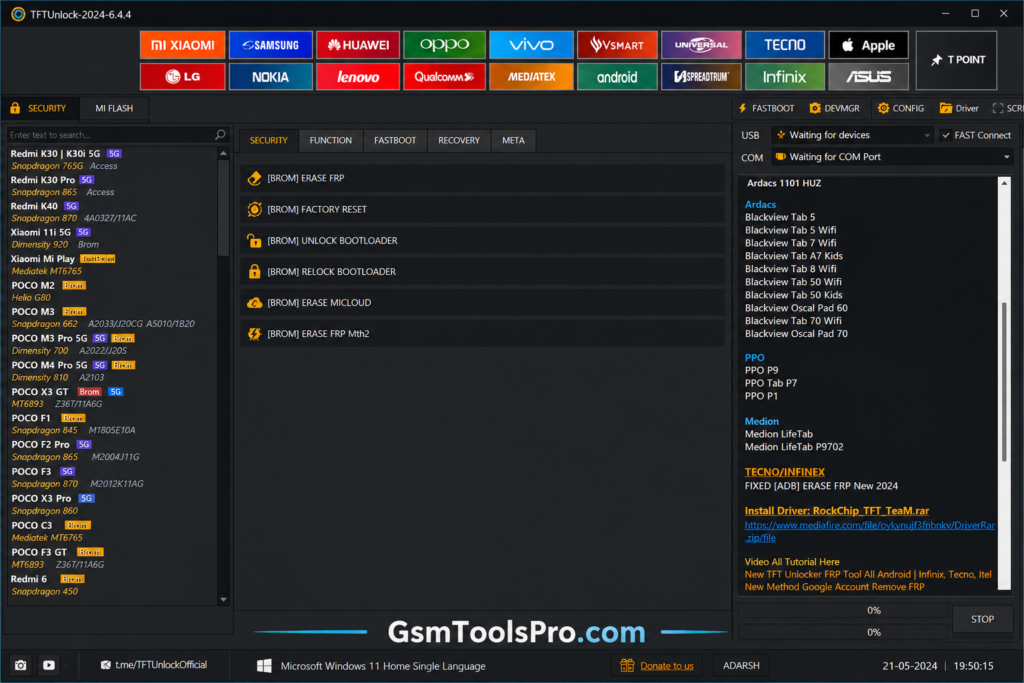
The TFT Tool is an windows based android serivcing tool that helps solve issues like FRP Locks, forgotten passwords, IMI, and firmware-related issues. The software works on different brands, including Samsung, Xiaomi, Redmi, POCO, Vivo, Oppo, and Realme, as well as chipsets like MTK, Qualcomm, SPD, and others. The tool is designed with various features like FRP Bypass, Unlock Passwords, Repair corrupted firmware, Factory Reset, etc making it the best tool for technicians in daily use.
Features of TFT Software
FRP Bypass
After the factory reset, the device sometimes gets stuck due to Google FRP locks. The tool allows you to bypass the FRP for smooth work.
Firmware Flashing
The tool helps to flash the Firmware OTA updates and ROMs to repair the boot loops, crashes, system issues, logo stuck problems, and update issues.
TFT MTK Module
The Tool supports MediaTek (MTK) smartphones for firmware flashing, FRP servicing, device detection, and chipset-based repair workflows through supported USB and service modes.
TFT QC Unlock Tool
TFT Tool provides Qualcomm Snapdragon device servicing with chipset-specific workflows for unlocking, firmware operations, diagnostics, and supported Qualcomm service modes.
EDL Mode Support
TFT Tool supports EDL for Qualcomm Snapdragon devices and helps with firmware flashing, unbricking, partition management, and recovery when an Android phone fails to boot.
Data Management
TFT Tool supports Android data backup, including contacts, messages, photos, videos, and multimedia files, helping protect important user data before a factory reset or device servicing.
What’s New in 2026?
- New device support for more Android models.
- Bug fixes for smoother and more stable operations.
- Improved compatibility with newer devices and software.
- Better Qualcomm & MediaTek (MTK) unlocking workflows.
- Expanded TFT MTK Module and TFT QC Unlock Tool.
- Improved driver management through TFT USB Driver Installer.
- Better Windows compatibility across supported versions.
- Cleaner, beginner-friendly interface for easier navigation.
Supported Mobile Brands
TFT Tool supports many popular Android smartphones for firmware flashing, FRP servicing, screen-lock removal, factory reset, and other repair tasks. Commonly supported brands include:
- Samsung
- Xiaomi
- Redmi
- POCO
- Vivo
- Oppo
- Realme
- Huawei
- Honor
- Motorola
- Nokia
- OnePlus
- Infinix
- Tecno
- Itel
- Lenovo
- Asus
- Sony
- ZTE
- Google Pixel
Supported Chipsets
TFT Tool supports major MediaTek (MTK), Qualcomm (QCOM), Unisoc (SPD), Samsung Exynos, and HiSilicon Kirin chipsets for firmware flashing, FRP servicing, partition management, boot repair, and software troubleshooting on Android devices
Download Info about TFT Tool
| Specification | Details |
| Tool Name | TFT Unlock Tool |
| Latest Version | v6.3.1 |
| File Size | Approx. 302–310 MB |
| File Type | ZIP / RAR / Setup |
| Platform | Windows |
| Supported OS | Windows 7, 8, 10, 11 |
| Category | Android Mobile Repair & Servicing Tool |
| Chipset Support | MediaTek, Qualcomm, Unisoc, Exynos & Kirin |
| Developer | TFT Unlock Team |
Recommended System Requirements For TFT Unlock Tool
| Requirement | Recommended Specification |
| Operating System | Windows 10 or Windows 11 (64-bit) |
| Processor | Intel Core i3/i5 or AMD Ryzen 3/5 |
| RAM | 4 GB minimum (8 GB or higher recommended) |
| Storage | 2–5 GB free disk space (SSD recommended) |
| USB Drivers | Latest Android USB Drivers for supported devices |
| Internet | Required for updates, activation, and selected online functions |
| Display Resolution | 1366 × 768 or higher |
| Connection | USB 2.0/3.0 port with a high-quality USB cable |
Minimum System Requirements
| Requirement | Minimum Specification |
| Operating System | Windows 7, 8, 10, or 11 (64-bit) |
| Processor | Intel Core i3 or AMD equivalent |
| RAM | 4 GB |
| Free Storage | 2 GB available disk space |
| Display | 1366 × 768 resolution |
| USB Drivers | Installed Android USB Drivers |
| Internet Connection | Required for activation and updates |
| USB Port | USB 2.0 or higher |
How to Download the TFT Tool?
1. Download the most recent version of the TFT Tool archive from a reliable website.
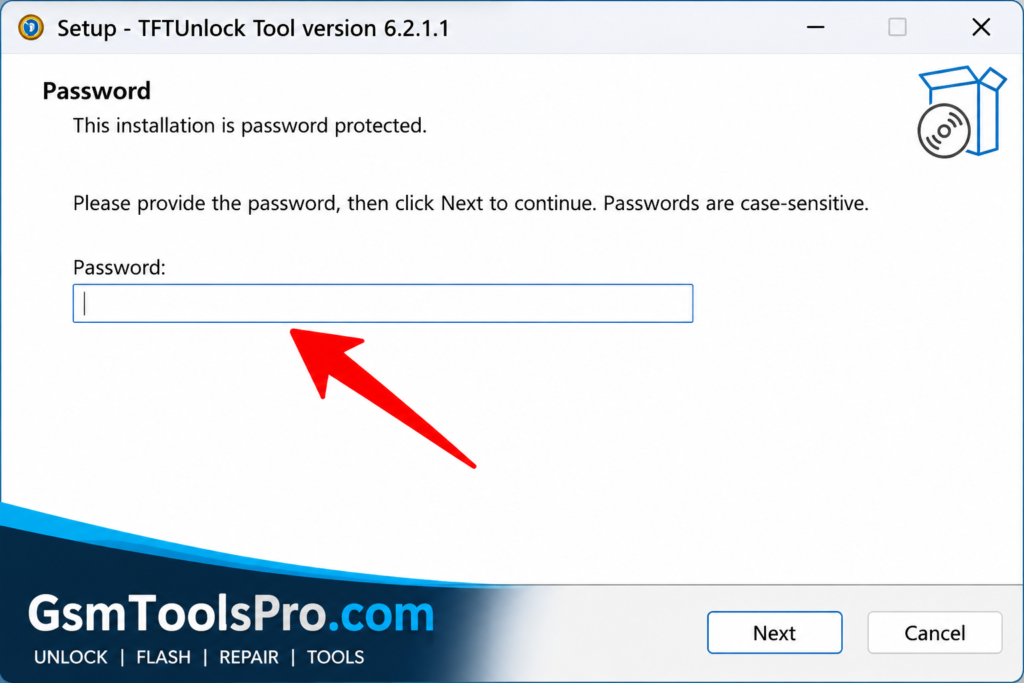
2. Now the setup will ask for a password; enter 123 and then click Next.
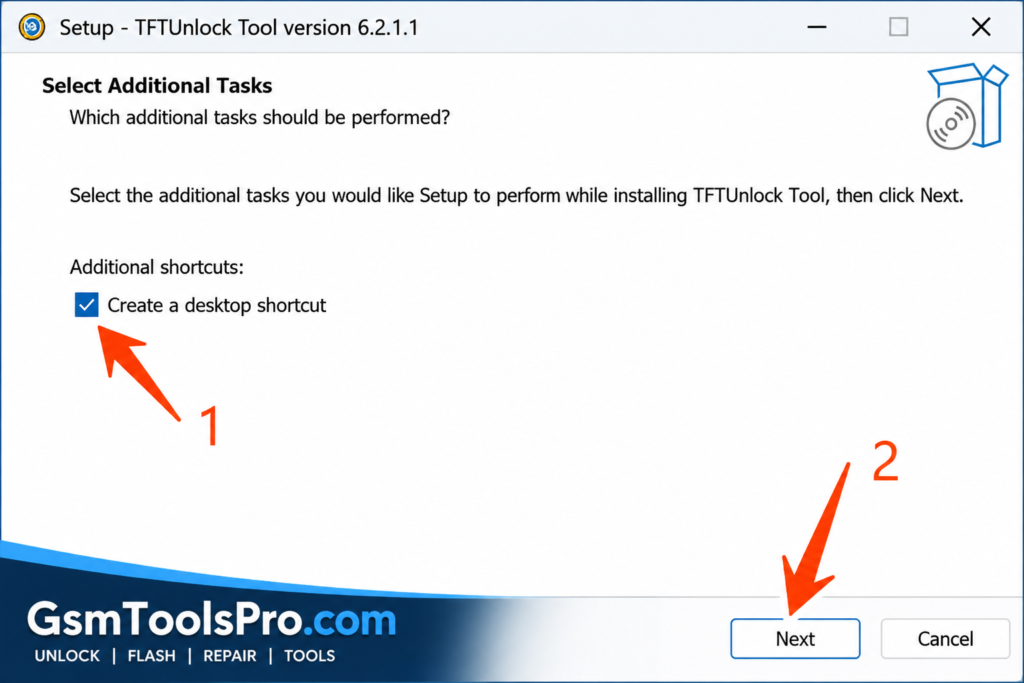
3. Tick “Create a desktop shortcut” and click Next.
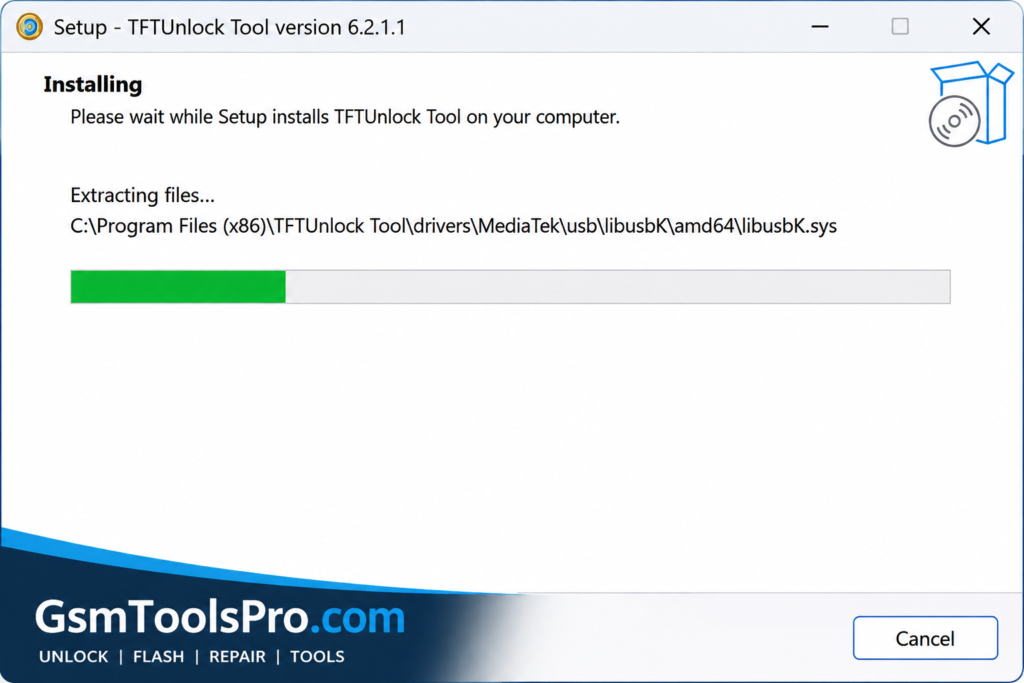
4. The installation process will start on your screen. After that, you can use the TFT Unlock Tool for free.
5. Open up the TFT Tool as an administrator, connect your Android phone, and start servicing your device.
Update Steps of TFT Tool
- Download the latest TFT Tool version from a trusted source.
- Close the currently running TFT Tool before starting the update.
- Install the new version or replace the required old program files.
- Update the necessary USB drivers to maintain device compatibility.
- Open the updated TFT Tool and check the version number before using its latest features.
Pros and Cons of the TFT Tool
| Advantages (Pros) | Limitations (Cons) |
| Covers various Android brands, chipsets, and repair operations from one platform. | Certain functions depend on the supported device, chipset, and security patch. |
| Offers tools for FRP servicing, firmware flashing, factory reset, and screen-lock removal. | Proper USB drivers and a reliable connection are needed for stable operation. |
| Simple interface that works well for beginners as well as experienced technicians. | Some Android models may not be supported because of manufacturer restrictions or updates. |
| Supports Windows and receives updates for newer devices and servicing features. | Incorrect firmware or repair procedures can cause software or flashing problems. |
TFT Tool vs Other Mobile Repair Tools
| Feature | TFT Tool | Other Mobile Repair Tools |
| Device Support | Covers various Android brands and supported models | May focus on selected brands or devices |
| FRP Servicing | Available for many compatible devices | Depends on the tool and security level |
| Firmware Flashing | Supports firmware operations on compatible models | Some brands may need separate servicing tools |
| User Interface | Clean and easy-to-navigate interface | Some solutions have more technical interfaces |
| Chipset Support | Supports MediaTek, Qualcomm, and Unisoc platforms | Chipset coverage varies between tools |
| Updates | Updated with new features and device compatibility | Update schedules vary by developer |
Conclusion
TFT Tool is a practical Android servicing solution for technicians working with Samsung, Xiaomi, Qualcomm, Unisoc, etc devices. It brings useful functions like FRP servicing, firmware flashing, factory reset, screen-lock removal, and device recovery into one platform. With its multi-device and chipset support, TFT Tool can make mobile repair tasks easier, especially for beginners and professional technicians.
FAQ’s
Which phones and chipsets does TFT Unlock Tool support?
TFT Tool works with many Android brands and supports popular platforms such as MediaTek (MTK), Qualcomm Snapdragon, and Unisoc (SPD). Exact features depend on the phone model and security level.
Can TFT Unlock Tool remove FRP from Android phones?
Yes. TFT Tool includes FRP servicing for supported Android devices. Available methods can vary by brand, chipset, Android version, security patch, and connection mode such as ADB, MTP, BROM, or Fastboot.
Can I flash firmware using TFT Tool Pro?
Yes. TFT Tool provides firmware flashing functions for compatible devices. It supports different flashing methods depending on the chipset and phone, including MediaTek, Qualcomm, and other supported platforms.
Does TFT Unlock Tool support MediaTek and Qualcomm devices?
Yes. TFT Tool has dedicated MTK and Qualcomm servicing functions. Depending on the supported model, users can access features such as FRP servicing, firmware operations, partition handling, factory reset, and device information.
Does TFT Unlock Tool work on Windows 10 and Windows 11?
Yes. Recent TFT Tool builds are designed for Windows PCs, with sources reporting support for Windows 10 and Windows 11. Installing the correct USB drivers can help the tool detect connected Android devices properly.
![EMC Activator v1.5.2 for iOS & iPad Download Latest Update Setup 2026 [100% Working]](https://gsmtoolspro.com/wp-content/uploads/2026/09/EMC-Activator-v1.5.2-for-iOS-iPad-Download-Latest-Update-Setup-2026-100-Working-768x512.png "EMC Activator v1.5.2 for iOS & iPad Download Latest Setup 2026 [100% Working] 5")
![Xiaomi Tool v2026.01.18 Use for Mi Account Setup Download [2026] (2)](https://gsmtoolspro.com/wp-content/uploads/2026/09/Xiaomi-Tool-v2026.01.18-Use-for-Mi-Account-Setup-Download-2026-2-768x576.png "Xiaomi Tool v2026.01.18 Use for Mi Account Setup Download [2026] 8")