Amlogic USB Burning Tool v3.3.1 for Windows Free Download
Is your Android TV box stuck on the boot logo or failing to start after a firmware update? Amlogic USB Burning Tool V3.3.1 helps flash stock firmware, repair software issues, and upgrade or downgrade devices using a Windows PC, USB cable, and the correct firmware image.
What is the Amlogic USB Burning Tool?
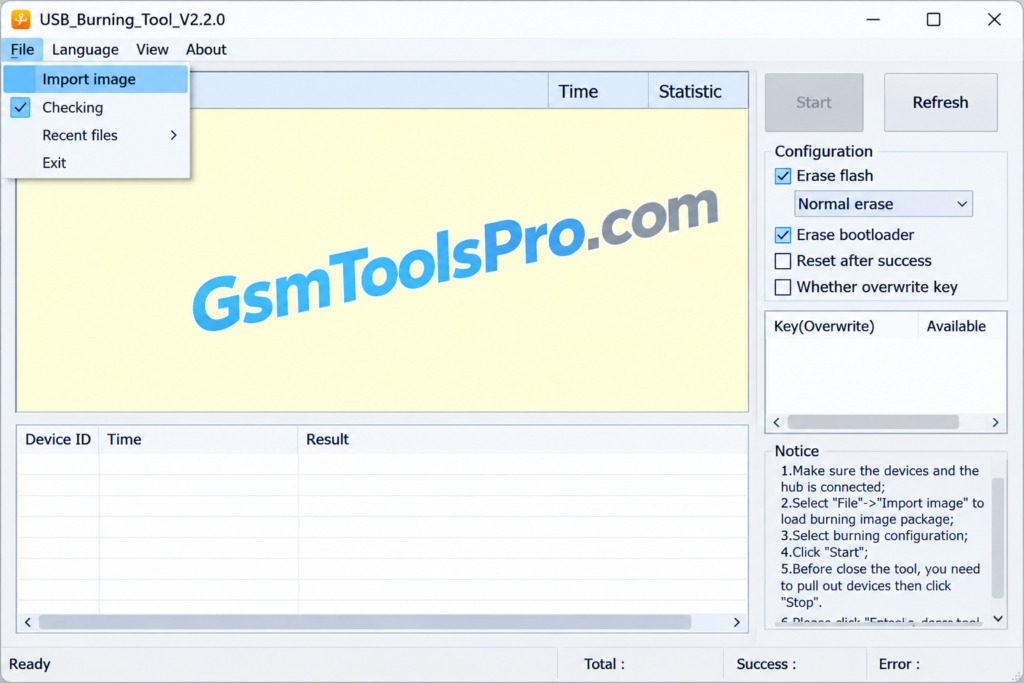
Amlogic USB Burning Tool is a Windows software used to flash, upgrade, downgrade, and restore firmware on Amlogic-powered Android TV boxes. It supports stock firmware in .img format and can help fix boot logo issues or corrupted system software. It operates devices like TV boxes with S805, S905, S912, and S922 chipsets, as well as models like X96 Mini, X96 Max, X96 Max Plus, and Tanix. Flashing may require a USB cable and the correct WorldCup USB drivers.
Key Features Of Amlogic USB Burning Tool
Firmware Flashing
The tool helps to flash stock firmware onto Amlogic-powered Android TV boxes using firmware images to reinstall system software and restore device operation.
Firmware Upgrade and Downgrade
It allows you to upgrade or downgrade Android TV box firmware to apply available updates, fix software bugs, and address compatibility or performance issues.
Brick Recovery
You can recover soft-bricked Android TV boxes affected by failed firmware updates, boot loops, or frozen boot logos by flashing firmware.
Flash Erase Options
Choose Normal Erase, Force Erase, Erase All, or Force Erase All to clear flash storage during firmware installation when required.
Bootloader and Key Management
Use bootloader-related settings and the Overwrite Key option when supported by the firmware and device to manage specific flashing requirements.
Wide Amlogic Chipset Support
It supports Amlogic chipsets, including S805, S905, S905W2, S912, and S922X, found in various Android TV boxes and media players.
Multiple Firmware File Formats
It supports firmware packages in formats such as .img, .zip, and .tar where compatible, helping users work with different device firmware files.
Flashing Configuration Options
You can adjust settings, including Reset After Success and flash erase options, to control parts of the firmware installation process.
Download File Information
| Information | Details |
| Tool Name | Amlogic USB Burning Tool |
| Version | 3.3.1 |
| File Name | Amlogic USB Burning Tool |
| File Type | ZIP / EXE |
| Platform | Windows |
| Firmware Format | IMG |
System Requirements
| Requirement | Details |
| Operating System | Windows 7, 8, 10, or 11 |
| Processor | Intel or AMD |
| RAM | 2 GB or more |
| Storage | 500 MB free space |
| USB Driver | WorldCup USB Driver |
| Connection | USB cable |
How to Download, Install, and Use Amlogic USB Burning Tool V3.3.1?
- Visit the trusted download website and download Amlogic USB Burning Tool V3.3.1 for your Windows PC.
- Extract the downloaded ZIP file using WinRAR or 7-Zip, then open the extracted folder.
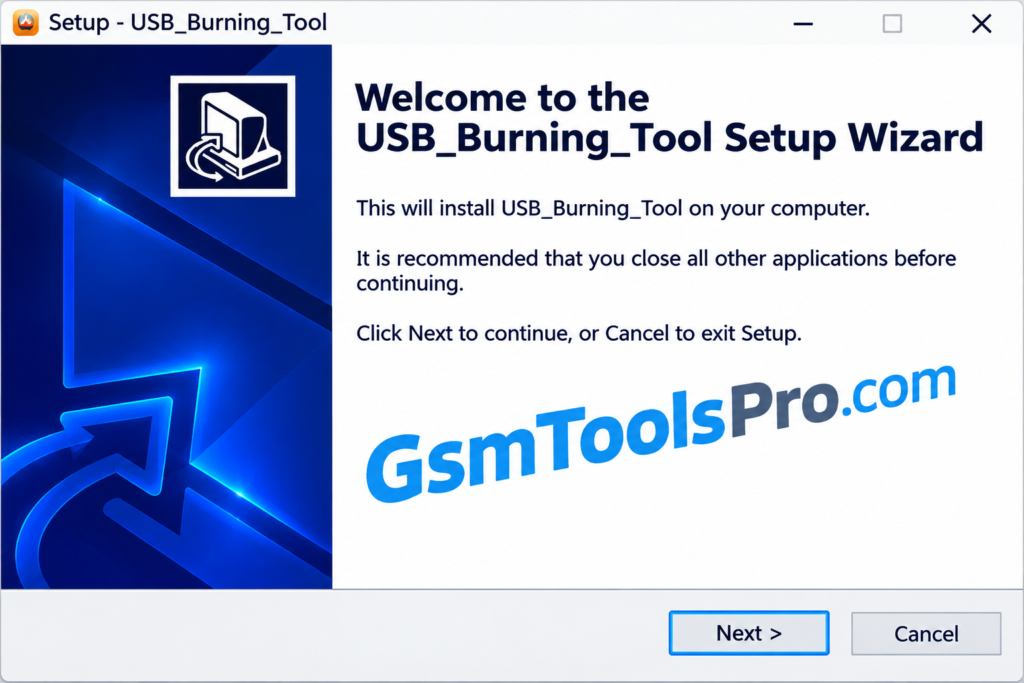
- Run USB_Burning_Tool.exe as an administrator and follow the setup instructions to install the software and required Amlogic USB drivers.
- Connect your Amlogic Android TV box to the computer using a compatible USB cable and enter the device’s supported flashing mode.
- Launch the tool, select File → Import Image, and load the correct firmware file for your device.
- Check the available settings, including Overwrite Key, and leave it unchecked unless your firmware instructions require otherwise.
- Click Start to begin flashing and wait until the process finishes. Avoid disconnecting the USB cable during installation.
- Click Stop, disconnect the device safely, and power it on to check whether the firmware installation was successful.
Pros & Cons
| Pros | Cons |
| Helps flash stock firmware on compatible Amlogic Android TV boxes. | Only works with supported Amlogic devices and compatible firmware. |
| Can recover some devices affected by boot loops or failed updates. | Incorrect firmware can make the device unusable. |
| Supports firmware upgrades and downgrades when compatible images are available. | Flashing can erase user data and settings. |
| Provides flash erase and bootloader configuration options. | Incorrect erase settings may cause flashing errors. |
| Offers a Windows-based interface for USB firmware installation. | Requires compatible USB drivers, a suitable cable, and correct device mode. |
| Supports several Amlogic chipsets, including S905, S912, and S922X families. | Some devices may not be detected due to |
Also Read: E-GSM Tool v4.3.3 Setup Download for Windows [Latest Version]
Conclusion
Amlogic USB Burning Tool makes it easier to flash, upgrade, or downgrade firmware on Amlogic Android TV boxes. It can also help recover devices stuck on boot logos or affected by failed updates. With support for firmware images and chipsets like S905, S912, and S922X, it offers useful options for device repair. Always choose the correct firmware for your model to reduce the risk of flashing errors. Consequently, back up your files before servicing.
FAQ’s
What is Amlogic USB Burning Tool used for?
It flashes firmware, updates software, and helps recover compatible Amlogic Android TV boxes from certain boot and firmware problems.
Why is my Android TV box not detected by USB Burning Tool?
Check the USB cable, the WorldCup USB driver, the USB port, and the device flashing mode. Some devices require a specific connection method.
Which firmware file does Amlogic USB Burning Tool support?
The tool commonly uses compatible .img firmware packages. Always check the firmware format and instructions for your specific device.
Can Amlogic USB Burning Tool fix a bricked TV box?
It can recover some soft-bricked devices caused by failed updates or corrupted firmware, but severe bootloader or hardware damage may need advanced repair.
Why does Amlogic USB Burning Tool show a flashing error?
Errors may result from incompatible firmware, USB connection problems, driver issues, or flash settings. Check the error message before trying again.
Does Amlogic USB Burning Tool erase user data?
Yes, firmware flashing and erase options can remove stored data and settings. Back up important files whenever possible before starting the process.