How to Use iTools to Manage Your iPhone or iPad Full Guide [2026]
Managing photos, music, contacts, and other files on an iPhone can be difficult when you need to move everything through a computer. iTools offers a desktop solution that helps you manage supported iOS devices, transfer media, and back up selected data. In this guide, you will learn how to use iTools, connect your iPhone or iPad, manage files, and fix common connection problems.
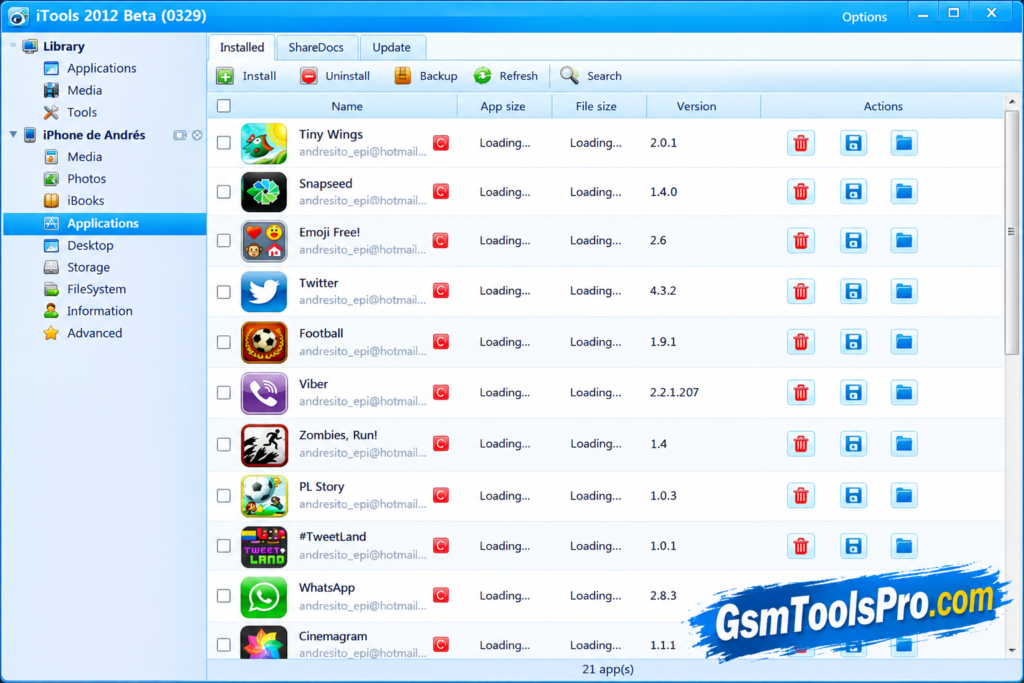
Download From Here: iTools v4.5.1.9 Download Free Latest Version [2026]
What You Need Before Using iTools
Before you start using iTools, prepare your computer and iOS device. This helps prevent connection errors and failed transfers.
Here is what you need:
- A Windows PC or a Mac that meets the requirements of your iTools version.
- The iTools desktop application downloaded from the official website.
- An iPhone or iPad with a working USB connection.
- A compatible USB cable.
- Apple device drivers and supporting components, if required.
- Enough free storage on your computer for transferred files and backups.
Check your iOS version before installing the software. ThinkSky’s current website states that its standard iTools version does not support iOS 17 or later. Check the official compatibility information before relying on it for your device.
How to Connect Your iPhone or iPad to iTools
The first step in learning how to use iTools is connecting your device to the computer. Once the connection works, you can access the supported management features.
Follow these steps:
- Download and install iTools on your computer.
- Open the application after installation.
- Connect your iPhone or iPad using a compatible USB cable.
- Unlock your device and look for the Trust This Computer prompt.
- Tap Trust and enter your device passcode if requested.
- Wait for iTools to detect your device.
- Open the relevant section to view supported information and files.
After a successful connection, the software may display device details, storage information, battery information, and available management options.
If iTools does not detect your iPhone, try another USB port or cable. Also check whether the required Apple device drivers are installed correctly.
How to Transfer Photos and Videos Using iTools
Photos and videos can take up a lot of space on an iPhone. Moving them to a computer helps you keep a separate copy and organize your media more easily.
To transfer photos or videos using iTools:
- Connect your iPhone to the computer and open iTools.
- Select the Photos, Albums, or Videos section, depending on your version.
- Browse the available media.
- Select the photos or videos you want to transfer.
- Click Export and choose a folder on your computer.
- Wait for the transfer to finish before disconnecting your device.
You can also use the Import option where supported to move compatible media from your computer to your device.
If some photos are missing, check whether they are stored only in iCloud and have not been downloaded to the iPhone. ThinkSky’s guide notes that iCloud Photo Library content may need to be downloaded to the device before export.
How to Transfer Music Between Your iPhone and Computer
iTools can help you manage supported music files without navigating through multiple folders on your computer. The exact options may vary by software version and iOS compatibility.
To transfer music from an iPhone to a PC:
- Connect the iPhone and open iTools.
- Select the Music section.
- Choose the tracks you want to export.
- Click Export and select a destination folder.
- Wait until the selected files have been copied.
To move supported music files from a computer to an iPhone, open the Music section, select Import if available, and choose the files you want to add.
Keep in mind that downloaded tracks from streaming services may have digital rights restrictions. They cannot always be exported as ordinary audio files.
How to Manage iPhone Apps With iTools
The application management features in iTools can help you review installed apps and perform supported app-related tasks from a computer.
Depending on your iTools version and device compatibility, available options may include:
- Viewing installed applications.
- Checking app information.
- Installing supported app packages where permitted.
- Uninstalling applications when the feature is available.
To get started, connect your iPhone, open iTools, and select the Apps section. Review the available options before making changes.
Do not assume that every app can be installed or removed through the desktop software. Apple’s security restrictions and iOS version can affect which operations are available. Back up important information before changing apps or their data.
How to Back Up and Restore iPhone Data
A backup gives you another copy of important information in case your device is lost, damaged, or needs to be restored. iTools provides backup-related features, although the options available can depend on the installed version.
To create a backup:
- Connect your iPhone or iPad to the computer.
- Open iTools and look for Backup & Restore or iTunes Backup Manager.
- Select the available backup option.
- Choose a destination if the software allows it.
- Start the backup and wait for it to complete.
- Keep the backup files in a safe location.
To restore data, open the relevant backup management section and select a compatible backup. Read the confirmation messages carefully before proceeding.
Important: A restore can replace existing information, depending on the operation. Make sure you have a recent backup before restoring anything. Do not disconnect the device while a backup or restore is running.
How to Manage Contacts and Files
iTools also provides options for managing supported contacts and files from a computer.
Managing contacts
Open the Information or Contacts section after connecting your device. Depending on your version, you may be able to view, import, export, or delete contacts.
To keep a separate copy of your address book, select the available export option and save the file to your computer. Check that the exported contacts are readable before making any major changes to the originals.
Managing files
Open the Files section to browse supported files and folders. Where available, you can import, export, rename, or delete items.
Be careful when deleting files. Some folders contain information used by apps or the operating system. Avoid changing unfamiliar system files, and keep a backup of anything important.
How to Check iPhone Battery Health and Storage
iTools includes device information and utility features that can help you review battery and storage details on supported devices.
To check battery information:
- Connect your iPhone to the computer.
- Open iTools.
- Select the device information or battery-related option.
- Review the battery details shown by your version.
Available battery information can vary, and the displayed figures should not automatically be treated as a full diagnostic report.
To check storage, open the device information or storage management section. Review how much space is used and which categories take up the most room. You can then move personal photos or videos to your computer, provided you have verified that the exported files open correctly.
For the most reliable battery information, you can also check Settings > Battery > Battery Health & Charging on supported iPhone models.
Common iTools Problems and How to Fix Them
Even when you follow the correct steps, iTools may fail to detect a device or complete a transfer. Try these checks before repeating the operation.
iTools Does Not Recognize Your iPhone or iPad
- Unlock the device and tap Trust if prompted.
- Try a different USB cable or port.
- Check that Apple Mobile Device Support and other required drivers are installed correctly.
- Update iTools if a compatible release is available.
- Restart the computer and reconnect the device.
ThinkSky also recommends checking the Apple software components and temporarily testing whether security software is blocking the connection. Only change security settings when necessary, and restore them afterward.
Photo or Music Transfer Fails
Check the available storage on both devices. Make sure the selected files are accessible and supported by your iTools version. If a transfer fails repeatedly, try exporting a smaller group of files to identify whether one particular item is causing the problem.
For iCloud photos, confirm that the original files are downloaded to your iPhone before exporting them.
Backup or Restore Gets Stuck
Keep the USB connection stable and make sure your computer has enough free space. Close other device management programs that may interfere with the connection.
Do not disconnect the iPhone during an active backup or restore. If the process repeatedly fails, check the official support guide before trying another backup method.
iTools Is Not Compatible With Your iOS Version
An incompatible iOS version can prevent some features from working even when the USB connection is successful.
Check the iTools version and its official compatibility notes before troubleshooting further. ThinkSky’s website currently states that its standard iTools software does not support iOS 17 or later. If your device runs a newer version, confirm whether an officially supported release is available before relying on the software.
Conclusion
Learning how to use iTools can make everyday iPhone and iPad management easier. You can use its supported features to transfer photos, videos, and music, manage contacts and files, and create backups from a computer. However, available features depend on your software version and iOS compatibility. Check the official requirements, protect your data with backups, and confirm that every transfer has completed before disconnecting your device.
Frequently Asked Questions
Is iTools Free to Use?
iTools offers some free usage, but certain features or continued use may require payment or activation. Check the current pricing and license details on the official website.
Does iTools Work With Both iPhone and iPad?
Yes, iTools is designed to manage supported iPhone and iPad devices. The available functions depend on your device, iOS version, and installed software release.
Does iTools Support the Latest iOS Version?
Compatibility depends on the iTools edition and release. ThinkSky’s current website states that its standard iTools version does not support iOS 17 or later, so verify the latest official compatibility information before using it.
Is iTools an Alternative to iTunes?
iTools offers alternative ways to manage supported iPhone content, transfer media, and handle certain backup tasks. However, it does not replace every iTunes or Apple device management function, and its compatibility is limited by the software version and iOS restrictions.

![Flash Sony Xperia Firmware Using Sony Flash Tool Working [2026] (3)](https://gsmtoolspro.com/wp-content/uploads/2026/09/Flash-Sony-Xperia-Firmware-Using-Sony-Flash-Tool-Working-2026-3-768x577.png "Flash Sony Xperia Firmware Using Sony Flash Tool Working [2026] 4")