SamFlash Tool v4.1 Download for All Samsung Devices [2026]
Is your Samsung Galaxy stuck with an FRP lock, firmware error, or software problem? SamFlash Tool V4.1 helps mobile technicians flash Samsung stock firmware, troubleshoot Android issues, and access FRP servicing through MTP and EDL modes. It also supports Galaxy devices with Qualcomm and MediaTek chipsets, depending on model compatibility and security level.
What Is SamFlash Tool?
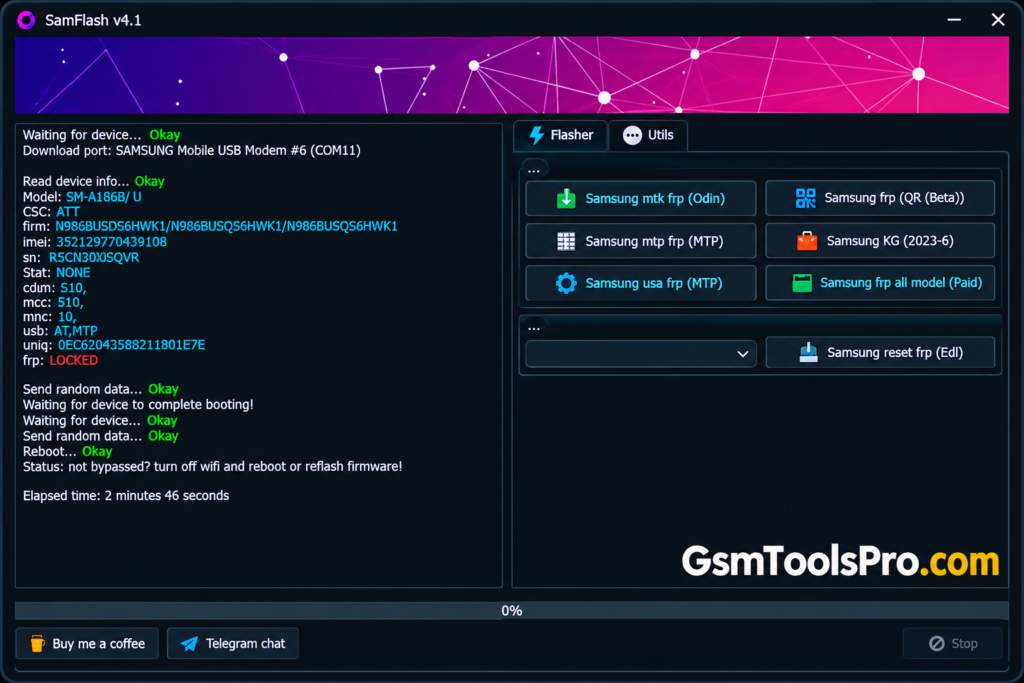
SamFlash Tool v4.1 is a Windows-based software developed by Kagemi for Samsung Galaxy smartphones and tablets. It helps mobile technicians flash stock firmware, remove FRP, bypass KG lock, etc issues. The tool also supports screen lock removal, rooting, and firmware downgrading. It offers different servicing methods, including Download Mode, MTP, and EDL, depending on device compatibility.
Key Features Of SamFlash Tool
Firmware Flashing and Backup
SamFlash Tool flashes Samsung firmware using BL, AP, CP, and CSC files. It also supports firmware backup on compatible devices to help protect data.
Samsung MediaTek Support
The Tool supports Samsung phones with MediaTek chipsets. Available features depend on the device model, security level, and firmware version.
IMEI Repair
It helps to repair IMEI-related issues on Samsung devices when software problems affect network identification.
Multi-Mode Connectivity
SamFlash Tool supports connection methods such as Download Mode and MTP, depending on the device model and available features.
Supported Samsung Devices
SamFlash Tool supports selected Samsung Galaxy devices, including the Galaxy S21 Ultra, A50, Note 20 Ultra, A03s, Z Fold3, and A13. Actual support depends on the device model and firmware version.
What’s New in SamFlash Tool V4.1?
- Samsung FRP Erase via EDL: Added a new FRP servicing option for selected Samsung models.
- Paid FRP Function: Added a paid Samsung FRP erase feature.
- USA Model Support: Added MTP-based FRP servicing for selected US Samsung models, including Galaxy S, Note, A, and Z series.
- Updated User Interface: Changed the tool’s interface to improve navigation.
- Model-Specific Compatibility: Added support for selected device models, depending on the servicing method.
Download Information
| Information | Details |
| Tool Name | SamFlash Tool |
| Version | V4.1 |
| File Size | Approximately 46 MB |
| File Type | 7z / ZIP archive |
| Operating System | Windows 7, 8, 8.1, 10, 11 |
System Requirements
| Requirement | Details |
| Processor | Windows-compatible processor |
| RAM | Not officially confirmed |
| Free Storage | Enough space to extract the archive |
| USB Connection | Working USB data cable and port |
| Drivers | Compatible Samsung USB drivers |
| Internet | Required for downloading the tool |
How to Install SamFlash Tool V4.1?
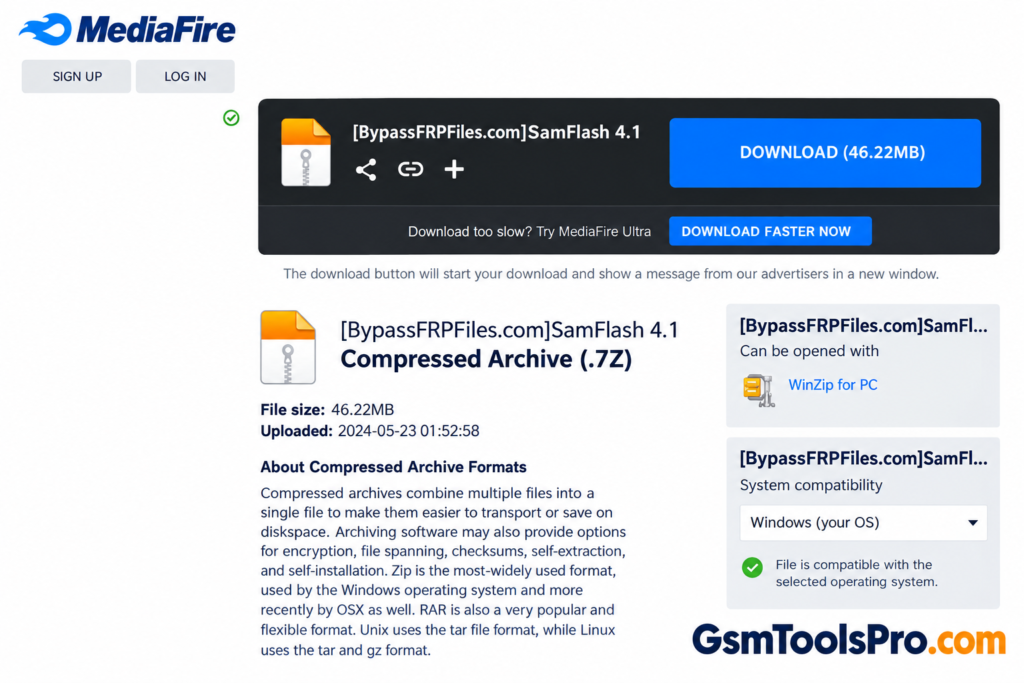
- Download SamFlash Tool V4.1 from a trusted source.
- Extract the ZIP or 7z file using WinRAR or 7-Zip.
- Install the compatible Samsung USB drivers on your Windows PC.
- Open the extracted folder and run SamFlash Tool as Administrator.
- Connect your Samsung Galaxy phone using a working USB data cable.
- Select the required function, such as firmware flashing, from the tool’s dashboard.
- Follow the on-screen instructions and wait for the process to finish.
Note
“Back up your data before flashing firmware. Use files compatible with your exact Samsung model, and avoid disconnecting the phone during the process.”
Pros and Cons
| Pros | Cons |
| Supports Samsung firmware flashing and software repair. | Works only on Windows PCs. |
| Offers multiple connection modes, including MTP and EDL. | Supports Samsung devices only. |
| Includes FRP servicing options for compatible models. | No verified official download website or reliable support channel. |
| Lightweight and portable, with no complex installation. | Compatibility depends on the model and security patch. |
| Supports selected Qualcomm and MediaTek Samsung devices. | Incorrect firmware flashing may damage the device or cause boot issues. |
| Offers some free functions. | Some FRP functions may require payment. |
Also Read: SamFirm Tool v3.3 Free Download Full Samsung Firmware Working
Conclusion
SamFlash Tool helps mobile technicians flash firmware, handle FRP issues, and troubleshoot software problems on Galaxy devices. It offers servicing options through USB, MTP, and Download Mode. Before using the tool, check your Samsung model, firmware version, and security level to avoid flashing errors or device damage. Always download files from a trusted source and back up important data first.
FAQ’s
Why is SamFlash Tool stuck on “Waiting for device”?
This issue has been reported by users during Samsung FRP servicing. Check the USB cable, Samsung drivers, USB port, and device mode.
Why does SamFlash Tool show an “Invalid L0KE response: 0xFF” error?
A Samsung Galaxy A05 user reported this error. Compatibility, connection mode, chipset, and security patch may affect the result.
Does SamFlash Tool V4.1 support Samsung Galaxy A15 FRP removal?
Users have reported mixed results with the Galaxy A15. Support depends on the exact model, chipset, firmware binary, and security level.
Why does SamFlash Tool fail to remove FRP after backing up data?
Some users report that the tool completes the backup but leaves the phone in Download Mode. This may indicate a compatibility or servicing issue.
Can SamFlash Tool work on Samsung phones running Android 14?
Some Android 14 users have reported errors with Samsung FRP tools, including SamFlash. Results depend on the model, chipset, firmware binary, and security patch.
Why does SamFlash Tool fail to detect my Samsung phone?
Check that Samsung USB drivers are installed, use a working data cable, and confirm the phone is in the required mode. Hardware or USB port problems can also prevent detection.