360OS MDT ASE v1.1.0 Download CPB Flash Tool Activated Setup
Is your Android phone stuck with software errors or needing a firmware reinstall? The 360OS MDT ASE Tool V1.1.0 helps technicians flash CPB firmware on MediaTek, Qualcomm, and Spreadtrum devices. With SMT and Assembly modes, up to 16 download threads, and detailed flashing logs, it simplifies firmware installation and device recovery on Windows.
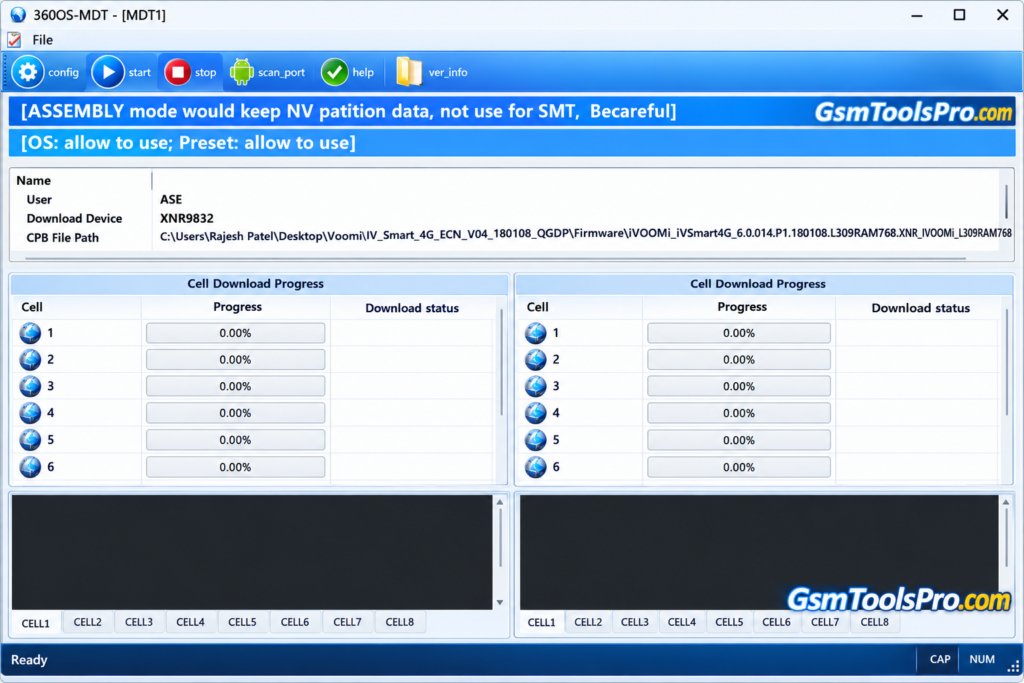
What is 360OS MDT ASE?
360OS MDT ASE Tool is a Windows-based firmware flashing software developed by the MDT Team for installing stock firmware in .cpb format on Android devices. The tool supports MediaTek (MTK), Spreadtrum (UniSoC), and Qualcomm chipsets, helping mobile technicians restore device software and perform firmware installation. The tool also provides SMT and Assembly modes for different production and flashing tasks.
Features of the 360OS MDT ASE Tool
Multi-Platform Support
The tool supports MediaTek (MTK), Qualcomm, and Spreadtrum (SPD/UniSoC) chipsets, allowing technicians to flash firmware using the Multi-Platform Support feature.
Dual Mode Operation
It provides SMT and Assembly modes for different flashing tasks, including blank-board programming, firmware upgrades, and handling calibration or NV data.
Multi-Threaded Flashing
The software supports up to 16 download threads, helping production technicians flash multiple devices efficiently while monitoring individual download progress and status messages.
CPB Firmware Handling
Automatically unpacks CPB firmware packages after login, validates package contents, and prepares the required files before starting the device flashing process.
Comprehensive Logging System
Records unpacking, sharing, downloading, platform, and dump logs, helping technicians review flashing activity, troubleshoot errors, and save records to custom locations.
Port Scanning and Configuration
Detects available download ports through its built-in scanning function and provides configuration options to manage firmware flashing settings for Android devices.
Firmware Flashing
You can install CPB firmware on Android devices, allowing you to perform software reinstallation and restore the device’s operating system.
Device Software Recovery
It can help recover devices affected by software problems through firmware flashing.
Stock Firmware Restoration
This tool allows technicians to reinstall stock firmware to restore Android devices to a working software state after software-related problems.
Simple Windows Interface
360OS MDT ASE offers a Windows-based graphical interface for loading firmware packages, selecting flashing options, and monitoring download progress during device servicing operations.
Download Information
| Component | Details |
| Tool Name | 360OS MDT ASE Tool |
| Latest listed version | V1.1.0 |
| File Name | 360OS_MDT_ASE_v1.1.0.zip |
| File Size | Approximately 63.21 MB |
| File Format | ZIP |
System Requirements
| Component | System Requirements |
| Operating System | Windows PC (32-bit or 64-bit) |
| Processor | Not officially specified |
| RAM | Not officially specified |
| Free Storage | At least 200 MB recommended |
| USB Connection | Required to connect the Android device |
| USB Drivers | Install the appropriate Qualcomm, MediaTek, or Spreadtrum drivers |
| Firmware | Compatible .CPB firmware package |
| Tool File Size | Approximately 63.21 MB |
| Additional Requirement | USB cable and supported Android device |
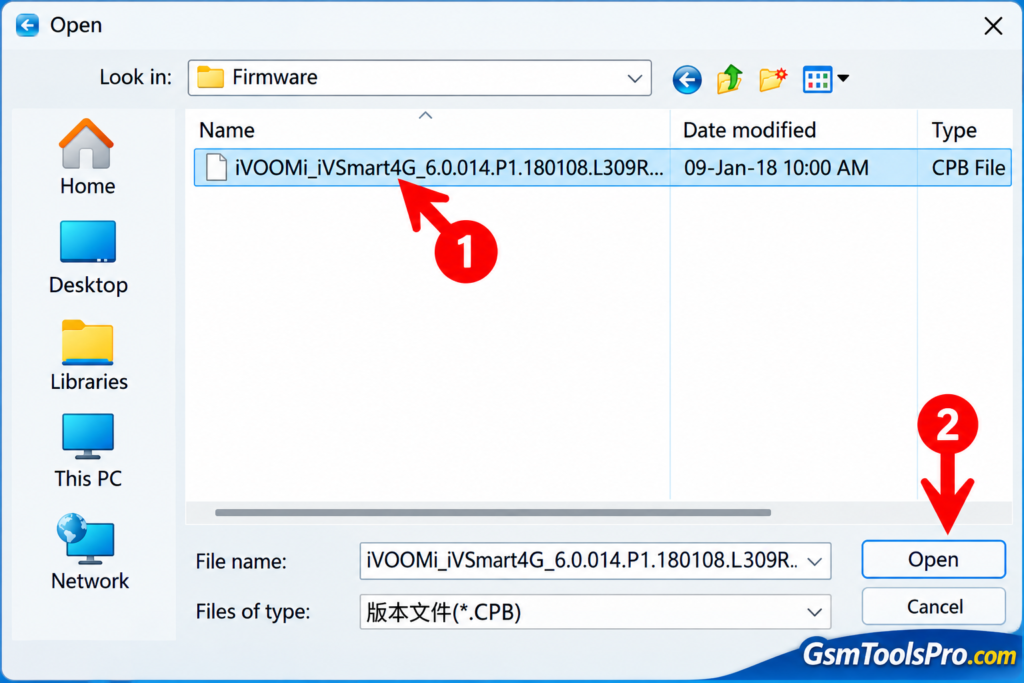
How to Download the 360OS MDT ASE Tool
- Click the download button provided on this page to open the 360OS MDT ASE Tool download link or download from a trusted src.
- Download the ZIP package to your computer.
- Once the download finishes, right-click the ZIP file and select Extract All.
- Open the extracted folder and look for the tool’s setup or executable file.
- Install the required USB drivers for your supported MediaTek, Qualcomm, or Spreadtrum device before flashing firmware.
Pros and Cons
| Pros | Cons |
|---|---|
| Supports MediaTek, Qualcomm, and Spreadtrum (UniSoC) platforms. | Supports only compatible devices and firmware packages. |
| Handles firmware packages automatically. | Requires the correct CPB firmware for the device. |
| Offers SMT and Assembly modes for different flashing tasks. | SMT mode can erase existing device data. |
| Supports up to 16 simultaneous download threads. | Multi-threaded flashing may require a suitable production setup. |
| Provides detailed logs for troubleshooting flashing errors. | Users need technical knowledge to understand some logs and errors. |
| Includes port scanning and configuration options. | Correct USB drivers and download-port detection are necessary. |
| Helps reinstall stock firmware on supported devices. | Incorrect firmware or flashing steps may cause boot problems. |
Also Read: eMMC DL Tool V5.2.0 Free Download Latesteset Version[100% Working]
Conclusion
The 360OS MDT ASE Tool helps technicians flash CPB firmware on MediaTek, Qualcomm, and Spreadtrum (UniSoC) devices. Its SMT and Assembly modes support different production tasks, while multi-threaded flashing and detailed logs help manage multiple devices efficiently. Before flashing, install the correct USB drivers and use best firmware to reduce the risk of software errors or data loss.
FAQ’s
What is the 360OS MDT Tool used for?
360OS MDT ASE Tool flashes .CPB stock firmware on supported MediaTek, Qualcomm, and Spreadtrum devices using Windows.
Which chipsets does 360OS ASE Tool support?
It supports MediaTek (MTK), Qualcomm, and Spreadtrum (SPD/UniSoC) platforms. Firmware compatibility depends on the device model.
Why is my phone not detected by 360OS MDT ASE Tool?
Check the USB cable, install the correct chipset drivers, and check Windows Device Manager for detected download ports.
Does MDT ASE Tool erase user data?
Yes, flashing may erase personal data, especially in SMT mode. Back up important files before starting the process.
What is the difference between SMT and Assembly mode?
SMT mode supports blank-board flashing with data erasure, while Assembly mode supports firmware upgrades designed to preserve calibration and NV data.
How do I fix a failed CPB firmware flashing process?
Check firmware compatibility, reinstall the correct USB drivers, verify the download port, and review the tool logs for errors.