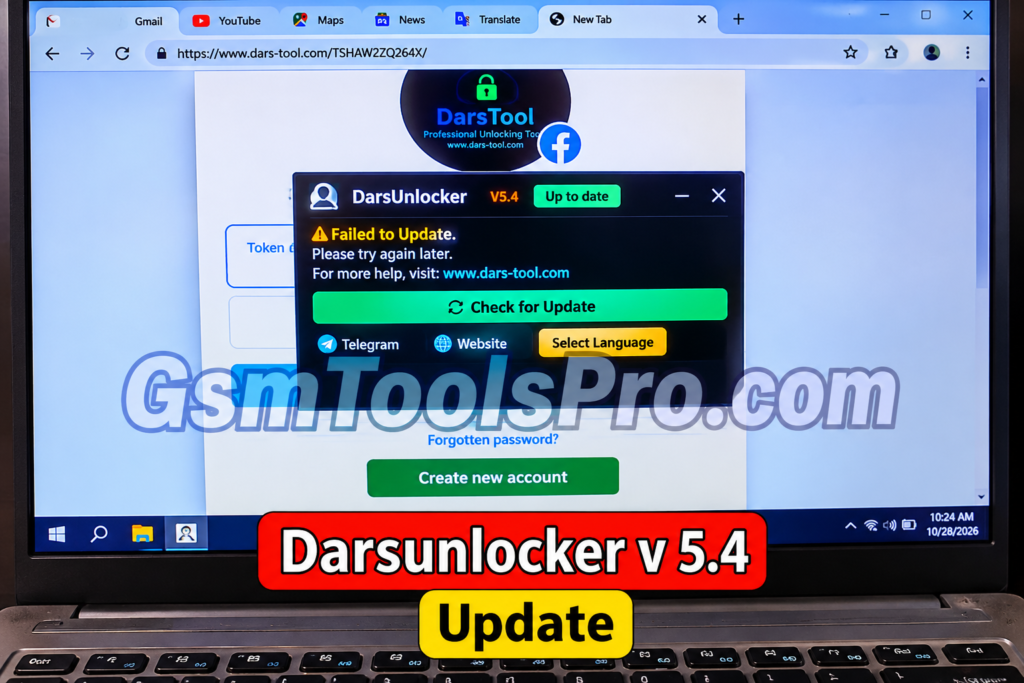
How to Fix DarsTool V5.4 Failed Update Easy Fix Guide
DarsTool V5.4 may stop opening after a failed update, showing Invalid User ID, login, or server connection errors. This guide covers practical fixes, including checking UnlockTool compatibility, reinstalling the V5.4 loader, fixing account verification, and rolling back to a working version.
Download From Here: DARS Unlock Tool v5 | Download Latest Version for FRP Unlock and Flashing
Why Does DarsTool Show a Failed Update Error?
DarsTool may show a failed update error when the loader cannot download or verify the required update files. An incomplete update, incompatible software version, or mismatch between the DarsUnlocker loader and UnlockTool application can prevent it from starting correctly. Internet interruptions, server connection problems, firewall restrictions, and antivirus interference may also block the update process. In some cases, the problem may be related to the loader’s network connection rather than the installed software.
DarsTool V5.4 Failed Update Fix
If DarsTool stops opening after a failed update, try the following troubleshooting steps. These checks can help identify connection problems, blocked files, incorrect Windows settings, or loader startup issues. UnlockTool troubleshooting guidance also recommends checking firewall permissions, VPN settings, system time, and administrator access.
Close DarsTool and UnlockTool
First, close DarsTool and UnlockTool completely. Open Task Manager by pressing Ctrl + Shift + Esc and check whether any related processes are still running. End the remaining processes, then reopen the loader and check whether the update error is resolved.
Check the Internet Connection
A weak or unstable internet connection can prevent DarsTool from contacting the required server or checking update files. Open a few websites to confirm that your connection is working. If the problem continues, restart your router or try another network, such as a mobile hotspot.
Disable VPN or Proxy
VPN and proxy settings can sometimes interfere with server connections and login requests. Open your Windows network settings and check whether a VPN or proxy is active. Disconnect it temporarily and restart DarsTool to test the connection.
Check Windows Date and Time
Incorrect Windows date and time settings can cause secure server connections and login verification to fail. Open Settings > Time & Language > Date & Time. Enable automatic time and time-zone settings, then click Sync Now and restart the application.
Allow the Tool Through Windows Firewall
Windows Firewall may block an application’s outgoing connection, preventing it from checking updates or reaching its server. Open Windows Security > Firewall & network protection > Allow an app through firewall. Check whether the relevant application is allowed on the required network profiles. Only allow software from a source you trust.
Check Antivirus Quarantine
Windows Security or third-party antivirus software may quarantine loader files during extraction or startup. Open your antivirus protection history and check whether any DarsTool files have been blocked. Do not restore files or create exclusions for unknown or unverified software. Verify the package source and scan it before allowing access.
Run the Loader as Administrator
Insufficient Windows permissions can sometimes prevent the loader from starting or accessing required application files. Right-click the DarsTool V5.4 executable and select Run as administrator. Allow the Windows permission prompt if the software is trusted, then check whether the loader opens correctly.
How to Roll Back DarsUnlocker to V5.4
If the latest DarsUnlocker update causes startup or login problems, rolling back to V5.4 may help restore the previous working setup. The Dars Unlocker YouTube channel has a dedicated DarsUnlocker Roll Back to V5.4 tutorial. Before starting, make sure you have a trusted V5.4 package and check its compatibility with the required UnlockTool application version.
- Remove the Problematic Updated Loader: Close DarsTool and UnlockTool before removing the problematic loader files. Keep a backup of the existing configuration if needed.
- Prepare the V5.4 Package: Obtain the V5.4 package from a trusted source and verify that it matches the intended loader release.
- Extract It Into a Clean Folder: Extract the downloaded archive into a separate folder instead of mixing its files with another version.
- Check Application Compatibility: Confirm that the V5.4 loader supports the installed UnlockTool build. Different version numbers do not automatically mean compatibility.
- Launch the V5.4 Loader: Right-click the executable and select Run as administrator if the package is trusted.
- Check the Login and Startup: See whether the loader opens and connects successfully. If the error continues, check the account, license, and server connection.
DarsTool V5.4 Loader Installation
- Extract the Loader: Extract the complete archive using a trusted extraction utility.
- Use a Simple Installation Path: Keep the extracted files in a short folder path, such as C:\DarsTool, to avoid unnecessary path-related problems.
- Check Required Files: Make sure the extraction completed and the executable and other required files are present.
- Run as Administrator: Right-click the loader executable and select Run as administrator.
- Open the Loader: Launch DarsTool V5.4 and wait for the startup process to finish.
- Check UnlockTool Connection: Verify whether the related UnlockTool application opens and whether the account login works.
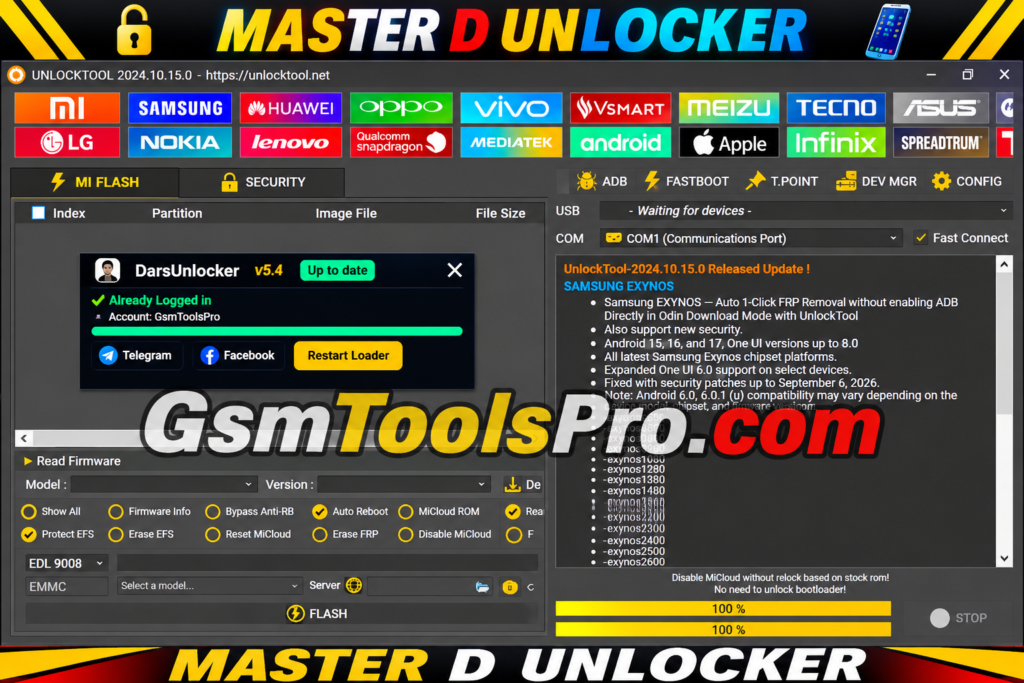
Fix DarsUnlocker Invalid User ID Error
- Check Username and Account Details: Confirm that the entered username matches the registered account. Check for typing mistakes or extra spaces.
- Check the Connected UnlockTool Account: Make sure you are using the account associated with the active license.
- Verify Loader and Application Versions: Check whether the DarsUnlocker loader and UnlockTool application versions are compatible.
- Check the Server Connection: Test your internet connection and confirm that firewall or proxy settings are not blocking access.
- Restart the Loader: Close the related applications completely and reopen the loader.
- Re-enter Account Information: Enter the correct account details again. If the error remains, contact the account or license provider for verification.
DarsUnlocker V5.4 Login / Server Error Fix
- Invalid User ID: Check the registered account details and confirm that the loader is using the correct account.
- Login Rejected: Verify the username, password, and account status.
- Server Connection Failed: Check internet access, firewall permissions, and VPN or proxy settings.
- Update Check Error: Confirm that the application can reach its update server and that the installed version is supported.
- Account Activation Problems: Check the license status with the original provider before attempting another installation.
Failed Update vs Rollback
| Problem | Recommended Check |
|---|---|
| Failed update | Check internet connection and update server access |
| Tool not opening | Check missing files and re-extract the package |
| Invalid User ID | Verify account details and license status |
| Server error | Check firewall, VPN, proxy, and network |
| Version mismatch | Verify loader and application compatibility |
| Missing files | Check Windows Security Protection History |
Join T.channel
Conclusion
DarsTool Failed Update Fix mainly involves checking application compatibility, internet access, loader files, and account authentication. If the latest update prevents the software from opening, the V5.4 rollback tutorial provides a relevant recovery reference. Check the loader version, license status, and server connection before trying another installation. Always use verified software packages to avoid additional problems.
FAQ’s
How do I fix DarsTool V5.4 failed update?
Check your internet connection, firewall permissions, Windows date and time, and application version. Restart the loader and check whether the update error remains.
How do I roll back DarsUnlocker to V5.4?
Prepare a trusted V5.4 package, extract it into a clean folder, and follow the rollback instructions. Check compatibility with the related UnlockTool version.
Why does DarsUnlocker show Invalid User ID?
This error may involve incorrect account details, license verification, or a server connection problem. Verify your registered account and license status.
Why is DarsTool V5.4 not opening after an update?
Incomplete extraction, missing files, antivirus interference, and incompatible versions can prevent the loader from opening.
How do I fix DarsUnlocker V5.4 login error?
Check your username, password, account activation, and internet connection. Also verify that the installed application version is compatible.
What should I check when DarsUnlocker cannot connect to the server?
Check your internet connection, VPN or proxy settings, Windows Firewall permissions, and server availability. Try another network if necessary.