Auth Flash Tool V1.2 [Tested] Download MTK V6 Auth Bypass 2026
Blocked firmware flashing and MTK authentication can make Android repair difficult when standard tools fail. Auth Flash Tool V1.2 provides a simple Windows solution with MTK V5/V6 authentication, firmware flashing, FRP servicing, BROM Mode, Factory Reset, and support for Xiaomi, Redmi, POCO, Oppo, Vivo, and Realme devices.
What is the Auth Flash Tool?
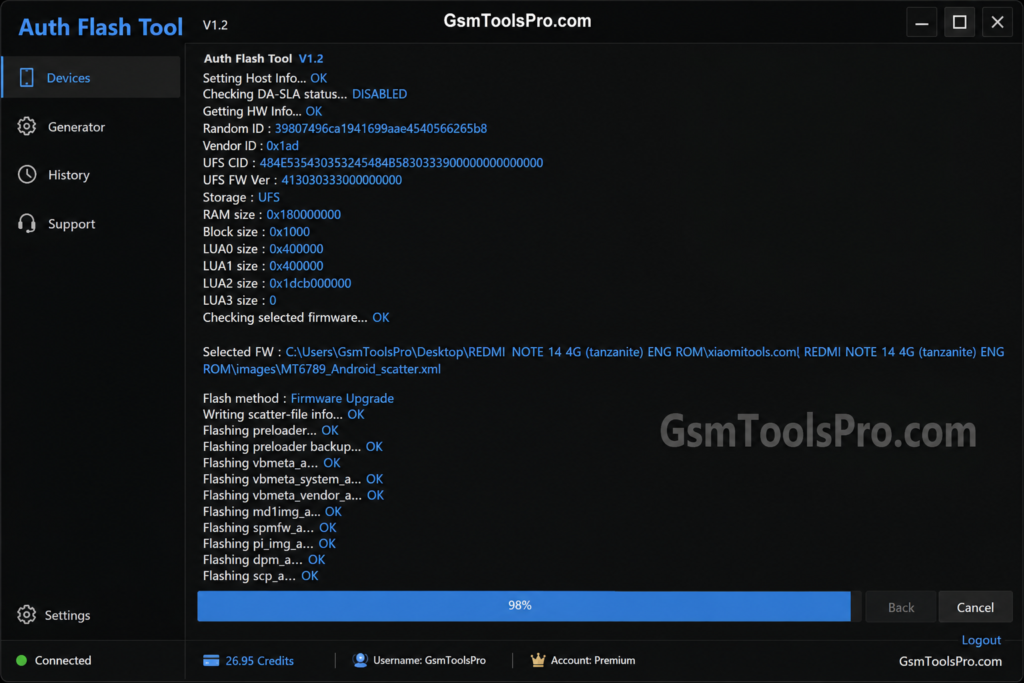
Latest Version Auth Flash Tool is a Windows Android servicing software designed for MediaTek (MTK) devices. It helps mobile technicians perform firmware flashing, FRP reset, factory reset, device information reading, and other software service tasks through authentication methods. With support for Xiaomi MTK smartphones and tools like BROM Mode, daily repairs work easily and quickly.
Why Do You Need to Use an Flash Auth Tool V1.2?
An Auth Flash Tool is useful when MediaTek (MTK) or Qualcomm devices have security restrictions that block normal flashing. It can help technicians handle firmware flashing, BROM Mode, Xiaomi, Redmi, POCO, Oppo, Realme, and Vivo devices. When standard tools cannot access protected partitions, an authentication-based solution may provide the required authorization for servicing operations.
Features of Auth Flash Tool V1.2
MTK Auth Bypass
MTK Auth Bypass helps technicians work with MediaTek (MTK) devices protected by V5 and V6 security. It improves communication between the tool and the smartphone, supporting authorized servicing tasks such as firmware flashing, device maintenance, and software repair on Xiaomi, Redmi, POCO, Oppo, Vivo, and Realme devices.
Flash Stock Firmware
Flash Stock Firmware lets technicians install ROM files on Android devices. It can restore the original operating system, fix software errors, and help recover devices stuck in a boot loop. Authenticated flashing may be required for protected MediaTek devices.
Remove FRP Lock
Remove FRP Lock helps technicians service Factory Reset Protection (FRP) on Android devices. It can work with Google account lock removal after a factory reset. FRP Lock varies across MediaTek, Xiaomi, Redmi, POCO, Oppo, Vivo, and Realme devices.
Factory Reset
Factory Reset clears user data and restores Android devices to their default software state. It fixes software issues, removes screen settings, and prepares a smartphone for reuse or testing through MediaTek servicing modes.
Read Device Information
The tool can read device information details of MediaTek (MTK) devices. Technicians can check information such as chipset, software version, storage, and device details before firmware flashing or repair, helping identify the correct servicing method and firmware.
Safe Format
Safe Format helps technicians erase selected areas of Android devices without performing a complete firmware installation. It can be useful for software troubleshooting and partition management while working with MediaTek (MTK) devices and servicing modes.
User-Friendly Interface
Auth Flash Tool latest 2026 has a simple and clear interface that makes Android servicing easier. Technicians can quickly find options for MTK, BROM Mode, firmware flashing, FRP, factory reset, and device information. Its organized layout helps users perform supported tasks with fewer steps.
Common Error & Solution for Latest Flashing Tool
| Error | Solution |
| Second Verification Required | Enable 2FA from your account security settings and enter the verification code sent to your email. |
| Weak Password | Create a 12+ character password using uppercase, lowercase, numbers, and special characters. |
| Tool Crashes or Missing Files | Check Windows Security/antivirus settings and use files from a trusted source. |
| OTP Not Valid / Already Used | Request a fresh OTP and enter it before it expires or gets reused. |
| Flashing Stops Midway | Check USB connection, MTK/Qualcomm drivers, and internet stability before starting the flash. |
What’s New in Auth Tool 2026?
- Improved MTK authentication process
- Better support for MediaTek V5 and V6 devices
- Improved Xiaomi device compatibility
- Faster device detection and flashing
- Better Fastboot and EDL communication
- Improved firmware flashing stability
- Enhanced EFS backup and restore
- Updated user interface
- Better Windows compatibility
- More stable device repair performance
System Requirements for Auth Flash Setup 2026
| Requirement Category | Details |
| Compatible with Windows OS | Windows 7, Windows 8, Windows 10, Windows 11 (preferably 64-bit) |
| Needed USB Drivers | Latest MediaTek (MTK) USB VCOM Drivers |
| Processor (CPU) | Dual-core processor or higher |
| RAM | 4 GB RAM or above |
| Storage Space | Minimum 500 MB free disk space |
| USB Port | At least one working USB port |
| Internet Connection | Required for certain operations and updates |
How to Download the AuthFlash Tool
- Download Auth Flash Tool V1.2 from a trusted source.
- Check that the downloaded file is complete.
- Verify the file before installation.
- Extract the tool using a suitable archive utility.
- Install the required MediaTek (MTK) drivers.
- Run the tool on a compatible Windows PC.
- Connect the supported Android device correctly.
- Use the latest version for better MTK V5/V6 compatibility.
Auth Flash Tool V1.2 tested version download File Information
| File Detail | Information |
| Tool Name | Auth Flash Tool |
| Version | V1.2 |
| File Type | ZIP / RAR Package |
| Platform | Windows |
| Device Support | MediaTek (MTK) Android Devices |
| MTK Support | V5 & V6 |
| Main Use | Firmware Flashing & Device Servicing |
| USB Driver | MediaTek USB VCOM |
| Internet | Required for Some Operations |
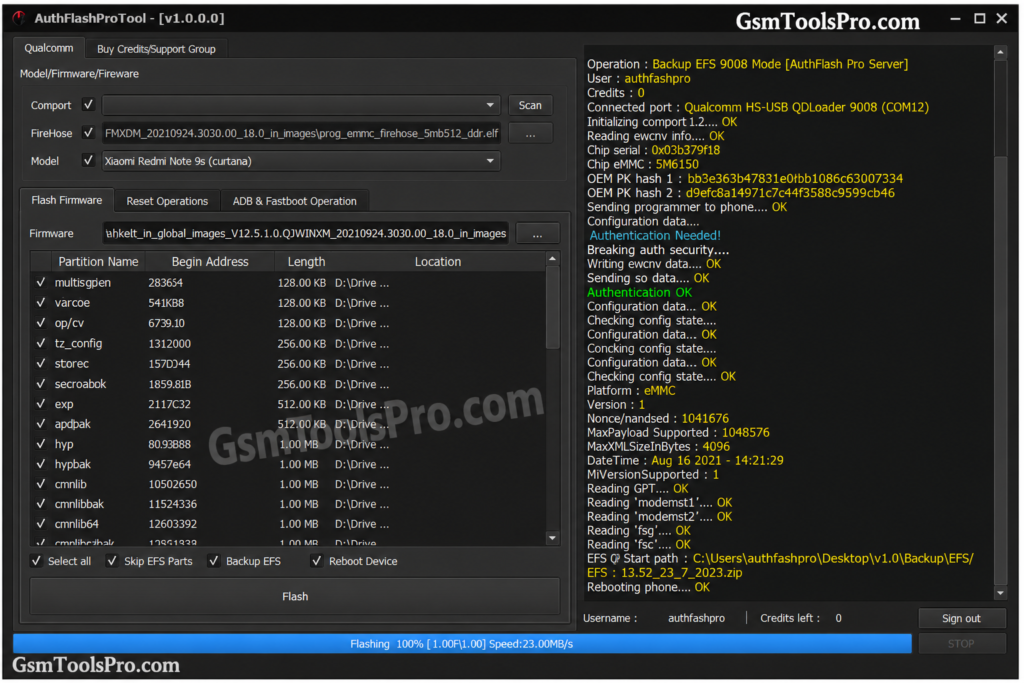
How to Install Auth Flash Tool V1.2
Install Required Drivers
- Install the latest MediaTek USB VCOM Drivers.
- Restart Windows if required.
- Connect the Android device after driver installation.
Installation Steps
- Download the Auth Flash Tool package.
- Extract the ZIP/RAR file using WinRAR or 7-Zip.
- Open the extracted folder.
- Right-click the tool executable.
- Select Run as Administrator.
- Wait for the tool to open
First Launch
- Allow required Windows security or firewall permissions.
- Check MediaTek device detection.
- Confirm drivers are working before servicing.
Also Read: BFT Tool v1.8 Best Flash By BossV Download Latest Version (100% Working)
Conclusion
Auth Flash Tool V1.2 is a useful Windows Android servicing tool for MediaTek (MTK) devices. It helps technicians with firmware flashing, MTK authentication, FRP reset, Factory Reset, and device information. With correct drivers, firmware, and a compatible device, the tool makes common software servicing tasks easier.
FAQ’s
Is Auth Flash Tool Free?
Auth Flash Tool may offer free features depending on the version. Advanced operations may require authentication, credits, or an active service account.
Is Auth Flash Tool Compatible with MTK V6?
Yes. Auth Flash Tool V1.2 provides improved compatibility with supported MediaTek V5 and V6 devices.
Can Auth Flash Tool Remove FRP?
Yes, it provides FRP servicing for supported MediaTek Android devices. Use FRP features only on devices you own or are authorized to repair.
Is Login Required?
Login requirements depend on the Auth Flash Tool version and operation. Server-based services may require account authentication.
Why Does “Second Verification Required” Appear?
Enable Two-Factor Authentication (2FA) from your account dashboard, complete email verification, and log in again.
Why Does Auth Flash Tool Crash on Startup?
Check whether Windows Security or antivirus software has quarantined required application files. Only restore or allow files when you have verified that the software comes from a trusted source.
Why Does My OTP or Auth Key Show “Not Valid”?
A server-issued OTP or authentication key may expire or become invalid after use. Request a new valid code or key through the authorized service channel and try again.

![TTA EDL Tool V1.0.4 Latest Version Download [2026]](https://gsmtoolspro.com/wp-content/uploads/2026/09/TTA-EDL-Tool-V1.0.4-Latest-Version-Download-2026-2-768x576.png "TTA EDL Tool V1.0.4 Latest Version Download [2026] 4")