BFT Tool Failed to Check for New Version: 100% Working Solution
BFT Tool may show “Failed to Check for New Version” even when your internet works, often due to Firewall, antivirus, VPN, DNS, outdated files, or server issues. This guide identifies the real cause, fixes the update connection, resolves MSVCR100.dll/MSVCP100.dll errors, and helps restore BFT Tool safely without unnecessary flashing or data loss.
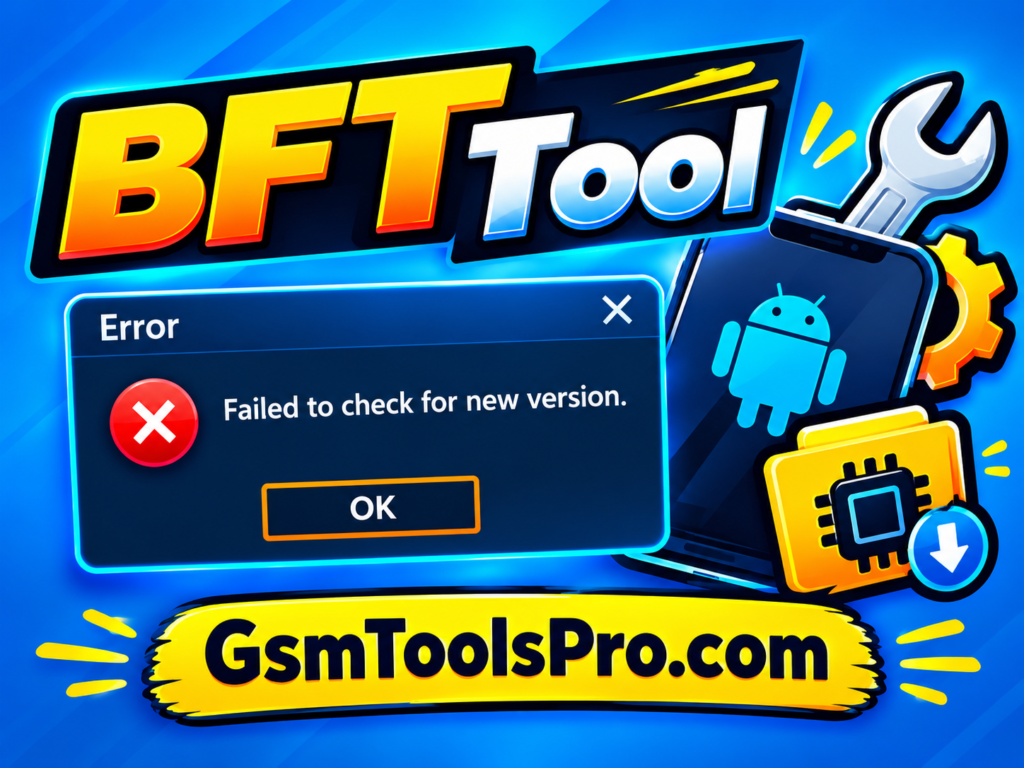
Download From Here: BFT Tool v1.8 Best Flash By BossV Download Latest Version (100% Working)
What Does “BFT Tool Failed to Check for New Version” Mean?
The “BFT Tool Failed to Check for New Version” error means the BFT Tool cannot connect to its online update server when starting on Windows. The tool checks for a newer version through an internet connection. If the network is unstable or Windows Firewall or a proxy blocks the connection, this message appears. It does not always mean the BFT Tool is damaged or corrupted; the problem is often related to the update connection.
Why Does the BFT Tool Fail to check for a new version?
Internet Connection Problem
BFT Tool checks its update service through the internet when it starts. If your connection is offline, slow, or unstable, the tool may fail to contact the server and show this version-check error.
BFT Update Server Unavailable
The problem may come from the BFT update server itself. If the server is temporarily down, busy, or not responding, BFT Tool cannot verify whether a newer version is available.
Windows Firewall Blocking the Tool
Windows Firewall can restrict BFT Tool from making network connections. If the application is blocked, it may not reach the update service even when your PC has a working internet connection.
Antivirus Interference
Third-party antivirus or security software may treat BFT Tool as an untrusted application and restrict its network access. This can prevent the tool from contacting its update server during startup.
Outdated or Damaged BFT Tool Files
An old, incomplete, or damaged BFT Tool package can cause startup and update-check problems. Missing or changed program files may stop the software from completing its normal version-check process.
Incorrect Windows Date and Time
Incorrect Windows date, time, or time zone can sometimes affect secure network connections. When system time is wrong, applications may have trouble communicating with online services correctly.
DNS or Network Restrictions
DNS problems, proxy settings, VPNs, or network restrictions can interfere with BFT Tool’s connection to its update service. Windows also notes that proxy and DNS issues can affect application connectivity.
How to Fix BFT Tool Failed to Check for New Version?
Internet Connection Problem
BFT Tool needs internet access to check its update service. A weak, disconnected, or unstable connection can stop this request. Test websites first, then reconnect Wi-Fi or try another network before launching BFT Tool again.
BFT Update Server Unavailable
Sometimes your PC is working normally, but the BFT update server is temporarily unavailable. In this case, the tool cannot complete its version check. Wait for the service to return and try opening BFT Tool again.
Windows Firewall Blocking the Tool
Windows Firewall can restrict an application from communicating through the network. If BFT Tool is blocked, add its trusted executable to Allow an app through the firewall instead of opening unnecessary ports.
Antivirus Interference
Third-party antivirus or Windows Security may restrict an unfamiliar BFT Tool executable. Check the security software’s blocked or quarantine list and verify whether BFT Tool has been prevented from running or accessing the network.
Outdated or Damaged BFT Tool Files
An old or incomplete BFT Tool package may cause problems during startup or version checking. Replace the existing files with a fresh, trusted copy and avoid mixing files from different BFT Tool versions.
DNS or Network Restrictions
DNS problems, proxy settings, or network restrictions can prevent BFT Tool from reaching its update service. Try flushing the DNS cache and checking Settings > Network & Internet > Proxy for unwanted manual settings.
How to Fix MSVCR100.dll or MSVCP100.dll Errors?
If BFT Tool shows an MSVCR100.dll or MSVCP100.dll missing error, install or reinstall the Microsoft Visual C++ 2010 Redistributable from Microsoft. Install the required x86 and x64 packages, then restart Windows and launch BFT Tool again. Microsoft provides the official Visual C++ 2010 Redistributable installers.
How to Find the Real Cause
| Diagnostic Check | What It Tells You |
| Browser loads websites normally | Your basic internet connection is working, meaning the blockage is specific to the BFT Tool or its network access. |
| Disabling VPN / Proxy resolves the error | A VPN or custom proxy setting was interfering with or re-routing the update server connection. |
| Allowing the app through Firewall / Antivirus fixes it | Windows Firewall or your security software was actively blocking the tool. |
| Tool works on another network (e.g., Mobile Hotspot) | Your primary Wi-Fi or local network has specific DNS, proxy, or router filtering issues. |
| Installing missing runtimes (C++, .NET) fixes startup | Your system was missing essential Windows dependencies or runtime drivers. |
| Error persists across all networks and settings | The update server itself may be experiencing temporary downtime, or the tool version may be permanently restricted or banned. |
Important Safety Tips
Before troubleshooting the BFT Tool Failed to Check for New Version error, make sure you are using the tool from a trusted source. Before any repair or flashing operation, follow these basic precautions:
- Confirm the exact device model and variant.
- Use firmware that matches the device.
- Install the required USB drivers.
- Keep the phone sufficiently charged.
- Use a reliable USB data cable.
- Do not disconnect the device during flashing.
- Back up important data when possible.
- Double-check settings before starting any operation.
- Only service devices you are authorized to repair.
Alternative to BFT Tool
Hunter Tool V4.6.5 is another Windows-based Android servicing option for technicians who work with different device platforms. It supports MediaTek (MTK) and Qualcomm phones and includes tools for firmware flashing, factory reset, selected IMEI and QCN tasks etc. Its actual functions depend on the phone model, chipset, and security level, so it is better for technicians who need broader Android servicing coverage rather than a tool for one specific repair task.
![Hunter Tool V4.6.5 Download Free MTK & Qualcomm 2026 [Working Setup]](https://gsmtoolspro.com/wp-content/uploads/2026/09/hunter-tool-v4-6-5-download-free-mtk-qualcomm-2026-working-setup-1-1024x683.png "BFT Tool Failed to Check for New Version: 100% Working Solution 2")
Also read Recommended: Hunter Tool V4.6.5 Download Free 2026 [Working Setup]
Or check from trusted sites: BFT FAIL TO CHECK NEW VERSION
Conclusion
The “BFT Tool Failed to Check for New Version” error usually points to a failed update connection instead of a phone or firmware problem. Before reinstalling, check your internet connection, Windows Firewall, antivirus, DNS, VPN, and BFT update server first. If the connection is working. Most importantly, do not start unnecessary flashing or firmware operations because of a simple version-check error. Careful troubleshooting can help restore the BFT Tool without affecting your device.
FAQS
Why are people still facing this BFT Tool error?
This error appears when BFT Tool cannot connect to its online update server during startup. Common reasons include missing Visual C++ Redistributables, .NET Framework, or DirectX, outdated Windows, an old tool version, firewall or antivirus blocking, VPN/proxy issues, or temporary BFT server problems.
Why does BFT Tool fail when internet works in the browser?
A working browser does not always mean every desktop application can access the internet. Windows Firewall, antivirus, VPN, proxy, or DNS settings may block BFT Tool’s update request while other applications continue working normally. The BFT update server can also be temporarily unavailable.
Can MSVCR100.dll or MSVCP100.dll errors be related to BFT Tool?
Yes. MSVCR100.dll and MSVCP100.dll are Microsoft Visual C++ runtime files. If the required Visual C++ Redistributable is missing or damaged, BFT Tool may show DLL or runtime errors when starting. Installing the correct Microsoft Visual C++ package can resolve these missing DLL problems.
Is reinstalling BFT Tool the first solution?
No. Reinstalling BFT Tool should not be the first step. The problem is often related to internet access, firewall, antivirus, or missing Windows components. Reinstall the tool only when its files are damaged, it does not launch correctly, or you need to install a correct and trusted version.
![Flash Sony Xperia Firmware Using Sony Flash Tool Working [2026] (3)](https://gsmtoolspro.com/wp-content/uploads/2026/09/Flash-Sony-Xperia-Firmware-Using-Sony-Flash-Tool-Working-2026-3-768x577.png "Flash Sony Xperia Firmware Using Sony Flash Tool Working [2026] 4")