How to Connect Phone to TFT Unlock Tool v6.3.1.1
Connecting a phone to the TFT Unlock Tool can fail when the wrong service mode, USB driver, or cable is used. This guide shows how to connect supported Android, MediaTek, Qualcomm, and Samsung devices through ADB, Fastboot, BROM, EDL, and Download Mode, while fixing common detection issues before FRP or factory reset operations.
Understanding How the TFT Unlock Tool Connects to Android Phones
Why the Connection Mode Matters
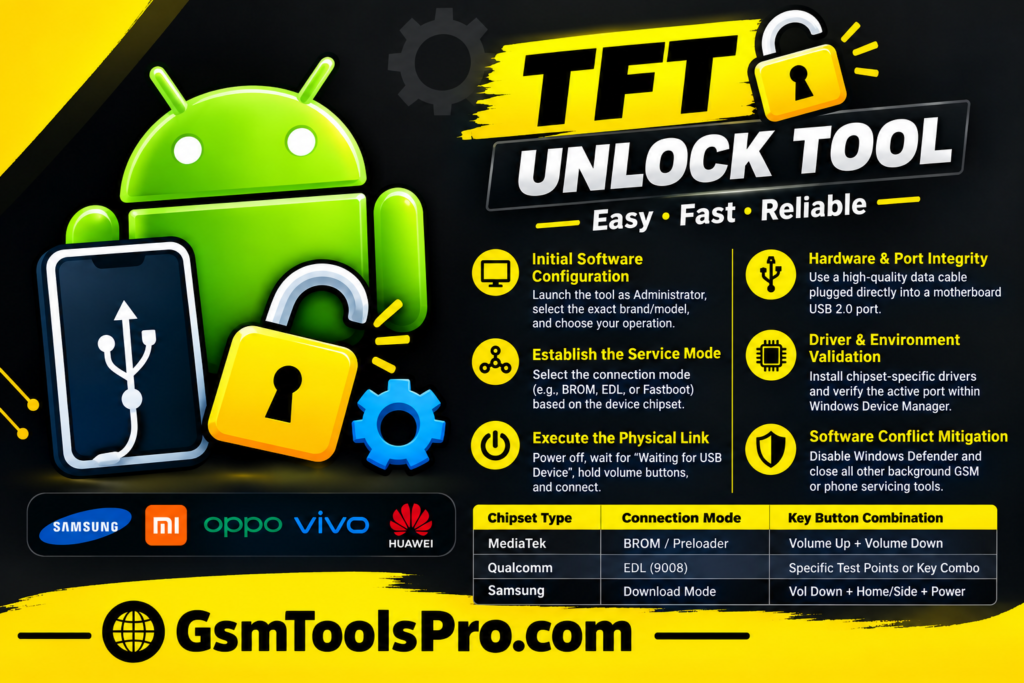
The connection is not as simple as connecting a PC to transfer media files; it’s a different way to connect the mobile to a PC through the TFT tool. For servicing, the connection requires modes like ADB, Fastboot, MediaTek BROM, Qualcomm EDL, or Samsung Download Mode; the right connection makes the device fully functional and ready for servicing.
Phone Model and Chipset Identification
The TFT tool supports various models and chipsets; the right model and chipset brands can make the connection. Otherwise, you’ll face the same connection problem. The software supports mobile brands including Samsung, Xiaomi, Infinix, Tecno, Vivo, Oppo, Realme, Nokia, and Lenovo, & The Cipsets EDL, Snapdragon, and Sideload.
TFT Unlock Tool Connection Modes
ADB Mode
The Android Debug Bridge (ADB) mode connects to an Android phone while it is on. USB Debugging must be enabled in Developer Options, and the computer must be authorized on the phone. TFT Unlock Tool can then communicate with devices for information reading and selected servicing tasks.
Fastboot Mode
Fastboot Mode starts the phone in its bootloader environment. It is commonly used for bootloader operations, partition management, factory reset, and system information. In Windows Device Manager, Android phones usually appear as Android Bootloader Interface when connected correctly.
MediaTek BROM/Preloader Mode
MediaTek phones can connect in BROM or Preloader Mode when powered off. These modes help TFT Unlock Tool communicate with the MediaTek chipset for supported servicing tasks. In Windows Device Manager, the phone may appear as MediaTek USB Port or an MTK USB Port.
Qualcomm EDL Mode
EDL (Emergency Download Mode) is a low-level service mode used on phones with Qualcomm Snapdragon chipsets. It allows tools to communicate with the device when Android is not running. When connected correctly, Windows Device Manager commonly shows Qualcomm HS-USB QDLoader 9008.
Samsung Download Mode
Samsung Download Mode, also called Odin Mode, is used for firmware repair. It allows tools to communicate with supported Samsung Galaxy phones through USB. Users can enter this mode using the phone’s key combination or a software reboot method when available.
Recovery and Sideload Mode
Recovery Mode is a separate Android environment used for system maintenance. ADB Sideload allows a computer to communicate with the phone through Recovery. On devices, TFT Unlock Tool may use this connection for tasks such as data wiping, factory reset, or other recovery servicing operations.
TFT Tool Pro Connection Checklist
Before connecting your phone to TFT Unlock Tool, check these basic requirements:
- Windows Defender / Antivirus: Security software may block TFT Unlock Tool files. If this happens, add the trusted tool folder to the antivirus exclusion list.
- Run as Administrator: Right-click TFT Unlock Tool and select Run as Administrator so the tool can properly access required Windows services and USB ports.
- Close Other Tools: Close Odin, SP Flash Tool, MTK Client, and other phone servicing programs. They may interfere with the USB connection or COM port.
- Use a Data Cable: Use a good-quality USB data cable. A charging-only cable can charge the phone but will not allow Windows to detect it.
- Use a Direct USB Port: Connect the phone directly to the PC’s USB port, preferably a rear motherboard port. Avoid USB hubs when possible.
- Check Battery Level: Keep the phone battery at least 20% charged. A low battery can cause the device to restart or disconnect during detection.
Download Here: TFT Tool Pro
or visit: Official site
How to Connect a Phone to the TFT Tool Pro
Step 1: Launch TFT Unlock Tool
Open TFT Unlock Tool as Administrator. Make sure the tool and required drivers are properly installed.
Step 2: Select the Brand
Choose your phone brand, such as Samsung, Xiaomi, Infinix, Vivo, or Tecno.
Step 3: Select the Model
Find and select the exact phone model supported by the tool.
Step 4: Choose the Operation
Select the required supported service, such as FRP Reset, Factory Reset, or Device Information.
Step 5: Check the Connection Mode
Check which mode the selected operation requires, such as ADB, Fastboot, BROM, EDL, or Download Mode.
Step 6: Start the Operation
Click the required action and wait until TFT Unlock Tool shows “Waiting for USB Device.”
Step 7: Prepare the Phone
Turn off the phone completely and prepare the required USB connection mode.
Step 8: Connect the USB Cable
Use a proper USB data cable and connect the phone while following the model-specific button instructions.
Step 9: Confirm Detection
Check the TFT Unlock Tool log. A successful connection should show the device, chipset, USB port, or connection status.
How to Connect MediaTek Phones in BROM Mode
Power Off the Phone
Turn off the MediaTek Android phone completely. Make sure the screen is fully black before connecting the USB cable.
Use the Correct Button Combination
Hold the required volume key combination for your specific model, then connect the USB data cable. Common options include Volume Up + Volume Down, Volume Up, or Volume Down.
Check MediaTek USB Detection
Open Windows Device Manager and watch for MediaTek USB Port or MTK USB Port. This confirms that Windows is detecting the phone in the required mode.
If BROM Mode Does Not Work
If the phone connects briefly and disconnects, check the MediaTek USB drivers, USB cable, and USB port. Reinstall the drivers and restart Windows before trying again.
How to Connect Qualcomm Phones to TFT Pro Software
Understanding EDL Mode
EDL (Emergency Download Mode) is a service mode used by Qualcomm Snapdragon phones. When connected correctly, the screen may stay black while Windows detects the device through a Qualcomm USB interface.
Check the Required Mode for Your Model
Select the correct Qualcomm device model in TFT Unlock Tool. After connection, Windows Device Manager may show Qualcomm HS-USB QDLoader 9008.
How to Connect a Phone Through ADB or Fastboot Mode
ADB Connection Requirements
For ADB Mode, the phone should be powered on with USB Debugging enabled in Developer Options. When prompted, allow the computer to access the device.
Fastboot Connection Requirements
For Fastboot Mode, turn off the phone and use its supported Fastboot key combination. Connect the USB cable and wait for Windows to detect the Android Bootloader Interface.
Confirm Device Detection
Open Windows Device Manager and check for Android Composite ADB Interface in ADB Mode or Android Bootloader Interface in Fastboot Mode.
Phone Is Charging, but TFT Unlock Tool Is Not Detecting It
If your phone only shows the charging animation, the USB connection may be providing power but not data communication. Common reasons include:
- Charge-Only Cable: Use a proper USB data cable that supports data transfer.
- Wrong Connection Timing: Start the required operation in the TFT Unlock Tool before connecting the phone.
- Dirty USB Port: Check the phone’s USB Type-C or Micro-USB port for dust or damage.
- Driver Problem: Check Windows Device Manager and reinstall the required USB drivers if the device is not detected correctly.
How to Check Whether Windows Detects Your Phone
Check Device Manager
Open Windows Device Manager while connecting the phone. Check Ports (COM & LPT) for MediaTek USB Port, Qualcomm HS-USB QDLoader 9008, or USB Serial Device. For ADB or Fastboot, check the Android Device section.
Check the TFT Unlock Tool Log
Check the TFT Unlock Tool log after connecting the phone. Messages about drivers or unsupported models can help identify the problem.
Identify Driver Problems
A yellow warning icon usually indicates a driver issue. If the device appears briefly and disappears, reinstall the correct MediaTek, Qualcomm, or Android USB drivers and reconnect the phone.
Phone Connection Problem or Driver Problem?
- Hardware Problem: If nothing changes in Windows Device Manager, try another USB cable, USB port, or check the phone’s charging port.
- Driver Problem: If Windows detects an Unknown Device or shows a yellow warning icon, the required USB driver may be missing or incorrect. Reinstall the proper driver and restart the PC.
Important Things to Check Before Using a Reset Function
Before using Factory Reset or Erase FRP in TFT Unlock Tool, check these points:
- Verify Ownership: Only service phones you own or have permission to repair.
- Back Up Data: A Factory Reset can erase photos, contacts, apps, and other data from internal storage.
- Check Google Account: After resetting, Google FRP may require the previously linked account details during device setup.
Conclusion
After downloading the tool, technicians face the problem that the tool is not working properly, or the device is not connecting. These problems are not software-related problems; these are simple issues due to less knowledge about the tool & how to run a tool. TFT tool is an Android servicing software. Sometimes your PC or antivirus disables the setup and corrupts the files, so first you have to disable the antivirus and grant permission to the tool.
FAQ’s
Why does TFT Unlock Tool show “No Internet Connection”?
This can happen because of firewall settings, antivirus, VPN/proxy, unstable internet, or an outdated tool version.
Why is a supported FRP option missing for my phone?
A feature may not appear for every model or software version. Forum users have reported cases where an expected Samsung FRP option was missing even in newer TFT versions.
Why does TFT Unlock Tool work on one phone but not another?
Support can vary by model, chipset, Android version, security level, and TFT module. A feature working on one device does not guarantee the same result on another.
![Flash Sony Xperia Firmware Using Sony Flash Tool Working [2026] (3)](https://gsmtoolspro.com/wp-content/uploads/2026/09/Flash-Sony-Xperia-Firmware-Using-Sony-Flash-Tool-Working-2026-3-768x577.png "Flash Sony Xperia Firmware Using Sony Flash Tool Working [2026] 4")